We’ve already heard that the OnePlus 11 will feature the new Qualcomm Snapdragon 8 Gen 2 chipset straight from OnePlus, but according to a reliable source, that’s just the tip of the iceberg of what we can expect from the company’s next flagship smartphone. The OnePlus 11 will benefit from three major upgrades, if reliable leaker Digital Chat Station is to be believed.
While the OnePlus 10 Pro is barely underpowered in the RAM department with 12GB of RAM, the OnePlus 11 will apparently hit 16GB. This puts it in line with the Samsung Galaxy S21 Ultra and OnePlus 10T.
UFS 4.0: Why does it matter?
Also on the table is an upgrade to UFS (Universal Flash Memory) 4.0. This would make the OnePlus 11 one of the first phones to feature it, and it should offer major improvements in speed and efficiency.
UFS 3.1 has read and write speeds of up to 2,100MB/s and 1,200MB/s, respectively, while UFS 4.0 boosts it to 4,200MB/s and 2,800MB/s, respectively. It can also reach speeds of 23.2Gbps per lane, twice as fast as its predecessor. You can also expect a 46% increase in efficiency, which means longer battery life.
Finally, Digital Chat Station says the OnePlus 11 will feature a metal frame and a ceramic body. OnePlus is no stranger to this, using it on special editions of both 2015’s OnePlus X and last year’s OnePlus 10 Pro.
Note, however, that the last tip is controversial. The well-informed Max Jambor popped up on Twitter, saying that the ceramic body didn’t happen after all. Although he does support the UFS 4.0 statement – which is more important in the larger plan.
Speaking of Jambor, the leaker also does a good job of explaining why these good-sounding updates are coming to the OnePlus 11 and not the OnePlus 11 Pro: thanks to the simplified rebranding, they’re the same.
After launching iPads with LCD and miniLED display technology over the past decade, Apple is said to be preparing to launch an OLED iPad. While other competitors already offer tablets with OLED displays, why is Apple taking so long, why it plans to do it now, and which models will get the perfect blacks that this technology features.
Why is Apple now preparing to launch an OLED iPad?
Apple analyst Ming-Chi Kuo suggested the first OLED iPad would be launched in 2022, but then said that plan had been abandoned. In a later report, the analyst said that Apple still expects to launch an OLED iPad sometime in the near future.
DSCC’s Ross Young recently talked about why, after so many years, Apple decided to make an OLED iPad – the answer is simple. Costs are falling. Young believes that not only will the performance of OLED panels improve in the next few years, but the cost of large factories will also come down, thanks to tandem stacking and blue phosphorescent emitters.
When should we expect the OLED iPad to be released?
According to DSCC Ross Young, Apple will focus on this iPad starting in 2024. The Elec said in a report last year that Apple is slowly transitioning to four display technologies for its products.
It started with IPS LCD with traditional backlight, IPS LCD with miniLED backlight, now used in 12.9-inch iPad Pro and 14-inch and 16-inch MacBook Pro, and in the near future, OLED.
The report believes that the first OLED iPads—and even OLED MacBooks—are expected to appear around 2023-2026. Today, 2024 seems like the perfect time for an iPad, and 2026 is the perfect time for a Mac.
After this transition, Apple will eventually move to microLED: despite the similar name to miniLED, it’s a completely different technology. It’s actually a more complex version of OLED. It’s brighter, uses less power, and doesn’t suffer from burn-in. Apple’s interest in microLEDs dates back to at least 2014, and while there are some signs of progress, the technology is still in very early stages of development. Like OLED, it’s likely to appear on the Apple Watch first, followed by iPhones, iPads, and Macs.
When analyst Ming-Chi Kuo first said Apple was preparing an OLED iPad, he expected the company to apply the technology to the iPad Air and then to the base model iPad and iPad mini, as it would focus miniLED technology on the iPad on the Pro.
But with DSCC Ross Young pointing out that the technology will improve a lot over the next few years and become cheaper, Apple may be readying a new generation of iPad Pros with OLED displays, followed by other iPads.
Taking the iPhone as an example, Apple is said to provide different kinds of OLED panels for the 14 series. Elec Report: TheElec has learned that Samsung Display will apply different grades of material on the OLED panels it manufactures for the upcoming iPhone 14 series, depending on the model grade.
It will use its latest and most advanced material set for higher-tier iPhone 14 models, and the previous-generation material set for lower-end models, the sources said. They said the move was to save costs.
With that in mind, it would make sense if the company followed the same trend across its entire iPad lineup.
We’re at least a few years away from seeing Apple launch an OLED iPad. While the time has not come, the company is expected to launch another iPad Pro with miniLED technology.
70mAh 3.7V Samsung CP1454 Batteries for Samsung Galaxy Buds+TWS, Samsung CP1454 Other battery is a brand new,100% Compatible original and replacement battery,Purchase wholesale and retail CP1454 with high quality and low price!
Find ou your original model number or part number(P/N), and move your eyes on the tag of battery
Descriptive: Replacement Battery – 1 Year Warranty
Description: Brand New, 1 Year Warranty! 30-Days Money Back! Fast Shipping!
How we test this Samsung CP1454 Battery Step 1: Make sure customer bought the correct battery. Step 2: Check battery’s appearance and interface. Step 3: Test battery charger and recharger function. Step 4: Charger the battery to 100% and recharger to 0% to get real battery capacity Step 5: Use Ev2300 to check the voltage difference of each goroup cells. Step 6: Charger battery power more than 30%. Step 7: Package battery carefully and send out
Compatible Model Numbers: Samsung Galaxy Buds+TWS Bose Headphones
How much do you know about how to run laptop well as any place? The follow Tips cut way back on protecting battery life.
1). Please recharge or change your Other battery when battery power low. 2). Using Li-Ion Replacement Samsung CP1454 Other Battery for your notebook which can work longer time than Non Li-ion one. 3). It is better to defragmentation regularly for your Other battery life. 4). In order to reduce the laptop power consumpition, you can use some optical drive spin-down and hard drive in your Other . 5). Please keep your laptop in sleep or standby model without long time using, which both save the Replacement Samsung CP1454 Other Battery power and extend battery using life. 6). Leave your battery in a dry and cool condition when without using. 7). When you rarely or generally plugged in fixed power using, Please take down your battery to avoid hurting battery life.
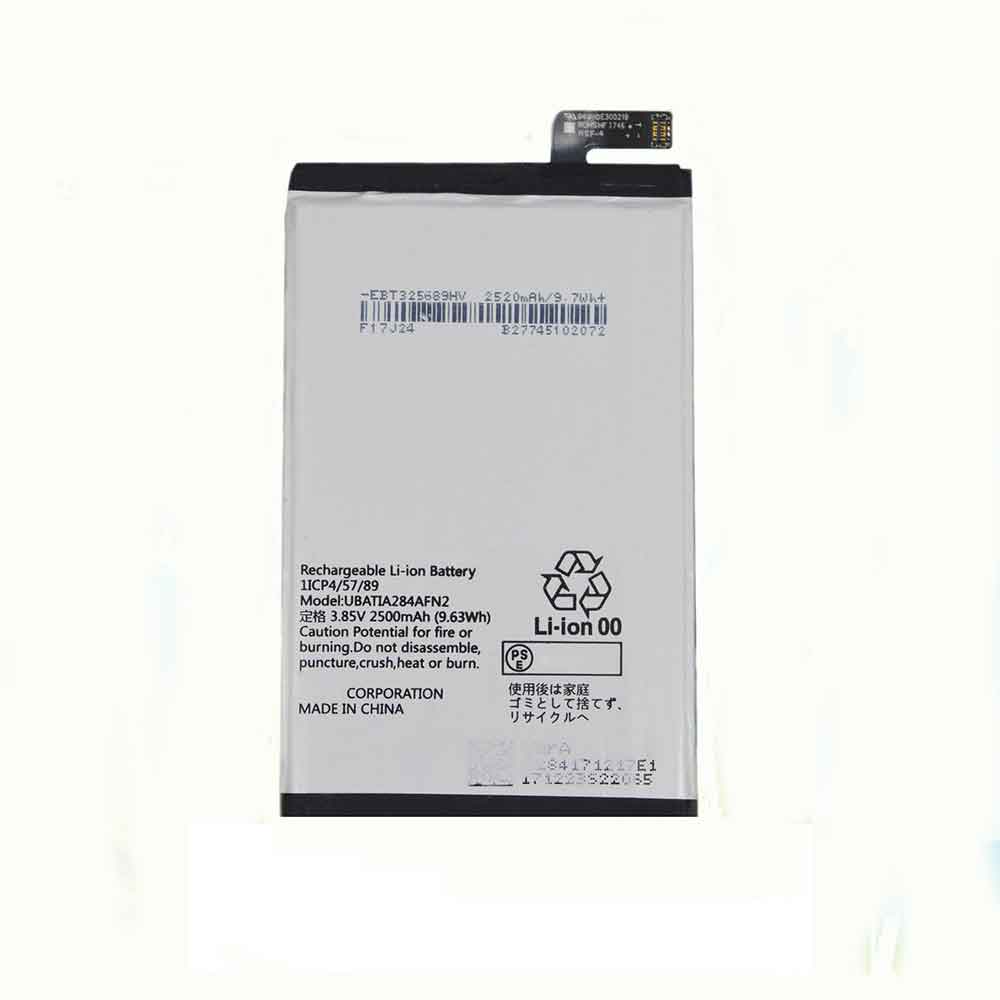
2500mAh 3.85V Sharp UBATIA284AFN2 Batteries for Sharp RC RCompact SHv41 701SH, Sharp UBATIA284AFN2 Cell Phone battery is a brand new,100% Compatible original and replacement Phone battery,Purchase wholesale and retail UBATIA284AFN2 with high quality and low price!
Find ou your original model number or part number(P/N), and move your eyes on the tag of battery
Descriptive: Replacement Battery – 1 Year Warranty
Description: Brand New, 1 Year Warranty! 30-Days Money Back! Fast Shipping!
How we test this Sharp UBATIA284AFN2 Battery Step 1: Make sure customer bought the correct battery. Step 2: Check battery’s appearance and interface. Step 3: Test battery charger and recharger function. Step 4: Charger the battery to 100% and recharger to 0% to get real battery capacity Step 5: Use Ev2300 to check the voltage difference of each goroup cells. Step 6: Charger battery power more than 30%. Step 7: Package battery carefully and send out
Compatible Model Numbers: Sharp RC RCompact SHv41 701SH
How much do you know about how to run laptop well as any place? The follow Tips cut way back on protecting battery life.
1). Please recharge or change your Cell Phone battery when battery power low. 2). Using Li-Ion Replacement Sharp UBATIA284AFN2 Cell Phone Battery for your notebook which can work longer time than Non Li-ion one. 3). It is better to defragmentation regularly for your Cell Phone battery life. 4). In order to reduce the laptop power consumpition, you can use some optical drive spin-down and hard drive in your Cell Phone . 5). Please keep your laptop in sleep or standby model without long time using, which both save the Replacement Sharp UBATIA284AFN2 Cell Phone Battery power and extend battery using life. 6). Leave your battery in a dry and cool condition when without using. 7). When you rarely or generally plugged in fixed power using, Please take down your battery to avoid hurting battery life.
70mAh 3.85V Sony Z55H Batteries for Sony WF1000XM4 Headphones, Sony Z55H Other battery is a brand new,100% Compatible original and replacement battery,Purchase wholesale and retail Z55H with high quality and low price!
Find ou your original model number or part number(P/N), and move your eyes on the tag of battery
Descriptive: Replacement Battery – 1 Year Warranty
Description: Brand New, 1 Year Warranty! 30-Days Money Back! Fast Shipping!
How we test this Sony Z55H Battery Step 1: Make sure customer bought the correct battery. Step 2: Check battery’s appearance and interface. Step 3: Test battery charger and recharger function. Step 4: Charger the battery to 100% and recharger to 0% to get real battery capacity Step 5: Use Ev2300 to check the voltage difference of each goroup cells. Step 6: Charger battery power more than 30%. Step 7: Package battery carefully and send out
Compatible Model Numbers: Sony WF1000XM4 Headphones
How much do you know about how to run laptop well as any place? The follow Tips cut way back on protecting battery life.
1). Please recharge or change your Other battery when battery power low. 2). Using Li-Ion Replacement Sony Z55H Other Battery for your notebook which can work longer time than Non Li-ion one. 3). It is better to defragmentation regularly for your Other battery life. 4). In order to reduce the laptop power consumpition, you can use some optical drive spin-down and hard drive in your Other . 5). Please keep your laptop in sleep or standby model without long time using, which both save the Replacement Sony Z55H Other Battery power and extend battery using life. 6). Leave your battery in a dry and cool condition when without using. 7). When you rarely or generally plugged in fixed power using, Please take down your battery to avoid hurting battery life.
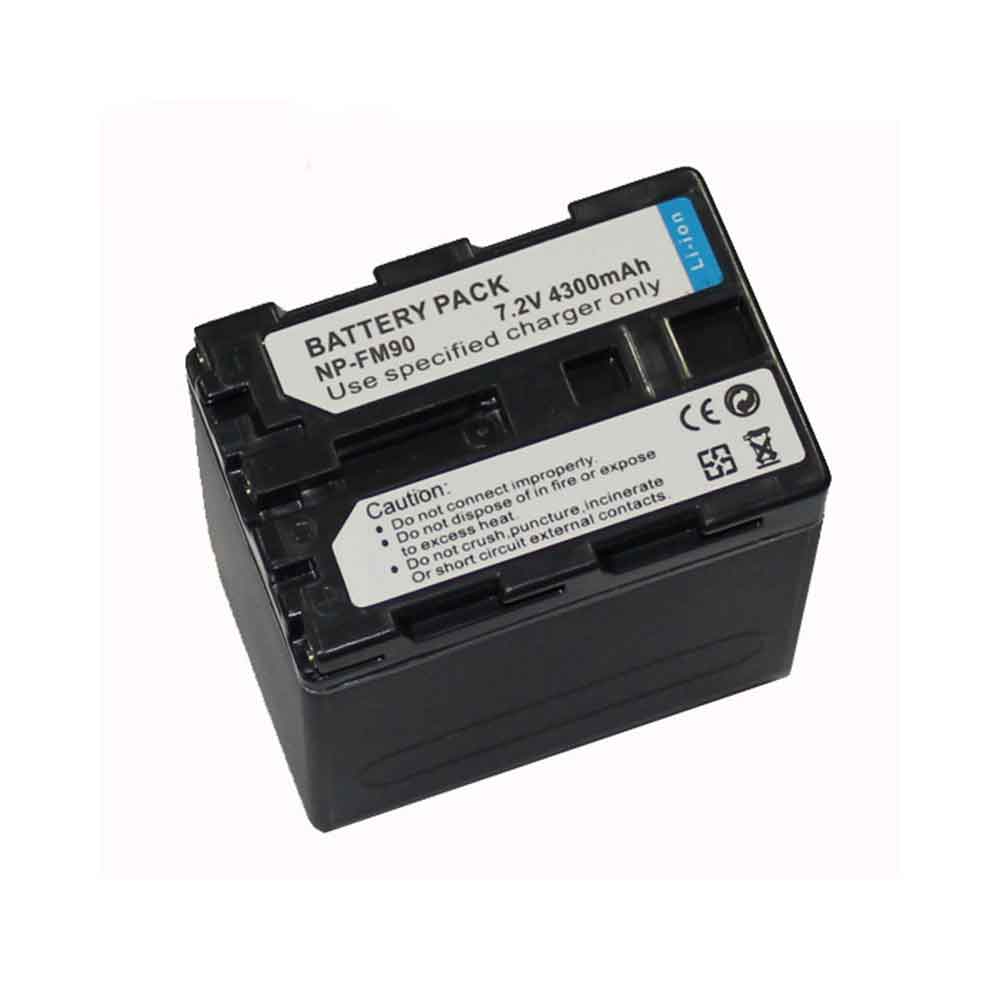
4300mAh 7.2V Sony NP-FM90 Batteries for Sony CCD-TRV108 CCD-TRV118 CCD-TRV128, Sony NP-FM90 Other battery is a brand new,100% Compatible original and replacement battery,Purchase wholesale and retail NP-FM90 with high quality and low price!
Find ou your original model number or part number(P/N), and move your eyes on the tag of battery
Descriptive: Replacement Battery – 1 Year Warranty
Description: Brand New, 1 Year Warranty! 30-Days Money Back! Fast Shipping!
How we test this Sony NP-FM90 Battery Step 1: Make sure customer bought the correct battery. Step 2: Check battery’s appearance and interface. Step 3: Test battery charger and recharger function. Step 4: Charger the battery to 100% and recharger to 0% to get real battery capacity Step 5: Use Ev2300 to check the voltage difference of each goroup cells. Step 6: Charger battery power more than 30%. Step 7: Package battery carefully and send out
Compatible Model Numbers: Sony CCD-TRV108/CCD-TRV118/CCD-TRV128/CCD-TRV138/CCD-TRV308/CCD-TRV318/CCD-TRV328/CCD-TRV338/CCD-TRV608/DCR-DVD100/DCR-DVD101/DCR-DVD200/DCR-DVD201/DCR-DVD300/DCR-DVD301/DCR-HC88/DCR-PC100/DCR-PC101/DCR-PC105/DCR-PC110/DCR-PC115/DCR-PC120BT/DCR-PC330/DCR-PC9/DCR-PC9E/DCR-TRV10
How much do you know about how to run laptop well as any place? The follow Tips cut way back on protecting battery life.
1). Please recharge or change your Other battery when battery power low. 2). Using Li-Ion Replacement Sony NP-FM90 Other Battery for your notebook which can work longer time than Non Li-ion one. 3). It is better to defragmentation regularly for your Other battery life. 4). In order to reduce the laptop power consumpition, you can use some optical drive spin-down and hard drive in your Other . 5). Please keep your laptop in sleep or standby model without long time using, which both save the Replacement Sony NP-FM90 Other Battery power and extend battery using life. 6). Leave your battery in a dry and cool condition when without using. 7). When you rarely or generally plugged in fixed power using, Please take down your battery to avoid hurting battery life.
Nothing can put a damper on your laptop experience quite like a faulty battery. From trouble charging to overheating and more, there are a few tell-tale signs to look for when a malfunctioning battery is affecting your laptop’s performance.
#1 You Have to Charge the Computer Often
One of the most obvious signs it may be time to reassess your laptop battery is if it dies much sooner than it used to. On average, expect a fully charged laptop battery to last six hours (depending on the programs used). But as the laptop battery ages, it doesn’t hold its charge for as long. If your laptop is barely making it past a couple hours, it’s likely a sign the battery needs replacing.
#2 Overheating
All laptops are designed to cool themselves during use and dispel excess heat. If you notice your laptop is hot to the touch, your battery is likely working too hard and unable to cool itself. Your battery is having to work harder to power applications. Often, an excessively hot laptop will also be noisy since the internal fans are working overtime to cool the gadget. This causes your computer to overheat, which can strain your computer. NOTE: Always unplug your laptop and stop use if the machine is overheating to avoid further damage.
#3 Your Laptop Keeps Shutting Down
While the occasional glitch may not always signify battery issues, be sure to make a note of how often your laptop powers down on you. If your Mac or PC powers off unexpectedly, and especially after a recent charge, you can likely assume a faulty battery is the cause. Try charging your laptop again, but if the problem persists your battery may be out of juice permanently. This may be a sign instead that your battery needs to be replaced. A bad battery doesn’t hold charge for very long, and your computer will unexpectedly power off.
#4 Age
While there are many great options for both Mac and PC fans on the market, no laptop is designed to last forever. If you’re experiencing power issues with your device, it may simply be due to its age. Don’t be surprised if you experience power issues. Generally, laptop batteries become problematic after 1-2 years or 300-400 charge cycles. If your laptop is older, your battery has likely been living on borrowed time and is ready to be replaced.
#5 Slow Charge
In addition to issues stemming from charging, it may also be a warning sign if your laptop charges exceptionally slowly. A healthy laptop battery will charge quickly and retain its power when disconnected from the charger. If your laptop is charging at a snail’s pace, or even worse- only charging when connected to the outlet, you may need to replace your laptop battery.
#6 System Report
In addition to performance issues, most laptops are already equipped with technology to check their overall health. For Mac users, expect to receive a battery service warning when service is needed. For Windows users, consider generating a battery report to check your battery’s health. Depending on the messages from your laptop, you can easily determine whether it’s time to replace your laptop battery.
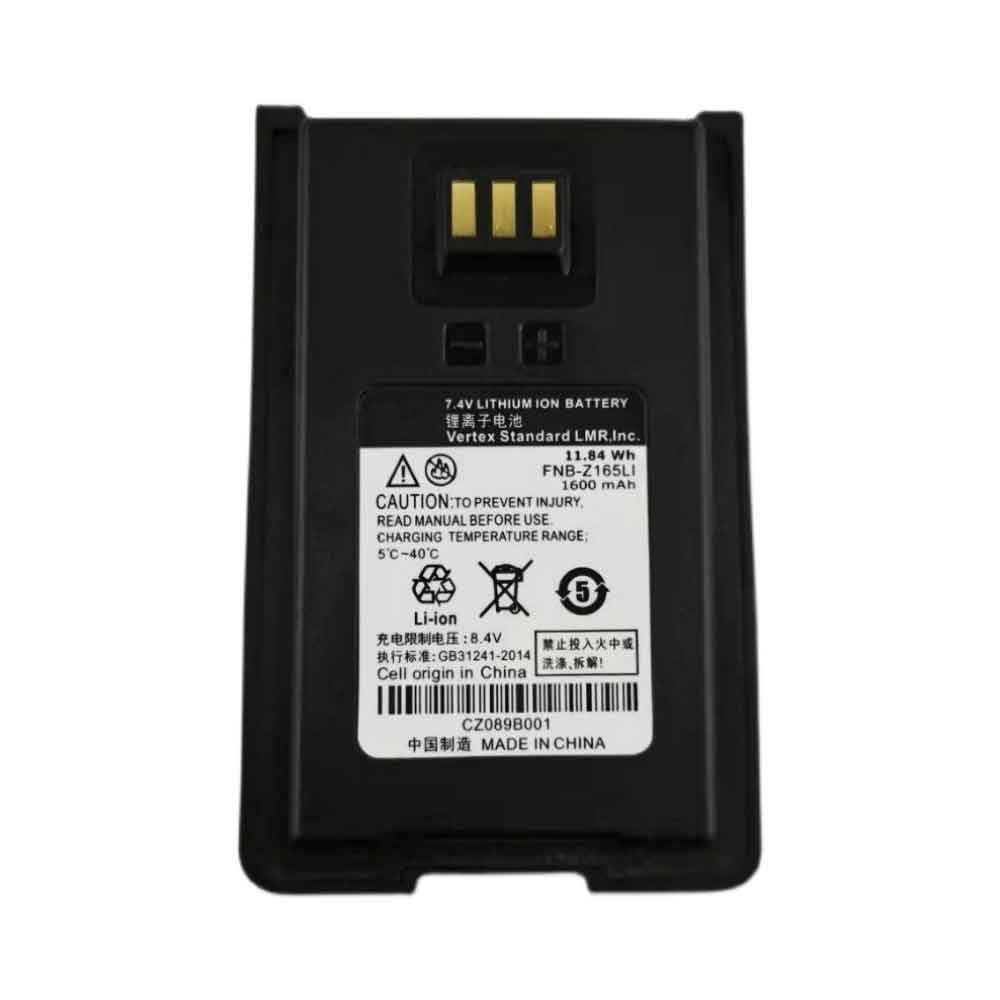
1600mAh 7.4V Motorola BP-298 Batteries for Motorola VZ-10 VZ-18 VZ-12 Radio, Motorola BP-298 Other battery is a brand new,100% Compatible original and replacement battery,Purchase wholesale and retail BP-298 with high quality and low price!
Find ou your original model number or part number(P/N), and move your eyes on the tag of battery
Descriptive: Replacement Battery – 1 Year Warranty
Description: Brand New, 1 Year Warranty! 30-Days Money Back! Fast Shipping!
How we test this Motorola BP-298 Battery Step 1: Make sure customer bought the correct battery. Step 2: Check battery’s appearance and interface. Step 3: Test battery charger and recharger function. Step 4: Charger the battery to 100% and recharger to 0% to get real battery capacity Step 5: Use Ev2300 to check the voltage difference of each goroup cells. Step 6: Charger battery power more than 30%. Step 7: Package battery carefully and send out
Compatible Model Numbers: Motorola VZ-10 VZ-18 VZ-12 Radio
How much do you know about how to run laptop well as any place? The follow Tips cut way back on protecting battery life.
1). Please recharge or change your Other battery when battery power low. 2). Using Li-Ion Replacement Motorola BP-298 Other Battery for your notebook which can work longer time than Non Li-ion one. 3). It is better to defragmentation regularly for your Other battery life. 4). In order to reduce the laptop power consumpition, you can use some optical drive spin-down and hard drive in your Other . 5). Please keep your laptop in sleep or standby model without long time using, which both save the Replacement Motorola BP-298 Other Battery power and extend battery using life. 6). Leave your battery in a dry and cool condition when without using. 7). When you rarely or generally plugged in fixed power using, Please take down your battery to avoid hurting battery life.
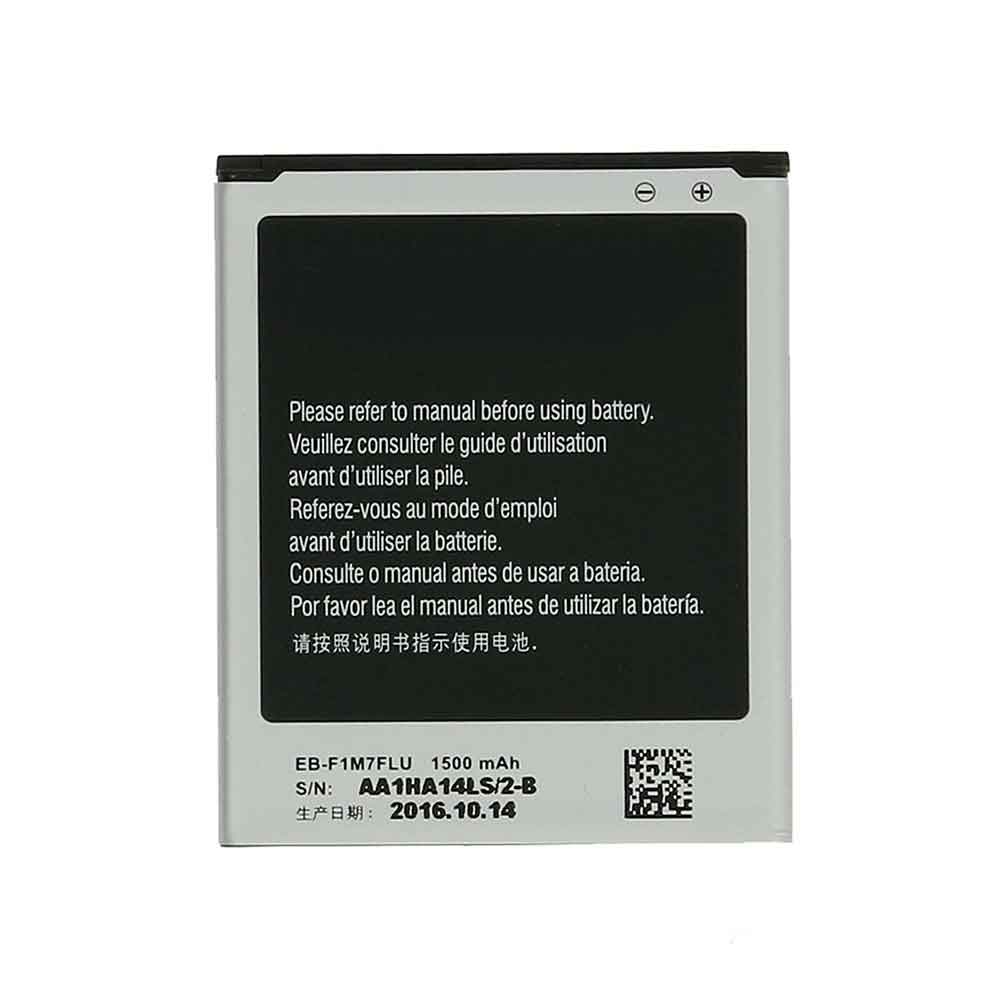
1500mAh 3.8V Samsung EB-F1M7FLU Batteries for Samsung Galaxy S3 Mini, Samsung EB-F1M7FLU Cell Phone battery is a brand new,100% Compatible original and replacement Phone battery,Purchase wholesale and retail EB-F1M7FLU with high quality and low price!
Find ou your original model number or part number(P/N), and move your eyes on the tag of battery
Descriptive: Replacement Battery – 1 Year Warranty
Description: Brand New, 1 Year Warranty! 30-Days Money Back! Fast Shipping!
How we test this Samsung EB-F1M7FLU Battery Step 1: Make sure customer bought the correct battery. Step 2: Check battery’s appearance and interface. Step 3: Test battery charger and recharger function. Step 4: Charger the battery to 100% and recharger to 0% to get real battery capacity Step 5: Use Ev2300 to check the voltage difference of each goroup cells. Step 6: Charger battery power more than 30%. Step 7: Package battery carefully and send out
How much do you know about how to run laptop well as any place? The follow Tips cut way back on protecting battery life.
1). Please recharge or change your Cell Phone battery when battery power low. 2). Using Li-Ion Replacement Samsung EB-F1M7FLU Cell Phone Battery for your notebook which can work longer time than Non Li-ion one. 3). It is better to defragmentation regularly for your Cell Phone battery life. 4). In order to reduce the laptop power consumpition, you can use some optical drive spin-down and hard drive in your Cell Phone . 5). Please keep your laptop in sleep or standby model without long time using, which both save the Replacement Samsung EB-F1M7FLU Cell Phone Battery power and extend battery using life. 6). Leave your battery in a dry and cool condition when without using. 7). When you rarely or generally plugged in fixed power using, Please take down your battery to avoid hurting battery life.
With the release of iPadOS 16 comes Stage Manager, one of the biggest new features in Apple’s latest tablet-centric operating system update — but not all iPad owners.
For those lucky enough to own a supported iPad, Stage Manager wants to reinvent iPad multitasking, bringing it closer to a traditional desktop experience, with resizable windows and multiple apps running side by side. Here’s how to use Stage Manager on iPad with iPadOS 16.1 and later.
While you might think that Stage Manager will be activated once you upgrade a supported iPad to iPadOS 16.1, that’s not actually the case. Instead, the feature is disabled by default, but can be easily enabled through the Settings app and Control Center.
Via the Settings app
1. Open the Settings app on your iPad.
2. Tap Home screen and Multitasking.
3. Click on Stage Manager (the option at the bottom of the list).
4. Open Use Stage Manager on the iPad.
If this is the first time you’ve enabled the Stage Manager feature, you’ll see a popup explaining briefly how it works.
From this section of the Settings menu, you can also hide Recent Apps and the iPad Dock, providing additional screen real estate for various app windows. To do this, simply uncheck “Recent Apps” or “Dock” from the “Stage Manager” layout section.
Via control center
If you prefer not to navigate the Settings app, you also have the option to activate Stage Manager on supported iPads through the Control Center:
1. Swipe down from the upper right corner of your iPad to access Control Center.
2. Click on the Stage Manager icon (the square with three small squares on the left) to activate.
As with the Settings app, you can also hide the Dock or recent apps from Control Center – just long-press the Stage Manager icon to access the options.
Resizing applications and moving windows in Stage Manager
A great feature of Stage Manager is the ability to resize and move your application windows on the fly, allowing you to create the perfect multi-application workspace.
To resize an application:
First press and hold the indicator displayed in the lower right corner of the application, then move your finger/cursor to resize the window.
The app’s layout should change according to the size and orientation you choose, so try out the various layouts available for your favorite apps.
Moving windows is easier: just tap and hold the top of an app window, then drag the app around on the screen.
Open multiple applications in the stage manager
Of course, the big draw of Stage Manager is the ability to use applications side-by-side, and it’s easy to do:
1. Open the first app you want to use.
2. Drag the second app you want to use from the Dock or from the Recent Apps section. You can do this a third time, but depending on the size of the iPad display you’re using, it might start to get a little cramped.
It’s worth noting that this method also works with multiple windows running the same application.
When multiple applications are open at the same time, they are automatically grouped. This means tapping the group from Recent Apps or the multitasking window will open all selected apps in the layout you were originally using.
How to Disable Stage Management on iPad
If you’ve decided you’ve had enough of Stage Manager and you just want to use Apple’s standard, perfectly functional split-screen multitasking, the quickest way to disable Stage Manager is via Control Center: swipe down from the top-right corner of the iPad display Swipe to access Control Center. Click on the Stage Manager icon so it is no longer highlighted/enabled. The stage manager technology should then be disabled, although it can easily be re-enabled at any point in the future via the same icon.
What about external monitor support?
In addition to being able to run applications in Windows like macOS, another great feature of Stage Manager is the ability to connect the iPad to an external display and use it independently of the iPad, just like a laptop or desktop. That’s a huge change, because until now, connecting an external display would only mirror what’s on the iPad.
Sadly, this feature is limited to the latest iPad Pro and iPad Air models with Apple’s M1 or M2 chipsets, and the experience isn’t available on older A-series iPad Pro models.