2000mAh 3.7V 4.2V Bq BQ-5015L Li-ion Battery for BQ Mobile BQ-5015L First

2000mAh 3.7V 4.2V Bq BQ-5015L Batteries for BQ Mobile BQ-5015L First, Bq BQ-5015L Cell Phone battery is a brand new,100% Compatible original and replacement Phone battery,Purchase wholesale and retail BQ-5015L with high quality and low price!

Find ou your original model number or part number(P/N), and move your eyes on the tag of battery
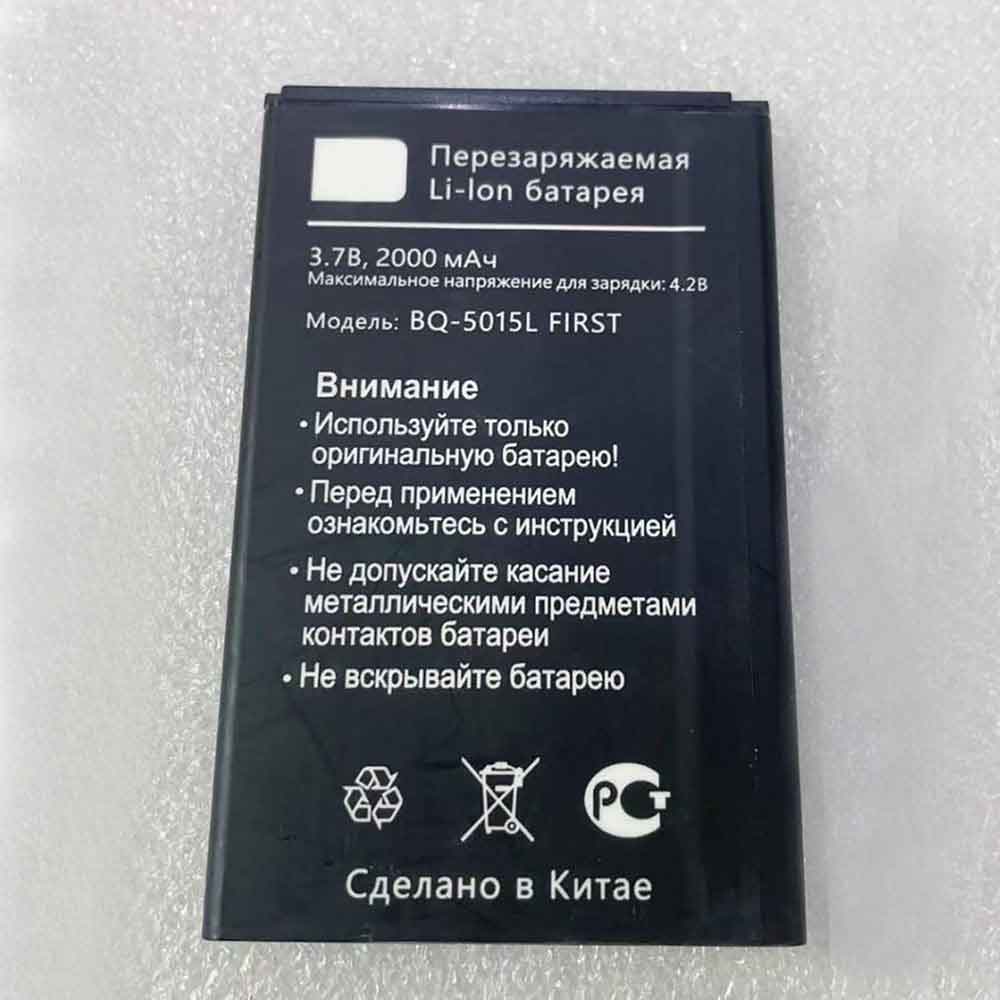
BQ-5015L

Specifications

  • Brand:BQ
  • Capacity :2000mAh
  • Voltage :3.7V 4.2V
  • Type :Li-ion
  • Battery Cell Quality: Grade A
  • Descriptive: Replacement Battery – 1 Year Warranty
  • Description: Brand New, 1 Year Warranty! 30-Days Money Back! Fast Shipping!

How we test this Bq BQ-5015L Battery
Step 1: Make sure customer bought the correct battery.
Step 2: Check battery’s appearance and interface.
Step 3: Test battery charger and recharger function.
Step 4: Charger the battery to 100% and recharger to 0% to get real battery capacity
Step 5: Use Ev2300 to check the voltage difference of each goroup cells.
Step 6: Charger battery power more than 30%.
Step 7: Package battery carefully and send out

Compatible Part Numbers:
BQ-5015L

Compatible Model Numbers:
BQ Mobile BQ-5015L First

How much do you know about how to run laptop well as any place? The follow Tips cut way back on protecting battery life.


1). Please recharge or change your Cell Phone battery when battery power low.
2). Using Li-Ion Replacement Bq BQ-5015L Cell Phone Battery for your notebook which can work longer time than Non Li-ion one.
3). It is better to defragmentation regularly for your Cell Phone battery life.
4). In order to reduce the laptop power consumpition, you can use some optical drive spin-down and hard drive in your Cell Phone .
5). Please keep your laptop in sleep or standby model without long time using, which both save the Replacement Bq BQ-5015L Cell Phone Battery power and extend battery using life.
6). Leave your battery in a dry and cool condition when without using.
7). When you rarely or generally plugged in fixed power using, Please take down your battery to avoid hurting battery life.

Hot Products

47.52Wh/4400mAh GETAC GE5SN-00-01-3S2P-1 for Getac F117 F2k T1TI-781SN3 F12000mAh ZTE LI3820T43P4H695945 for ZTE Blade A3 (2019)/L82100mAh/16.25WH OPPO BLP863 for OPPO Reno6 5G3300mAh 12.705WH KOOBEE BL-89CT for Koobee F2 Plus K106350mAh 24.45WH DOOGEE BAT20ZN1296350 for Doogee S96 Pro6350mAh 24.45WH DOOGEE BAT20ZN1296350 for Doogee S96 Pro800mAh/3.96Wh DORO SHELL01A for Doro PhoneEasy 409,409GSM,4103000mah TOSHIBA PA5036U-1BRS for Toshiba Qosmio X70, X75, X8702200MAH ICR 18650 for ICR 18650 ICR186501500mAh/5.70WH BPI 353292G for BPI 353292G
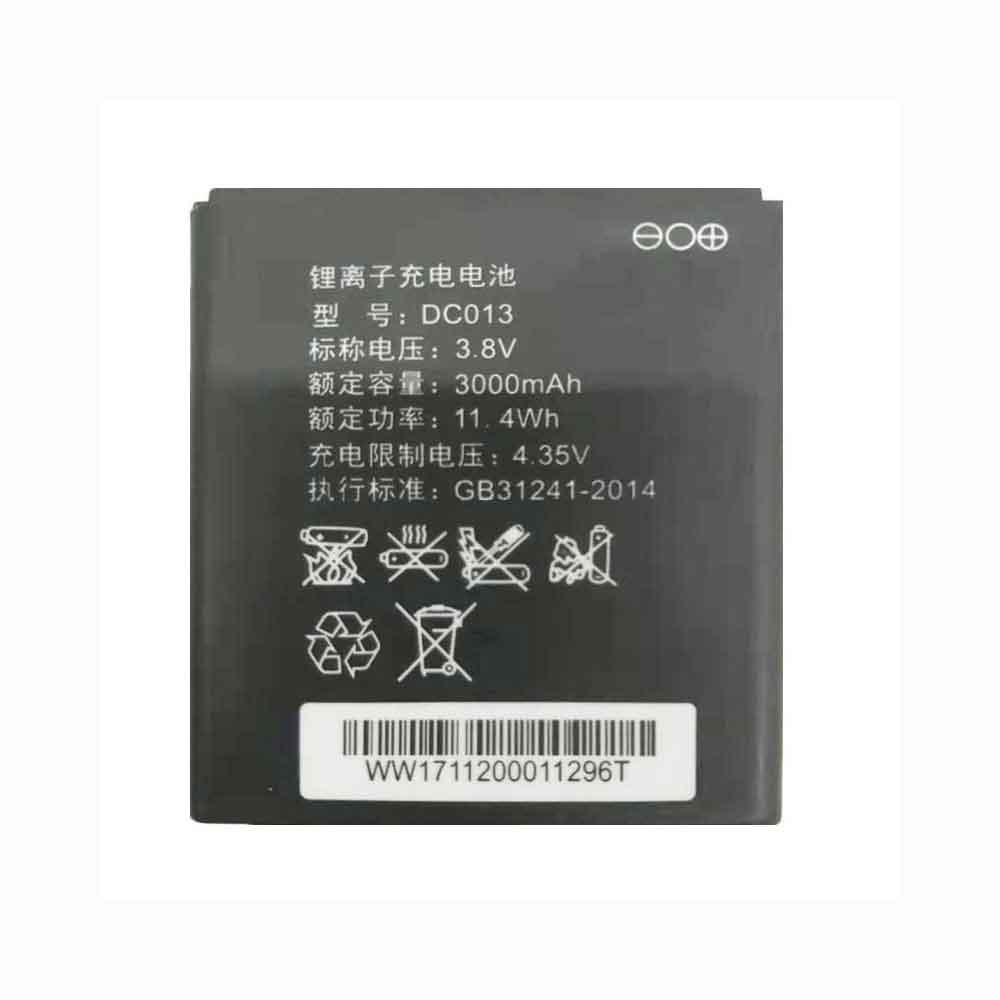

3000mAh/11.4WH 3.8V 4.35V Zte DC013 Li-ion Battery for ZTE Nubia WD670

3000mAh/11.4WH 3.8V 4.35V Zte DC013 Batteries for ZTE Nubia WD670, Zte DC013 Other battery is a brand new,100% Compatible original and replacement Phone battery,Purchase wholesale and retail DC013 with high quality and low price!

Find ou your original model number or part number(P/N), and move your eyes on the tag of battery

DC013

Specifications

  • Brand:ZTE
  • Capacity :3000mAh/11.4WH
  • Voltage :3.8V 4.35V
  • Type :Li-ion
  • Battery Cell Quality: Grade A
  • Descriptive: Replacement Battery – 1 Year Warranty
  • Description: Brand New, 1 Year Warranty! 30-Days Money Back! Fast Shipping!

How we test this Zte DC013 Battery
Step 1: Make sure customer bought the correct battery.
Step 2: Check battery’s appearance and interface.
Step 3: Test battery charger and recharger function.
Step 4: Charger the battery to 100% and recharger to 0% to get real battery capacity
Step 5: Use Ev2300 to check the voltage difference of each goroup cells.
Step 6: Charger battery power more than 30%.
Step 7: Package battery carefully and send out

Compatible Part Numbers:
DC013

Compatible Model Numbers:
ZTE Nubia WD670

How much do you know about how to run laptop well as any place? The follow Tips cut way back on protecting battery life.


1). Please recharge or change your Other battery when battery power low.
2). Using Li-Ion Replacement Zte DC013 Other Battery for your notebook which can work longer time than Non Li-ion one.
3). It is better to defragmentation regularly for your Other battery life.
4). In order to reduce the laptop power consumpition, you can use some optical drive spin-down and hard drive in your Other .
5). Please keep your laptop in sleep or standby model without long time using, which both save the Replacement Zte DC013 Other Battery power and extend battery using life.
6). Leave your battery in a dry and cool condition when without using.
7). When you rarely or generally plugged in fixed power using, Please take down your battery to avoid hurting battery life.

Hot Products

47.52Wh/4400mAh GETAC GE5SN-00-01-3S2P-1 for Getac F117 F2k T1TI-781SN3 F12000mAh ZTE LI3820T43P4H695945 for ZTE Blade A3 (2019)/L82100mAh/16.25WH OPPO BLP863 for OPPO Reno6 5G3300mAh 12.705WH KOOBEE BL-89CT for Koobee F2 Plus K106350mAh 24.45WH DOOGEE BAT20ZN1296350 for Doogee S96 Pro6350mAh 24.45WH DOOGEE BAT20ZN1296350 for Doogee S96 Pro800mAh/3.96Wh DORO SHELL01A for Doro PhoneEasy 409,409GSM,4103000mah TOSHIBA PA5036U-1BRS for Toshiba Qosmio X70, X75, X8702200MAH ICR 18650 for ICR 18650 ICR186501500mAh/5.70WH BPI 353292G for BPI 353292G

How to install Windows 11 on an unsupported PC

 Windows 11 is almost a year old. Microsoft announced its new operating system at a dedicated event in June 2021, with the final release starting more than three months later. It makes some dramatic changes to the Windows experience that has become so familiar, including a new design language and native support for Android apps.

The gradual rollout of Windows 11 is almost complete, only older hardware has yet to receive the update. However, all eligible devices can now install it using this official method.

But what if your device isn’t compatible? Microsoft updated the hardware requirements for Windows 11, which means many older PCs aren’t eligible. But you can still install Windows 11. The lack of a CPU with TPM 2.0 is often the biggest sticking point, but there’s a workaround. A very similar method can also be used if you don’t have Secure Boot or have at least 4GB of RAM available.

Note that this is not officially supported by Microsoft, so do it at your own risk! ! !

In fact, as recently reported by Windows, Microsoft will repeatedly warn you that your device is not compatible with the new operating system. Both reminders in settings and watermarks on the Windows 11 desktop may appear, but that won’t prevent most apps from working properly.

You may have seen the news that Microsoft accidentally delivered Windows 11’s 22H2 update to unsupported devices. This means you don’t have to download the operating system from the Microsoft website first, but the rest of the process below remains the same. Let’s take a look at the specific steps below!

How to install Windows 11 on an unsupported PC

This method involves setting up a lab-like environment where you need to make changes to the registry. If you’re not happy with that, it’s worth buying a Windows 11-compatible device or sticking with Windows 10 until end of support in October 2025.

Microsoft will allow device manufacturers to disable the TPM requirement on their Windows 11 builds – you’ll do the same here:

1. Head over to the official Windows 11 download page to grab the new OS now – there are three options to choose from

2. Follow the step-by-step guide

3. If it does not meet the hardware requirements, you will see a message “This PC cannot run Windows 11”

4. On this screen, press Shift + F10 to open the Command Prompt window

Type “regedit” and hit enter

6. The Windows Registry Editor will now open. In the address bar, type “HKEY_LOCAL_MACHINESYSTEMSetup” and hit enter

7. You should now see a “Settings” key. Right click on it and select New > Key

8. You will now be prompted to give it a name. Select “LabConfig” and press enter

9. Right-click the new key you created and select New > DWORD (32-bit) Value

10. Name it “BypassTPMCheck” and set its data to 1

11. Do the same process for ‘BypassRAMCheck’ and ‘BypassSecureBootCheck’, same value of 1

12. Use the red X in the upper right corner to close this window

13. Type “exit” and press enter to close the command prompt window

14. You will now be returned to the “This PC cannot run Windows 11” message. Click the back button in the upper left corner

15. You should now be able to complete the installation normally

It’s worth noting that following these steps may affect performance or the stability of Windows 11. Proceed with caution and try it on a device other than your main PC if possible.

Is it safe to install Windows 11 on an unsupported device?

Not quite. Windows 11’s hardware requirements are mostly about security, even if many people think they’re too restrictive. Using an operating system that wasn’t designed to work without a TPM chip or secure boot is risky, but if your device meets most requirements, you might get away with it.

The older the hardware, the greater the risk. In any case, we recommend installing on a laptop or PC that is not your primary device. If this is unavoidable, make a full backup of your device first to make sure you don’t lose anything.

>>>>>>>>>>>>Computer battery

Thanks for reading, hope it helps!

Friendly reminder: If you need to replace the battery of your device, this battery store will be a good choice: www.batteryforpc.co.uk

Google’s DIY Pixel fix, and it looks better than Apple’s iPhone version

 Not long ago, Apple started allowing iPhone users to fix certain glitches themselves, and now Google is starting to offer a similar service to Pixel users.

In partnership with iFixit, Google now offers parts and repair kits to meet the needs of myriad mobile ailments, from the original Pixel to the Pixel 6 series — though the exact selection of parts and supported phones seems to vary by country.

You can order kits online and it will come with the relevant replacement parts, as well as the tools needed to install them. iFixit also provides detailed repair manuals for all supported fixable issues; available fixes include replacing the screen, rear camera, battery, and in some cases charging components.

Depending on the equipment and the problem, these repair kits can cost anywhere from $22.99/£24.99 (Pixel 2 camera) to $192.99/£189.99/AU$252.99 (Pixel 6 Pro screen). At launch, these kits are available in the US, UK, Australia and EU countries where the Pixel line of products is available.

Of course, these repairs aren’t for everyone—in general, we recommend having your Pixel repaired by a professional unless you’re confident in your work. Either way, another manufacturer that officially supports right-to-repair is great.

It’s a handy option for those with technical know-how or who can’t easily get their phone repaired elsewhere for whatever reason, and will keep their Pixel phones lasting longer — which is good for our wallets and the environment .

Analysis: How does this compare to Apple‘s self-service repairs?

From their perspective, Google’s repair service appears to have some advantages over Apple’s.

For one thing, replacement Pixel parts often look cheaper—though that can vary, depending on the component and region involved.

A key difference between these Pixel repairs is that you buy the related tools from iFixit, whereas Apple Self-Service Repairs just let you rent them. The latter may be more sustainable, but in addition to paying for equipment rentals, you’ll have a hefty sum on your card if you don’t return the kit in full on time. Such a huge cost is because Apple sends a whole suite of tools that will send the same selection regardless of your problem, whereas iFixit only sends the tools you need for your device’s specific ailment.

Another difference between Google and iFixit is that Apple Self Service Repair is only available in the US, although that will change. Still, given The Verge’s hassles when it comes to doing your own iPhone repairs, you might want to skip it, and it remains to be seen if Google’s will be easier.

>>>>>>>>>>>Phone battery

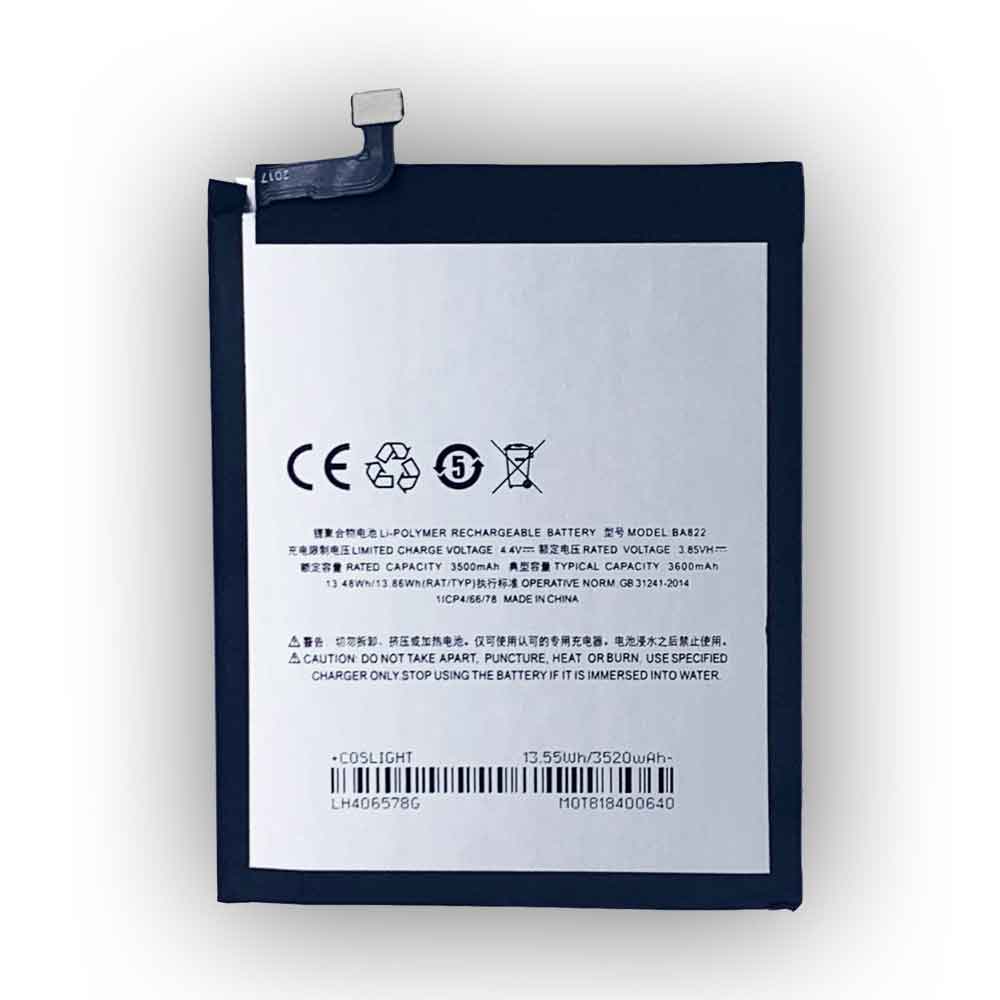
3500mAh/13.48WH 3.85V 4.4V Meizu BA822 Li-ion Battery for Meizu Note 8

3500mAh/13.48WH 3.85V 4.4V Meizu BA822 Batteries for Meizu Note 8, Meizu BA822 Cell Phone battery is a brand new,100% Compatible original and replacement Phone battery,Purchase wholesale and retail BA822 with high quality and low price!

Find ou your original model number or part number(P/N), and move your eyes on the tag of battery

BA822

Specifications

  • Brand:Meizu
  • Capacity :3500mAh/13.48WH
  • Voltage :3.85V 4.4V
  • Type :Li-ion
  • Battery Cell Quality: Grade A
  • Descriptive: Replacement Battery – 1 Year Warranty
  • Description: Brand New, 1 Year Warranty! 30-Days Money Back! Fast Shipping!

How we test this Meizu BA822 Battery
Step 1: Make sure customer bought the correct battery.
Step 2: Check battery’s appearance and interface.
Step 3: Test battery charger and recharger function.
Step 4: Charger the battery to 100% and recharger to 0% to get real battery capacity
Step 5: Use Ev2300 to check the voltage difference of each goroup cells.
Step 6: Charger battery power more than 30%.
Step 7: Package battery carefully and send out

Compatible Part Numbers:
BA822

Compatible Model Numbers:
Meizu Note 8

How much do you know about how to run laptop well as any place? The follow Tips cut way back on protecting battery life.


1). Please recharge or change your Cell Phone battery when battery power low.
2). Using Li-Ion Replacement Meizu BA822 Cell Phone Battery for your notebook which can work longer time than Non Li-ion one.
3). It is better to defragmentation regularly for your Cell Phone battery life.
4). In order to reduce the laptop power consumpition, you can use some optical drive spin-down and hard drive in your Cell Phone .
5). Please keep your laptop in sleep or standby model without long time using, which both save the Replacement Meizu BA822 Cell Phone Battery power and extend battery using life.
6). Leave your battery in a dry and cool condition when without using.
7). When you rarely or generally plugged in fixed power using, Please take down your battery to avoid hurting battery life.

Hot Products

2000mAh ZTE LI3820T43P4H695945 for ZTE Blade A3 (2019)/L82100mAh/16.25WH OPPO BLP863 for OPPO Reno6 5G3300mAh 12.705WH KOOBEE BL-89CT for Koobee F2 Plus K106350mAh 24.45WH DOOGEE BAT20ZN1296350 for Doogee S96 Pro6350mAh 24.45WH DOOGEE BAT20ZN1296350 for Doogee S96 Pro800mAh/3.96Wh DORO SHELL01A for Doro PhoneEasy 409,409GSM,4103000mah TOSHIBA PA5036U-1BRS for Toshiba Qosmio X70, X75, X8702200MAH ICR 18650 for ICR 18650 ICR186501500mAh/5.70WH BPI 353292G for BPI 353292G2200mah PACKARD_BELL SQU-703 for Packard Bell EasyNote MZ35 MZ3

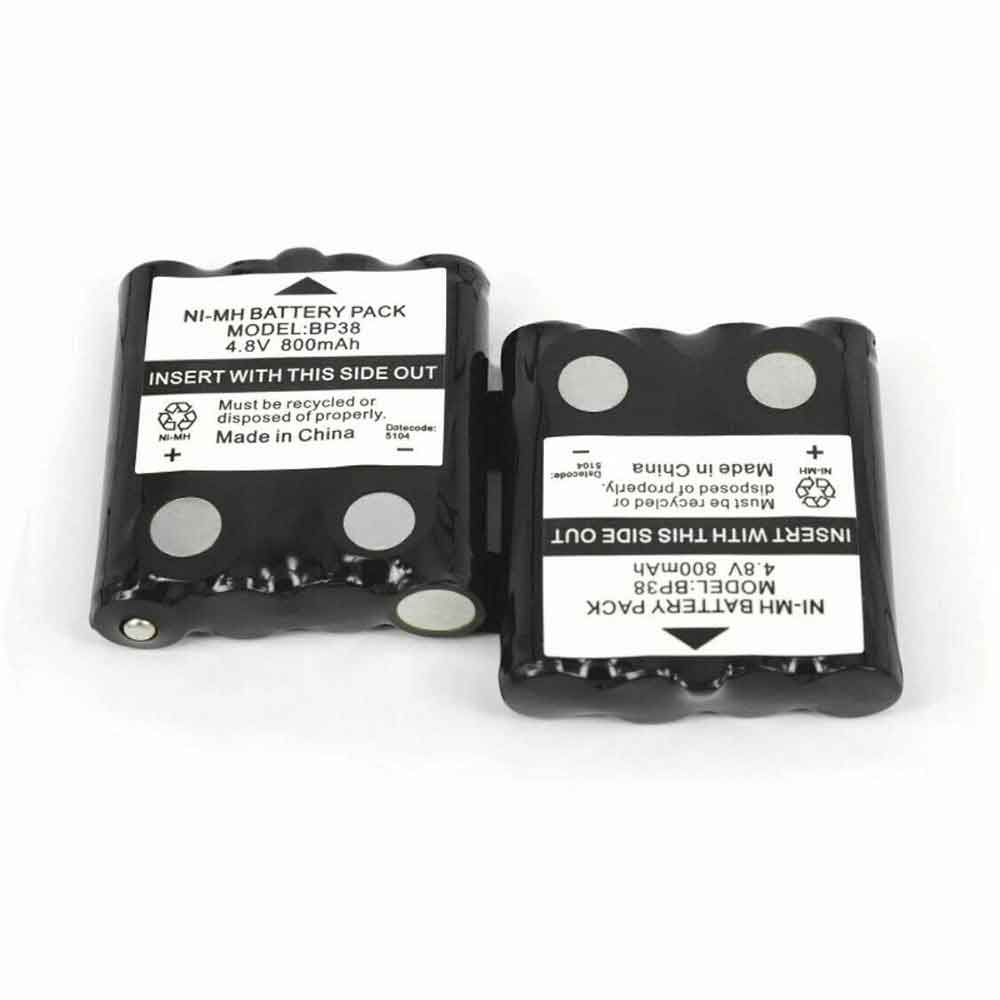
800mAh 4.8V Motorola BP38 Li-ion Battery for Motorola T5/6/7/8 T50 T60 T80

800mAh 4.8V Motorola BP38 Batteries for Motorola T5/6/7/8 T50 T60 T80, Motorola BP38 Cell Phone battery is a brand new,100% Compatible original and replacement Phone battery,Purchase wholesale and retail BP38 with high quality and low price!

Find ou your original model number or part number(P/N), and move your eyes on the tag of battery

BP38

Specifications

  • Brand:Motorola
  • Capacity :800mAh
  • Voltage :4.8V
  • Type :Ni-MH
  • Battery Cell Quality: Grade A
  • Descriptive: Replacement Battery – 1 Year Warranty
  • Description: Brand New, 1 Year Warranty! 30-Days Money Back! Fast Shipping!

How we test this Motorola BP38 Battery
Step 1: Make sure customer bought the correct battery.
Step 2: Check battery’s appearance and interface.
Step 3: Test battery charger and recharger function.
Step 4: Charger the battery to 100% and recharger to 0% to get real battery capacity
Step 5: Use Ev2300 to check the voltage difference of each goroup cells.
Step 6: Charger battery power more than 30%.
Step 7: Package battery carefully and send out

Compatible Part Numbers:
BP38

Compatible Model Numbers:
Motorola T5/6/7/8 T50 T60 T80

How much do you know about how to run laptop well as any place? The follow Tips cut way back on protecting battery life.


1). Please recharge or change your Cell Phone battery when battery power low.
2). Using Li-Ion Replacement Motorola BP38 Cell Phone Battery for your notebook which can work longer time than Non Li-ion one.
3). It is better to defragmentation regularly for your Cell Phone battery life.
4). In order to reduce the laptop power consumpition, you can use some optical drive spin-down and hard drive in your Cell Phone .
5). Please keep your laptop in sleep or standby model without long time using, which both save the Replacement Motorola BP38 Cell Phone Battery power and extend battery using life.
6). Leave your battery in a dry and cool condition when without using.
7). When you rarely or generally plugged in fixed power using, Please take down your battery to avoid hurting battery life.

Hot Products

2000mAh ZTE LI3820T43P4H695945 for ZTE Blade A3 (2019)/L82100mAh/16.25WH OPPO BLP863 for OPPO Reno6 5G3300mAh 12.705WH KOOBEE BL-89CT for Koobee F2 Plus K106350mAh 24.45WH DOOGEE BAT20ZN1296350 for Doogee S96 Pro6350mAh 24.45WH DOOGEE BAT20ZN1296350 for Doogee S96 Pro800mAh/3.96Wh DORO SHELL01A for Doro PhoneEasy 409,409GSM,4103000mah TOSHIBA PA5036U-1BRS for Toshiba Qosmio X70, X75, X8702200MAH ICR 18650 for ICR 18650 ICR186501500mAh/5.70WH BPI 353292G for BPI 353292G2200mah PACKARD_BELL SQU-703 for Packard Bell EasyNote MZ35 MZ3

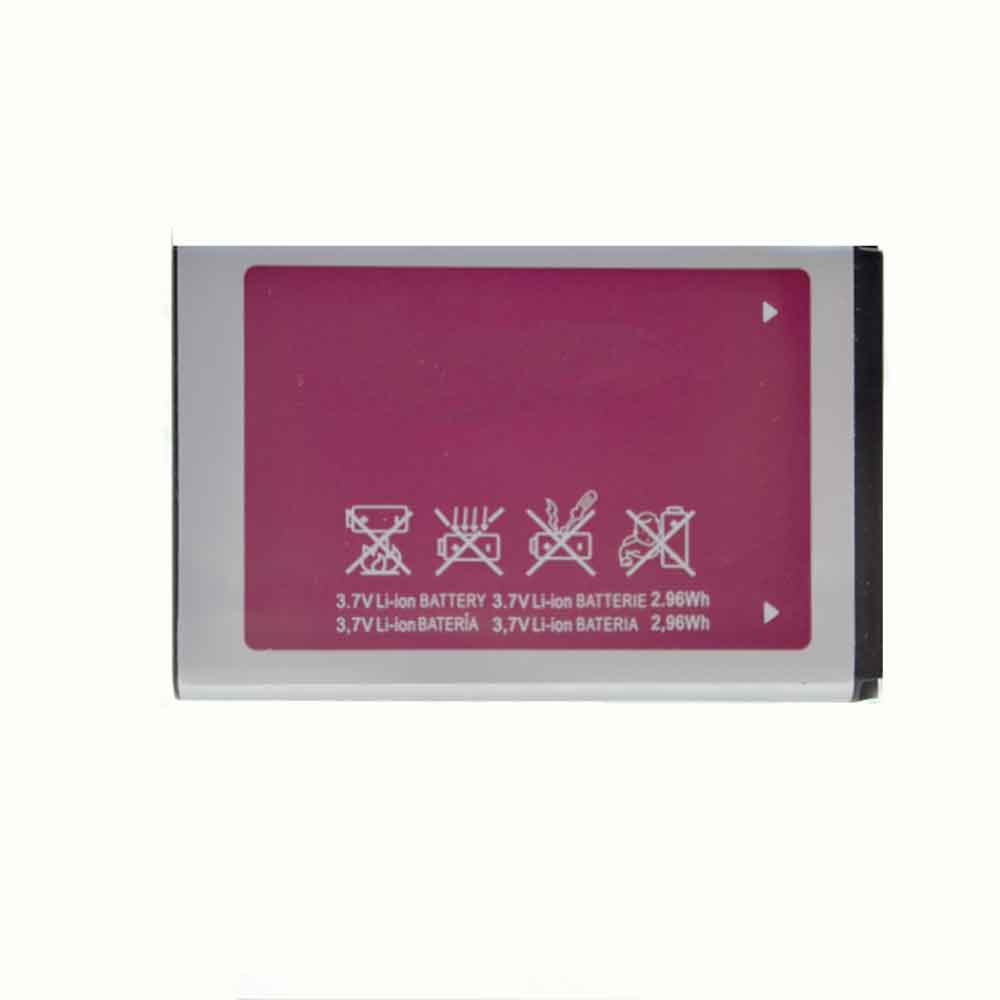
1000mAh/2.56WH 3.7V 4.2V Samsung AB553446BC Li-ion Battery for Samsung C3300

1000mAh/2.56WH 3.7V 4.2V Samsung AB553446BC Batteries for Samsung C3300, Samsung AB553446BC Cell Phone battery is a brand new,100% Compatible original and replacement Phone battery,Purchase wholesale and retail AB553446BC with high quality and low price!

Find ou your original model number or part number(P/N), and move your eyes on the tag of battery

AB553446BC

Specifications

  • Brand:Samsung
  • Capacity :1000mAh/2.56WH
  • Voltage :3.7V 4.2V
  • Type :Li-ion
  • Battery Cell Quality: Grade A
  • Descriptive: Replacement Battery – 1 Year Warranty
  • Description: Brand New, 1 Year Warranty! 30-Days Money Back! Fast Shipping!

How we test this Samsung AB553446BC Battery
Step 1: Make sure customer bought the correct battery.
Step 2: Check battery’s appearance and interface.
Step 3: Test battery charger and recharger function.
Step 4: Charger the battery to 100% and recharger to 0% to get real battery capacity
Step 5: Use Ev2300 to check the voltage difference of each goroup cells.
Step 6: Charger battery power more than 30%.
Step 7: Package battery carefully and send out

Compatible Part Numbers:
AB553446BC

Compatible Model Numbers:
Samsung C3300

How much do you know about how to run laptop well as any place? The follow Tips cut way back on protecting battery life.


1). Please recharge or change your Cell Phone battery when battery power low.
2). Using Li-Ion Replacement Samsung AB553446BC Cell Phone Battery for your notebook which can work longer time than Non Li-ion one.
3). It is better to defragmentation regularly for your Cell Phone battery life.
4). In order to reduce the laptop power consumpition, you can use some optical drive spin-down and hard drive in your Cell Phone .
5). Please keep your laptop in sleep or standby model without long time using, which both save the Replacement Samsung AB553446BC Cell Phone Battery power and extend battery using life.
6). Leave your battery in a dry and cool condition when without using.
7). When you rarely or generally plugged in fixed power using, Please take down your battery to avoid hurting battery life.

Hot Products

2000mAh ZTE LI3820T43P4H695945 for ZTE Blade A3 (2019)/L82100mAh/16.25WH OPPO BLP863 for OPPO Reno6 5G3300mAh 12.705WH KOOBEE BL-89CT for Koobee F2 Plus K106350mAh 24.45WH DOOGEE BAT20ZN1296350 for Doogee S96 Pro6350mAh 24.45WH DOOGEE BAT20ZN1296350 for Doogee S96 Pro800mAh/3.96Wh DORO SHELL01A for Doro PhoneEasy 409,409GSM,4103000mah TOSHIBA PA5036U-1BRS for Toshiba Qosmio X70, X75, X8702200MAH ICR 18650 for ICR 18650 ICR186501500mAh/5.70WH BPI 353292G for BPI 353292G2200mah PACKARD_BELL SQU-703 for Packard Bell EasyNote MZ35 MZ3

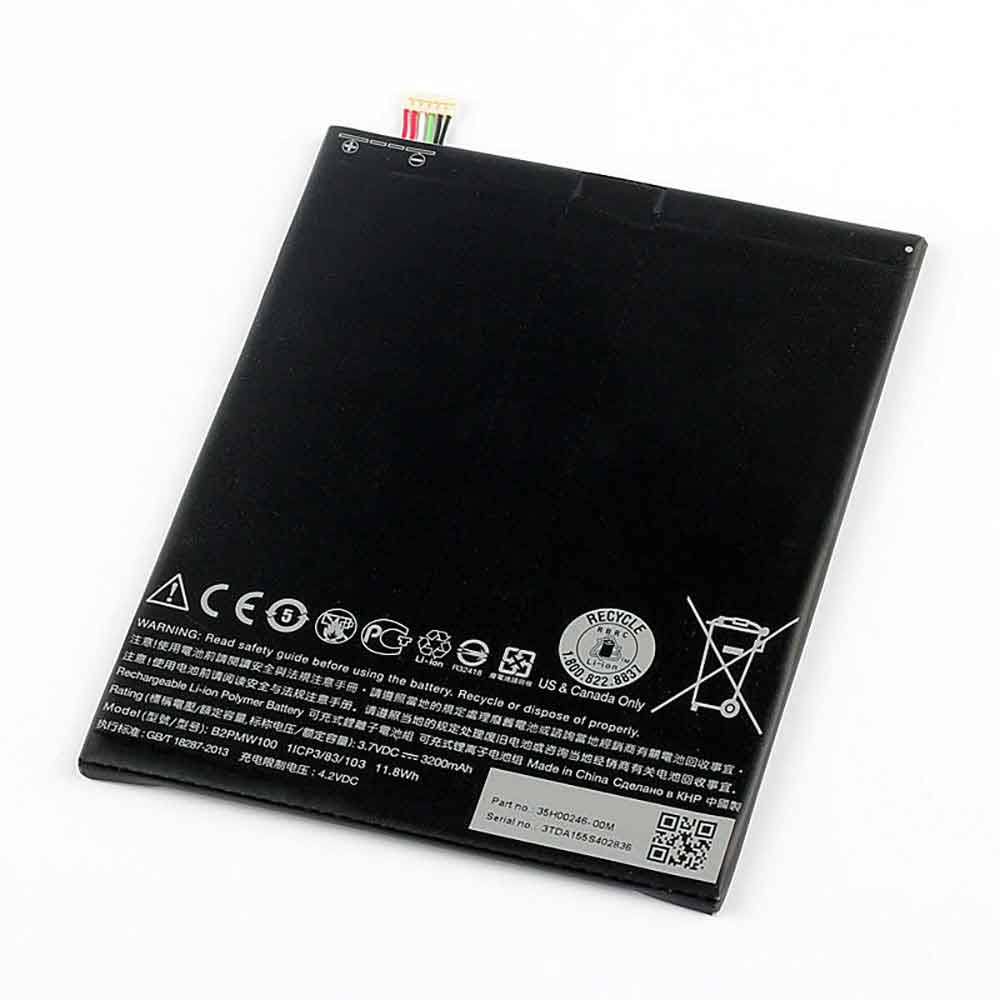
3200mAh/11.8WH 3.7V 4.2V Htc B2PMW100 Li-ion Battery for HTC P510

3200mAh/11.8WH 3.7V 4.2V Htc B2PMW100 Batteries for HTC P510, Htc B2PMW100 Cell Phone battery is a brand new,100% Compatible original and replacement Phone battery,Purchase wholesale and retail B2PMW100 with high quality and low price!

Find ou your original model number or part number(P/N), and move your eyes on the tag of battery

B2PMW100

Specifications

  • Brand:HTC
  • Capacity :3200mAh/11.8WH
  • Voltage :3.7V 4.2V
  • Type :Li-ion
  • Battery Cell Quality: Grade A
  • Descriptive: Replacement Battery – 1 Year Warranty
  • Description: Brand New, 1 Year Warranty! 30-Days Money Back! Fast Shipping!

How we test this Htc B2PMW100 Battery
Step 1: Make sure customer bought the correct battery.
Step 2: Check battery’s appearance and interface.
Step 3: Test battery charger and recharger function.
Step 4: Charger the battery to 100% and recharger to 0% to get real battery capacity
Step 5: Use Ev2300 to check the voltage difference of each goroup cells.
Step 6: Charger battery power more than 30%.
Step 7: Package battery carefully and send out

Compatible Part Numbers:
B2PMW100

Compatible Model Numbers:
HTC P510

How much do you know about how to run laptop well as any place? The follow Tips cut way back on protecting battery life.


1). Please recharge or change your Cell Phone battery when battery power low.
2). Using Li-Ion Replacement Htc B2PMW100 Cell Phone Battery for your notebook which can work longer time than Non Li-ion one.
3). It is better to defragmentation regularly for your Cell Phone battery life.
4). In order to reduce the laptop power consumpition, you can use some optical drive spin-down and hard drive in your Cell Phone .
5). Please keep your laptop in sleep or standby model without long time using, which both save the Replacement Htc B2PMW100 Cell Phone Battery power and extend battery using life.
6). Leave your battery in a dry and cool condition when without using.
7). When you rarely or generally plugged in fixed power using, Please take down your battery to avoid hurting battery life.

Hot Products

2000mAh ZTE LI3820T43P4H695945 for ZTE Blade A3 (2019)/L82100mAh/16.25WH OPPO BLP863 for OPPO Reno6 5G3300mAh 12.705WH KOOBEE BL-89CT for Koobee F2 Plus K106350mAh 24.45WH DOOGEE BAT20ZN1296350 for Doogee S96 Pro6350mAh 24.45WH DOOGEE BAT20ZN1296350 for Doogee S96 Pro800mAh/3.96Wh DORO SHELL01A for Doro PhoneEasy 409,409GSM,4103000mah TOSHIBA PA5036U-1BRS for Toshiba Qosmio X70, X75, X8702200MAH ICR 18650 for ICR 18650 ICR186501500mAh/5.70WH BPI 353292G for BPI 353292G2200mah PACKARD_BELL SQU-703 for Packard Bell EasyNote MZ35 MZ3

Why does my laptop keep restarting unexpectedly?

 Laptop restarting unexpectedly is caused by some kind of unrecoverable hardware or software problem. Laptops and desktops have software-related issues no different; they can often be resolved by updating, restoring, or removing the offending program. However, laptops have different hardware-related issues because they don’t have as many interchangeable parts as desktops. The following are the possible reasons and solutions, let’s take a look!

hardware compatibility issues

Hardware compatibility issues can cause the computer to restart at seemingly random intervals; on laptops, RAM and USB devices are the most likely causes of such compatibility issues. Two different RAM sticks installed in the same computer can cause memory usage issues that trigger a reboot. If you experience unexpected restarts, Sony recommends removing any extra RAM you have installed in your computer. Removing any attached USB devices can also solve the problem.

Dust problems and overheating

Laptops don’t take in as much air as desktops, but enough to bring in dust and debris to cause problems. If the system overheats, dust and debris can restrict airflow and cause the computer to automatically shut down. If the laptop overheats, it should shut down, but if it gets too hot, the device can be set to restart. System fan failure and restricted airflow can cause the system to overheat. Use compressed air to blow dust out of your laptop vents to improve airflow. In addition to restricting airflow, dust and debris can interfere with component connections. Try blasting vents and device connections to remove disturbing dust. Advanced users can try removing the RAM and hard drives to gain access to the relevant connectors and cleaning them with compressed air.

critical system error

Programs with error codes or errors in the operating system itself can crash the system. The computer can be configured so that instead of displaying an error message, it restarts. Try uninstalling any recently installed programs and rolling back recent program updates to stop program-related restarts. If you experience unexpected restarts, HP recommends rolling back recent Windows updates and not reinstalling them. Also, running a System Refresh or System Restore may step your computer back to the point where Windows and other programs won’t cause a restart error.

Program triggers restart

Some computer programs force the computer to restart after running automatic updates. Disabling automatic updates should prevent unexpected restarts. While system updates are a legitimate use of the reboot feature, programs such as viruses and other malware can trigger scheduled reboots, causing inconvenience to users. Running a full system scan with an updated antivirus program can remove this type of malware from your computer.

>>>>>>>>>>>>Laptop’s battery

Thanks for reading, hope it helps!

Friendly reminder: If you need to replace the battery of your device, this battery store will be a good choice: www.batteryforpc.co.uk

How to manage automatic updates in Windows 11

 Keeping your operating system up to date is one of the most important things you can do to ensure your device remains properly secured. Thankfully, you don’t have to worry about keeping track of every update that’s released, as Windows 11 is set to automatically download and install updates by default. However, automatic updates can sometimes appear at inopportune times, and sometimes you may want to delay if an update doesn’t include a patch for a security hole.

Why limit automatic updates in Windows 11?

Most updates shouldn’t negatively affect your device, but some may have issues that cause problems with an app or feature you use regularly. In this case, it’s best to wait for a fix for any issues that a particular update might have caused. Also, restarts and update installations can sometimes take hours, depending on your connection speed and the size of the update.

If you want more control over Windows 11 updates, you can do things like pause updates for a period of time, limit automatic updates to complete at certain times of the day, manually check for updates, or disable automatic updates entirely.

It’s worth reiterating that updates with critical security patches should be applied immediately to protect your device. However, if you want more control over non-essential updates, here’s how to manage automatic updates for Windows 11.

How to Pause Automatic Updates in Windows 11

You can pause automatic updates for a period of time – anywhere from one to five weeks – here’s how:

1. Go to settings

2. Click Windows Update

3. Under More Options, click the Pause Updates drop-down menu to select how long you want to pause automatic updates

If you want to resume automatic updates at any time before the end of the selected time period, you can click the Resume Updates button in the same Windows Update menu.

Note that you can’t pause updates indefinitely: after the pause period, you’ll need to install the latest update before you can use the pause feature again.

How to Disable Windows 11 Automatic Updates

If you want to disable automatic updates indefinitely, you can do this through a Windows service if you don’t mind getting a little technical know-how.

1. Press Windows button + R to launch the Run window

2. Enter services.msc in the text field and click OK

3. In the Services menu, click Windows Update

4. In the General tab, select Disabled from the Startup Type drop-down menu

5. Click the Apply button

To turn automatic updates back on, follow the same steps as above, then select Automatic from the Startup Type drop-down menu.

Even if you disable automatic updates using Windows Services, you can still download and install updates manually.

How to manually download and install Windows 11 updates

If you’ve disabled automatic updates on your Windows 11 PC, you’ll need to manually install updates as they become available.

1. Go to Settings

2. Click Windows Update

3. Click Check for Updates

If an update is available, you will be notified that the update is available for download. Click Download Now or Download and Install to run the update.

Advanced options for managing Windows 11 updates

Some updates require a system restart, which can be inconvenient if it happens in the middle of your workday. Thankfully, you can enable restrictions on when your computer can restart and complete automatic updates.

1. Go to Settings

2. Click Windows Update

3. Click Advanced Options

4. Click Active Time and set the time range you don’t want Windows to restart your PC

You can also select the “Keep me up to date” option to restart as soon as possible, even during your active hours. This option is useful when important updates are available and the time is convenient for you. With this option enabled, you will still be notified 15 minutes before reboot.

>>>>>>>>>>>>Laptop’s battery

Thanks for reading, hope it helps!

Friendly reminder: If you need to replace the battery of your device, this battery store will be a good choice: www.batteryforpc.co.uk