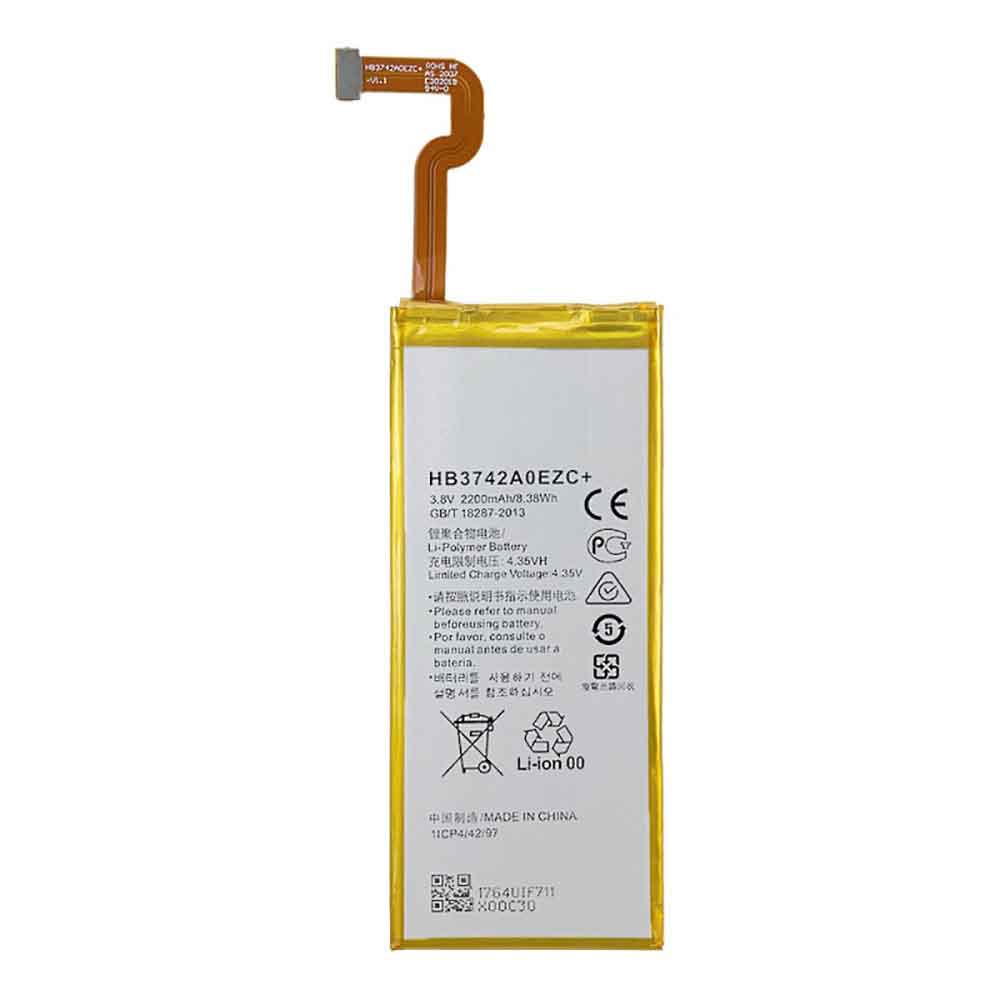
2200MAH/8.38Wh 3.8V 4.35V Huawei HB3742A0EZC Li-ion Battery for Huawei P8 Lite

2200MAH/8.38Wh 3.8V 4.35V Huawei HB3742A0EZC Batteries for Huawei P8 Lite, Huawei HB3742A0EZC Cell Phone battery is a brand new,100% Compatible original and replacement Phone battery,Purchase wholesale and retail HB3742A0EZC with high quality and low price!

Find ou your original model number or part number(P/N), and move your eyes on the tag of battery
HB3742A0EZC

Specifications

  • Brand:Huawei
  • Capacity :2200MAH/8.38Wh
  • Voltage :3.8V 4.35V
  • Type :Li-ion
  • Battery Cell Quality: Grade A
  • Descriptive: Replacement Battery – 1 Year Warranty
  • Description: Brand New, 1 Year Warranty! 30-Days Money Back! Fast Shipping!

How we test this Huawei HB3742A0EZC Battery
Step 1: Make sure customer bought the correct battery.
Step 2: Check battery’s appearance and interface.
Step 3: Test battery charger and recharger function.
Step 4: Charger the battery to 100% and recharger to 0% to get real battery capacity
Step 5: Use Ev2300 to check the voltage difference of each goroup cells.
Step 6: Charger battery power more than 30%.
Step 7: Package battery carefully and send out

Compatible Part Numbers:
HB3742A0EZC+

Compatible Model Numbers:
Huawei P8 Lite

How much do you know about how to run laptop well as any place? The follow Tips cut way back on protecting battery life.


1). Please recharge or change your Cell Phone battery when battery power low.
2). Using Li-Ion Replacement Huawei HB3742A0EZC Cell Phone Battery for your notebook which can work longer time than Non Li-ion one.
3). It is better to defragmentation regularly for your Cell Phone battery life.
4). In order to reduce the laptop power consumpition, you can use some optical drive spin-down and hard drive in your Cell Phone .
5). Please keep your laptop in sleep or standby model without long time using, which both save the Replacement Huawei HB3742A0EZC Cell Phone Battery power and extend battery using life.
6). Leave your battery in a dry and cool condition when without using.
7). When you rarely or generally plugged in fixed power using, Please take down your battery to avoid hurting battery life.

Hot Products

3500mAh/13.48WH SAMSUNG EB-BA730ABE for Samsung GALAXY A8+ A7 A730X SM4100mAh/62.32Wh GETAC GK5CN-00-13-4S1P-0 for GETAC GK5CN5Z GK5CN6Z GK5CN4Z930mAh/3.4Wh GARMIN 361-00035-01 for GARMIN Nuvi 2595LMT 1250 12556580mAh/25.333WH BLACKVIEW 726280P for Blackview BV6800 pro Phone1350mAh/4.995WH ALCATEL TLI013CA for Alcatel phone3310mAh/50WH FUJITSU FPB0338S for Fujitsu Lifebook E548 E558 T932800mAh/10.36WH INFOCUS P2424 for InFocus P242433Wh HP BV02XL for HP Envy X2 Detachable 13 Serie875mAh DJI HB3 for DJI Osmo Pocket 230.4Wh/4000mAh LG LBG722VH for LG Gram 14Z950 13Z940 13ZD940

Five Signs You Need to Replace Your Tablet

 The main reason people prefer to use tablets over smartphones is that they are portable, lightweight, and still offer a big-screen experience. Compared to laptops, they are lighter and more portable. Compared to smartphones, they offer very large screens without adding a lot of bulk. If you’re on the go a lot, you know how important a tablet is. Just like any other electronic device, tablets show some signs of failure. Below, we’ll tell you some common problems that pop up with tablets, and whether you need to buy a new tablet to replace your old one. Let’s take a look below!

Tablets drain battery faster

Once charged, your tablet can work continuously for five to six hours. However, if you’re used to having all your apps open all the time, battery life can take a serious hit. The easiest thing you can do to save battery is to make sure the screen is only as bright as it needs to be. To reduce battery consumption, set a shorter screen-off time by doing the following:

1. Open the Settings menu.

2. Tap Display or Screen, depending on the tablet’s operating system.

3. Now go to the submenu where you can set the screen timeout settings.

4. Now, select the 30 seconds option.

In addition to this, it is also important to take care of the battery so that it can run longer. Here are some tips to keep in mind:

1. Use the power adapter that came with your device, as other power adapters may charge slowly or damage your device or battery.

2. Avoid situations where the device may overheat. Even if you don’t use it, the battery will drain faster when it heats up. This leakage can easily damage the tablet’s battery.

3. Never wait until the battery is completely drained and dropped to zero charge. Once you see the battery level drop to 20%, make sure to fully charge it, otherwise it will affect the charge cycle.

If your tablet’s battery life doesn’t improve after following all the tips above, you need a new tablet.

software failure

Tablets have a shorter lifespan. They can run for up to two years, after which they may need constant fixes if the software isn’t updated. This is a problem with most Android tablets. It’s either starting to hang more frequently, working very slowly, or showing signs of failure.

It would be wise to spend a little more on an extended warranty plan when buying a tablet. The Extended Warranty Program covers all defects and malfunctions covered by the standard manufacturer’s warranty. This also includes software glitches. After the warranty period ends, the extended warranty period begins. This way, your tablet will be covered for an additional year. The benefit of this program is that it extends the life of your equipment by a year at a very nominal cost.

low storage

Tablets don’t have the storage capacity of laptops, which means you can’t keep your entire digital life on a tablet without dealing with storage issues. For Android tablets, you can add a microSD card to the device to increase the amount of storage you have. If you have an iPad, this option is not available. Your only options are to upgrade to an iPad with more storage or clean up your device. To clean your device, you first need to uninstall unwanted apps. Try cleaning up music and videos on your tablet. Instead, use Box, Dropbox, Google Drive, iCloud Drive, or OneDrive to back up your documents, images, and videos.

Tablet touchscreen not working

If the touchscreen isn’t responding, you can’t do anything with the tablet. Any damage to the display, be it scratches or cracks, can result in damage to the device. Also, it can be very expensive to fix. However, there are a few things you can try before heading to a service center for repairs.

The touchscreen is sensitive to any dust or grime, so clean the screen before fixing the problem. Also, sometimes a wrong software update can cause issues related to the touchscreen. Check if an update is available for your tablet. To update your tablet, go to Settings > About Tablet or About Device > System Update or Software Update. If it’s still not responding, you can use a tablet repair service at your door to fix it.

Tablet overheating

Overheating your tablet is bad for your device. It’s not uncommon for your tablet to get overheated when you’re using it heavily or running heavy-duty apps that drain your battery. The processor and screen are the biggest battery drains in a tablet, so cut back on anything that’s causing these components to overwork. Finally, avoid sitting the tablet in direct sunlight for too long, as this can also overheat the device. As soon as you notice your tablet starts to get hot, stop using it temporarily. Turn off the tablet and allow the battery to cool. If it still continues to overheat, there may be a problem with the battery or motherboard.

>>>>>>>>>>Tablet battery

Thanks for reading, hope it helps!

Friendly reminder: If you need to replace the battery of your device, this battery store will be a good choice: www.batteryforpc.co.uk

How to Set Up a New Windows Laptop: Out-of-the-Box Tips

When you buy a new Windows laptop, you need to adjust the new laptop to make it easier for you to use in the future. So are you still struggling with how to set up your new Windows laptop? Here are some things to consider when setting up a new laptop. Let’s take a look together!

Run all windows updates

Your computer may download a series of Windows 10 updates on its own, so why not force them to install manually to get it done? Steps:

1. Enter “update” in the search box.

2. Click Check for Updates.

Windows will begin searching for and downloading updates, but you don’t need to wait for the process to complete before moving on to the next task.

3. If Windows does not automatically search for updates, select the Check for Updates box.

Uninstall bloatware

Most PC vendors pre-install annoying third-party software on your computer. These outdated software are ready to suck up valuable system resources. To uninstall it:

1. Navigate to Settings. You can get there from the start menu.

2. Select System.

3. Select Apps & Features from the left menu. If you don’t see this option, press and enter Apps in the search box, then select Apps & Features.

4. Select the application you want to uninstall.

5. Click Uninstall.

6. Click the second Uninstall button that appears.

Copy or sync your files

There are several possible ways to move your documents, photos, videos, and other critical files from your old computer.

OneDrive sync: If your important files are stored in OneDrive, they will automatically download to the new PC when you sign in with your Microsoft account.

Dropbox or Google Drive: These services work just like OneDrive, but don’t come with Windows preinstalled. If you used them to store files on the old computer, install them on the new computer.

Manually copy files: Select all files under the Documents, Music, Video, and Photos library, copy them to an external drive, and then copy them to the new machine.

Install antivirus software

If you accidentally click on a wrong link, your entire computer can fall victim to a malware infection – a horrific situation that can usually be avoided with some good antivirus software. The point of antivirus software is to prevent such situations from happening before they happen, and if they fail, to fix them right after. It is vital to have some kind of antivirus software to protect your PC from threats.

With Bitdefender, you can prevent problems before they happen; if anything harmful manages to get into your computer, you can also scan for and eliminate threats after the fact. Here’s a quick guide on how to install Bitdefender Free Antivirus:

1. Click the big green “Free Download” button on the Bitdefender website.

2. Go to your downloads folder and find the bitdefender_online.exe file you just downloaded. click it. Then it will install Bitdefender.

3. To avoid annoying pop-up reminders or any potential long-term issues with Bitdefender functionality, please create a Bitdefender account. It’s as easy as providing your name, email and creating a password. From there, Bitdefender will operate autonomously, allowing you to conduct your internet activities with peace of mind, always protecting you.

Set up Windows Hello fingerprint or face login

Many current laptops come with fingerprint readers or infrared cameras for facial recognition. You should set up Windows Hello, a feature that lets you log in with your finger or with a glance, so you can avoid the hassle of using common passwords. This is another great security feature that protects your files.

1. Navigate to Settings.

2. Click Account.

3. Select the login option.

4. Click the Settings button under Fingerprint or Face Recognition.

5. Click Start.

6. Slide your finger or stare at the camera as instructed. If you don’t have a fingerprint reader or infrared camera, Windows 10 won’t let you continue.

7. Click Set PIN. Windows 10 requires you to have a PIN as a backup in case your finger or face fails to register. If you already have a PIN, you won’t be asked to do this.

8. Enter the PIN and click OK.

Install the browser of your choice

Microsoft‘s Edge browser is fast, lightweight and definitely worth considering. But if you’re used to Chrome and Firefox extensions, you’ll want your favorite browser right away. To set a new browser as the default browser, follow the steps below.

1. Download and run the browser installer of your choice. Chrome at https://www.google.com/chrome/browser/desktop/

2. Navigate to Settings. You can get there from the start menu.

3. Click System.

4. Select Default Applications in the left pane.

5. Click the icon under Web Browser. It might say “Choose a default”, or it might have an icon for the current default browser.

6. Select your browser in the pop-up menu that appears.

>>>>>>>>>>>Laptop battery

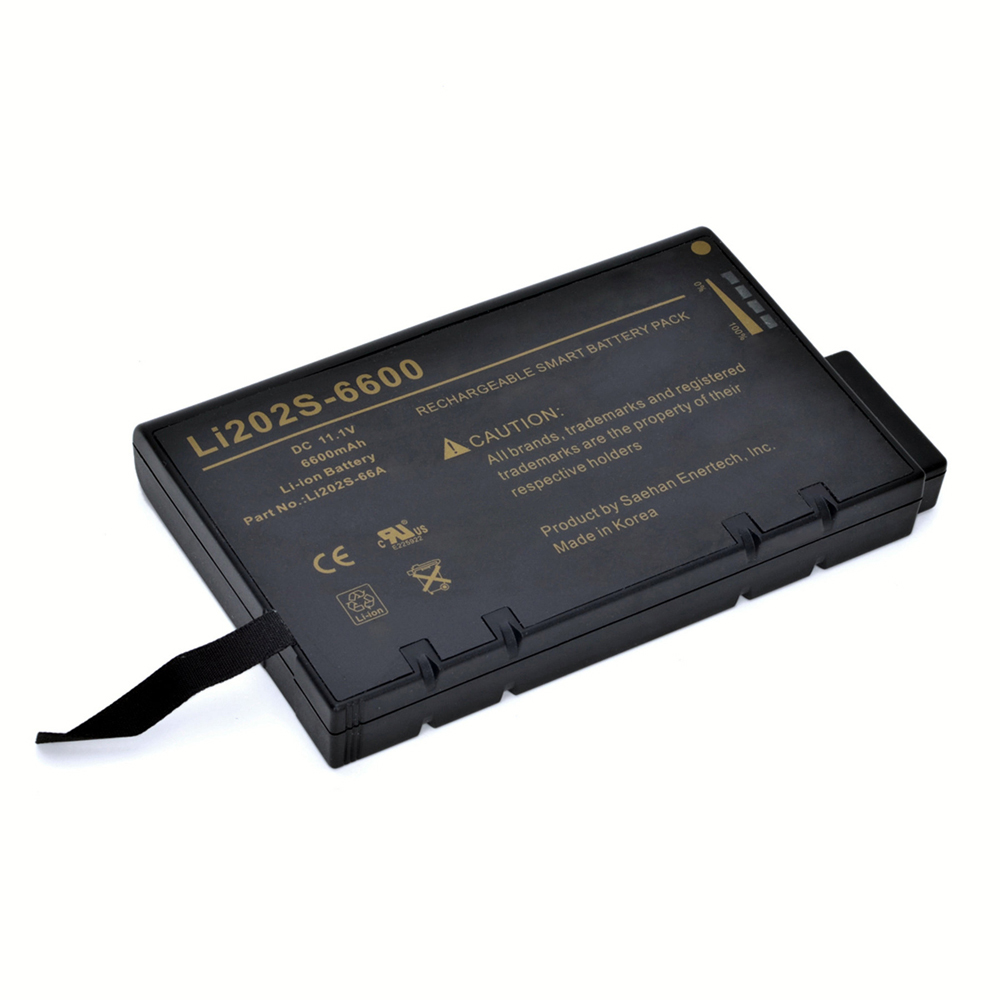
6.6Ah 11.1V Philips LI202S-6600 Li-ion Battery for PHILIPS VS2/VM4/VM6/VM8/VM3,VS3,V24E

6.6Ah 11.1V Philips LI202S-6600 Batteries for PHILIPS VS2/VM4/VM6/VM8/VM3,VS3,V24E, Philips LI202S-6600 Laptop battery is a brand new,100% Compatible original and replacement Laptop battery,Purchase wholesale and retail LI202S-6600 with high quality and low price!

Find ou your original model number or part number(P/N), and move your eyes on the tag of battery

LI202S-6600

Specifications

  • Brand:Philips
  • Capacity :6.6Ah
  • Voltage :11.1V
  • Color:black
  • Type :Li-ion
  • Battery Cell Quality: Grade A
  • Descriptive: Replacement Battery – 1 Year Warranty
  • Description: Brand New, 1 Year Warranty! 30-Days Money Back! Fast Shipping!

How we test this Philips LI202S-6600 Battery
Step 1: Make sure customer bought the correct battery.
Step 2: Check battery’s appearance and interface.
Step 3: Test battery charger and recharger function.
Step 4: Charger the battery to 100% and recharger to 0% to get real battery capacity
Step 5: Use Ev2300 to check the voltage difference of each goroup cells.
Step 6: Charger battery power more than 30%.
Step 7: Package battery carefully and send out

Compatible Part Numbers:
LI202S-6600
98980314463-1

Compatible Model Numbers:
SureSigns VS2 VS3 VM4 VM6 VM8 Monitor

How much do you know about how to run laptop well as any place? The follow Tips cut way back on protecting battery life.


1). Please recharge or change your Laptop battery when battery power low.
2). Using Li-Ion Replacement Philips LI202S-6600 Laptop Battery for your notebook which can work longer time than Non Li-ion one.
3). It is better to defragmentation regularly for your Laptop battery life.
4). In order to reduce the laptop power consumpition, you can use some optical drive spin-down and hard drive in your Laptop .
5). Please keep your laptop in sleep or standby model without long time using, which both save the Replacement Philips LI202S-6600 Laptop Battery power and extend battery using life.
6). Leave your battery in a dry and cool condition when without using.
7). When you rarely or generally plugged in fixed power using, Please take down your battery to avoid hurting battery life.

Hot Products

3500mAh/13.48WH SAMSUNG EB-BA730ABE for Samsung GALAXY A8+ A7 A730X SM4100mAh/62.32Wh GETAC GK5CN-00-13-4S1P-0 for GETAC GK5CN5Z GK5CN6Z GK5CN4Z930mAh/3.4Wh GARMIN 361-00035-01 for GARMIN Nuvi 2595LMT 1250 12556580mAh/25.333WH BLACKVIEW 726280P for Blackview BV6800 pro Phone1350mAh/4.995WH ALCATEL TLI013CA for Alcatel phone3310mAh/50WH FUJITSU FPB0338S for Fujitsu Lifebook E548 E558 T932800mAh/10.36WH INFOCUS P2424 for InFocus P242433Wh HP BV02XL for HP Envy X2 Detachable 13 Serie875mAh DJI HB3 for DJI Osmo Pocket 230.4Wh/4000mAh LG LBG722VH for LG Gram 14Z950 13Z940 13ZD940
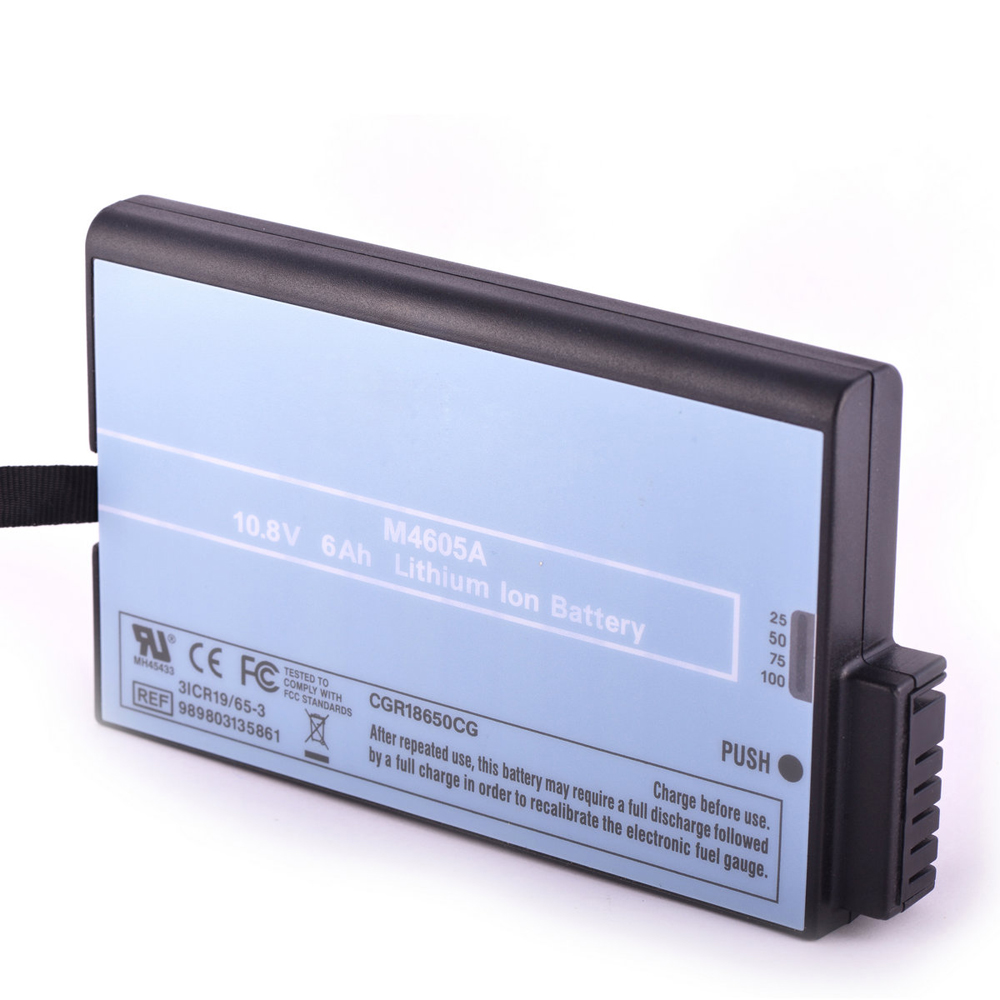
6.0 Ah 10.8 Volt Philips M4605A Li-ion Battery for Philips MP20,MP30,MP40,MP50,MP70,MP90,M8001A,M8002A

6.0 Ah 10.8 Volt Philips M4605A Batteries for Philips MP20,MP30,MP40 MP50,MP70,MP90,M8001A,M8002A, Philips M4605A Laptop battery is a brand new,100% Compatible original and replacement Laptop battery,Purchase wholesale and retail M4605A with high quality and low price!

Find ou your original model number or part number(P/N), and move your eyes on the tag of battery

M4605A

Specifications

  • Brand:Philips
  • Capacity :6.0 Ah
  • Voltage :10.8 Volt
  • Color:black
  • Type :Lithium
  • Battery Cell Quality: Grade A
  • Descriptive: Replacement Battery – 1 Year Warranty
  • Description: Brand New, 1 Year Warranty! 30-Days Money Back! Fast Shipping!

How we test this Philips M4605A Battery
Step 1: Make sure customer bought the correct battery.
Step 2: Check battery’s appearance and interface.
Step 3: Test battery charger and recharger function.
Step 4: Charger the battery to 100% and recharger to 0% to get real battery capacity
Step 5: Use Ev2300 to check the voltage difference of each goroup cells.
Step 6: Charger battery power more than 30%.
Step 7: Package battery carefully and send out

Compatible Part Numbers:
M4605A
989803135861
02103

Compatible Model Numbers:
Approx. Weight: 452g
Philips IntelliVue MP20/MP30/MP40/MP50 Monitor
MP20,MP30,MP40 MP50,MP70,MP90,M8001A,M8002A,M8100 Patient Monitor
IntelliVue MP5, MP20, MP30, MP50, MP70, M8001A, M8002A, M8100
Philips IntelliVue MP20, MP30, MP50, MP70, MP90M8001A, M8002A, M8100 Patient Monitor

How much do you know about how to run laptop well as any place? The follow Tips cut way back on protecting battery life.


1). Please recharge or change your Laptop battery when battery power low.
2). Using Li-Ion Replacement Philips M4605A Laptop Battery for your notebook which can work longer time than Non Li-ion one.
3). It is better to defragmentation regularly for your Laptop battery life.
4). In order to reduce the laptop power consumpition, you can use some optical drive spin-down and hard drive in your Laptop .
5). Please keep your laptop in sleep or standby model without long time using, which both save the Replacement Philips M4605A Laptop Battery power and extend battery using life.
6). Leave your battery in a dry and cool condition when without using.
7). When you rarely or generally plugged in fixed power using, Please take down your battery to avoid hurting battery life.

Hot Products

3500mAh/13.48WH SAMSUNG EB-BA730ABE for Samsung GALAXY A8+ A7 A730X SM4100mAh/62.32Wh GETAC GK5CN-00-13-4S1P-0 for GETAC GK5CN5Z GK5CN6Z GK5CN4Z930mAh/3.4Wh GARMIN 361-00035-01 for GARMIN Nuvi 2595LMT 1250 12556580mAh/25.333WH BLACKVIEW 726280P for Blackview BV6800 pro Phone1350mAh/4.995WH ALCATEL TLI013CA for Alcatel phone3310mAh/50WH FUJITSU FPB0338S for Fujitsu Lifebook E548 E558 T932800mAh/10.36WH INFOCUS P2424 for InFocus P242433Wh HP BV02XL for HP Envy X2 Detachable 13 Serie875mAh DJI HB3 for DJI Osmo Pocket 230.4Wh/4000mAh LG LBG722VH for LG Gram 14Z950 13Z940 13ZD940
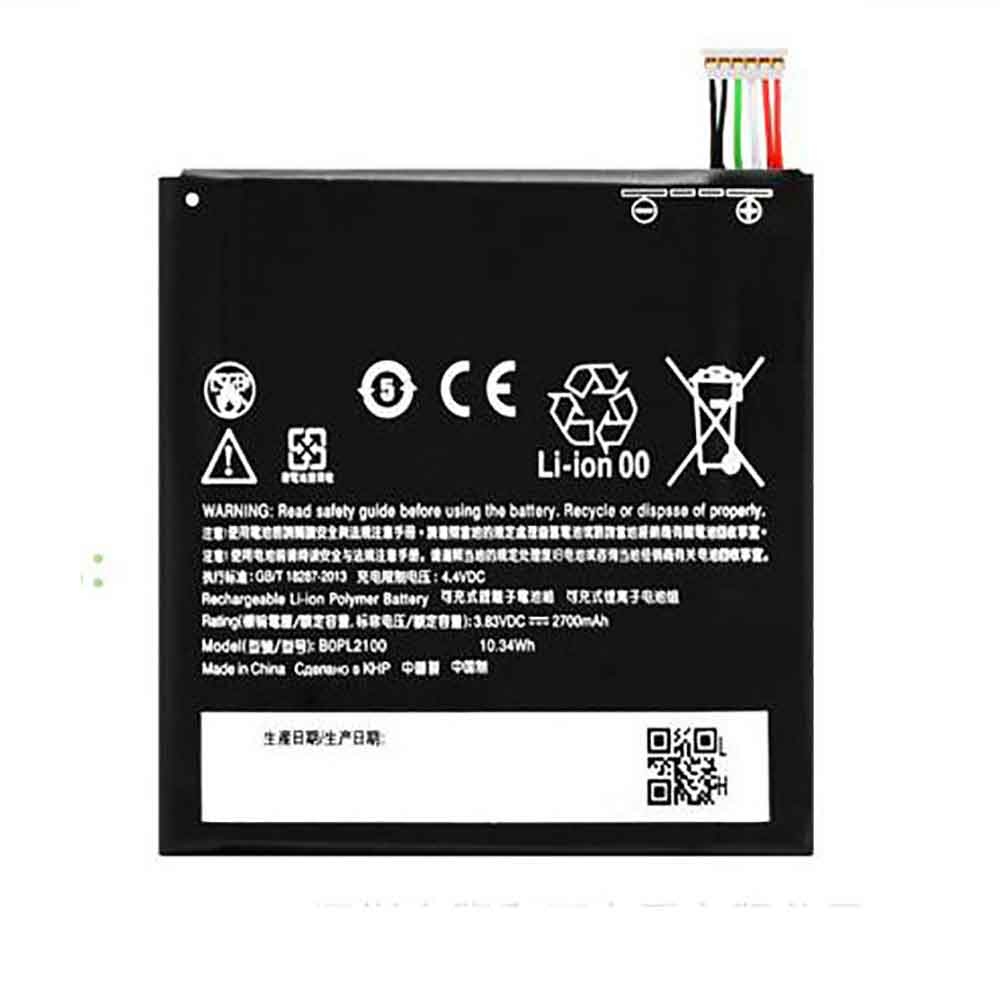
2700MAH/10.34Wh 3.83V 4.4V Htc B0PL2100 Li-ion Battery for HTC Butterfly 3

2700MAH/10.34Wh 3.83V 4.4V Htc B0PL2100 Batteries for HTC Butterfly 3, Htc B0PL2100 Cell Phone battery is a brand new,100% Compatible original and replacement Phone battery,Purchase wholesale and retail B0PL2100 with high quality and low price!

Find ou your original model number or part number(P/N), and move your eyes on the tag of battery

B0PL2100

Specifications

  • Brand:HTC
  • Capacity :2700MAH/10.34Wh
  • Voltage :3.83V 4.4V
  • Type :Li-ion
  • Battery Cell Quality: Grade A
  • Descriptive: Replacement Battery – 1 Year Warranty
  • Description: Brand New, 1 Year Warranty! 30-Days Money Back! Fast Shipping!

How we test this Htc B0PL2100 Battery
Step 1: Make sure customer bought the correct battery.
Step 2: Check battery’s appearance and interface.
Step 3: Test battery charger and recharger function.
Step 4: Charger the battery to 100% and recharger to 0% to get real battery capacity
Step 5: Use Ev2300 to check the voltage difference of each goroup cells.
Step 6: Charger battery power more than 30%.
Step 7: Package battery carefully and send out

Compatible Part Numbers:
B0PL2100

Compatible Model Numbers:
HTC Butterfly 3

How much do you know about how to run laptop well as any place? The follow Tips cut way back on protecting battery life.


1). Please recharge or change your Cell Phone battery when battery power low.
2). Using Li-Ion Replacement Htc B0PL2100 Cell Phone Battery for your notebook which can work longer time than Non Li-ion one.
3). It is better to defragmentation regularly for your Cell Phone battery life.
4). In order to reduce the laptop power consumpition, you can use some optical drive spin-down and hard drive in your Cell Phone .
5). Please keep your laptop in sleep or standby model without long time using, which both save the Replacement Htc B0PL2100 Cell Phone Battery power and extend battery using life.
6). Leave your battery in a dry and cool condition when without using.
7). When you rarely or generally plugged in fixed power using, Please take down your battery to avoid hurting battery life.

Hot Products

3500mAh/13.48WH SAMSUNG EB-BA730ABE for Samsung GALAXY A8+ A7 A730X SM4100mAh/62.32Wh GETAC GK5CN-00-13-4S1P-0 for GETAC GK5CN5Z GK5CN6Z GK5CN4Z930mAh/3.4Wh GARMIN 361-00035-01 for GARMIN Nuvi 2595LMT 1250 12556580mAh/25.333WH BLACKVIEW 726280P for Blackview BV6800 pro Phone1350mAh/4.995WH ALCATEL TLI013CA for Alcatel phone3310mAh/50WH FUJITSU FPB0338S for Fujitsu Lifebook E548 E558 T932800mAh/10.36WH INFOCUS P2424 for InFocus P242433Wh HP BV02XL for HP Envy X2 Detachable 13 Serie875mAh DJI HB3 for DJI Osmo Pocket 230.4Wh/4000mAh LG LBG722VH for LG Gram 14Z950 13Z940 13ZD940
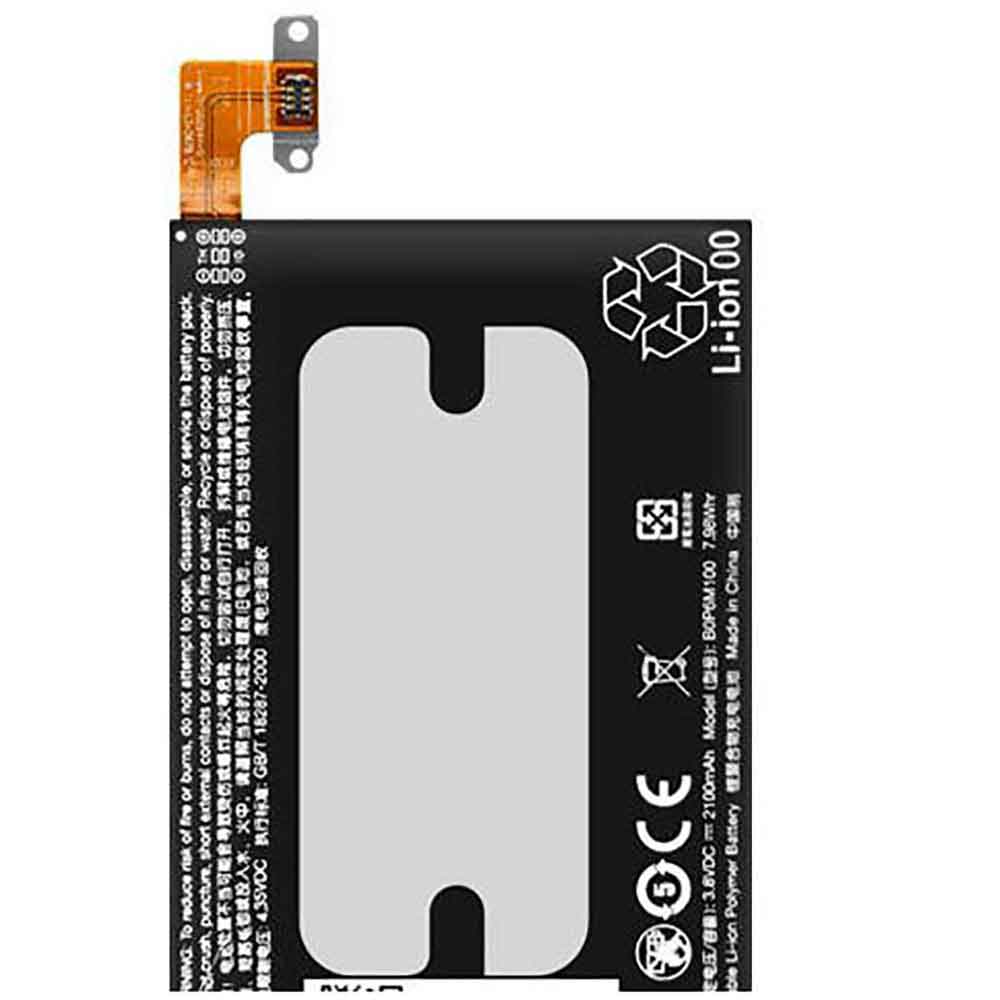
2100MAH/7.98Wh 3.8V 4.35V Htc B0P6M100 Li-ion Battery for HTC One Mini 2 M8 Mini M5

2100MAH/7.98Wh 3.8V 4.35V Htc B0P6M100 Batteries for HTC One Mini 2 M8 Mini M5, Htc B0P6M100 Cell Phone battery is a brand new,100% Compatible original and replacement Phone battery,Purchase wholesale and retail B0P6M100 with high quality and low price!

Find ou your original model number or part number(P/N), and move your eyes on the tag of battery

B0P6M100

Specifications

  • Brand:HTC
  • Capacity :2100MAH/7.98Wh
  • Voltage :3.8V 4.35V
  • Type :Li-ion
  • Battery Cell Quality: Grade A
  • Descriptive: Replacement Battery – 1 Year Warranty
  • Description: Brand New, 1 Year Warranty! 30-Days Money Back! Fast Shipping!

How we test this Htc B0P6M100 Battery
Step 1: Make sure customer bought the correct battery.
Step 2: Check battery’s appearance and interface.
Step 3: Test battery charger and recharger function.
Step 4: Charger the battery to 100% and recharger to 0% to get real battery capacity
Step 5: Use Ev2300 to check the voltage difference of each goroup cells.
Step 6: Charger battery power more than 30%.
Step 7: Package battery carefully and send out

Compatible Part Numbers:
B0P6M100

Compatible Model Numbers:
HTC One Mini 2 M8 Mini M5

How much do you know about how to run laptop well as any place? The follow Tips cut way back on protecting battery life.


1). Please recharge or change your Cell Phone battery when battery power low.
2). Using Li-Ion Replacement Htc B0P6M100 Cell Phone Battery for your notebook which can work longer time than Non Li-ion one.
3). It is better to defragmentation regularly for your Cell Phone battery life.
4). In order to reduce the laptop power consumpition, you can use some optical drive spin-down and hard drive in your Cell Phone .
5). Please keep your laptop in sleep or standby model without long time using, which both save the Replacement Htc B0P6M100 Cell Phone Battery power and extend battery using life.
6). Leave your battery in a dry and cool condition when without using.
7). When you rarely or generally plugged in fixed power using, Please take down your battery to avoid hurting battery life.

Hot Products

3500mAh/13.48WH SAMSUNG EB-BA730ABE for Samsung GALAXY A8+ A7 A730X SM4100mAh/62.32Wh GETAC GK5CN-00-13-4S1P-0 for GETAC GK5CN5Z GK5CN6Z GK5CN4Z930mAh/3.4Wh GARMIN 361-00035-01 for GARMIN Nuvi 2595LMT 1250 12556580mAh/25.333WH BLACKVIEW 726280P for Blackview BV6800 pro Phone1350mAh/4.995WH ALCATEL TLI013CA for Alcatel phone3310mAh/50WH FUJITSU FPB0338S for Fujitsu Lifebook E548 E558 T932800mAh/10.36WH INFOCUS P2424 for InFocus P242433Wh HP BV02XL for HP Envy X2 Detachable 13 Serie875mAh DJI HB3 for DJI Osmo Pocket 230.4Wh/4000mAh LG LBG722VH for LG Gram 14Z950 13Z940 13ZD940
Samsung battery swelling and how to fix it

 After purchasing your phone, you may encounter some problems. For example, your Samsung battery may swell over time. Lithium-ion batteries use chemical reactions to generate electricity. When a battery gets old, the chemical reaction is usually not complete, and it produces gas that causes the battery to swell. In addition, due to defects or damage, the inner layers of the battery may have improperly separated, so the battery may swell. The particles get trapped between the battery layers and puncture the membranes that separate the different layers. In this case, the moisture in the air reacts with the battery, causing the battery to swell.

Is it safe to use Samsung’s swollen phone battery?

A swollen phone battery won’t get better. Your phone may still work, but continuing to use the battery is risky, especially charging. When the battery swells, the gas builds up and the battery becomes fragile because the casing is under a lot of pressure from the gas. Some people try to leak the battery to allow the gas to escape, but doing so is very dangerous. So, don’t try to puncture the battery to leak gas. If possible, try to remove the battery carefully and keep it in an isolated and cool place. If you can’t remove it and feel resistance, you’ll have to take it to a repair shop. After removing the battery, contact an authorized battery disposal facility to recycle the battery.

A swollen battery is dangerous because it can catch fire easily. You need to handle this situation with extreme caution. If you’re not sure what to do with it, leave the device alone and call a professional to fix it. You may not use the battery further. Just buy a new battery for your phone.

How to prevent Samsung lithium battery from swelling?

Even if you take good care of your Samsung battery, it will still drain and you will need to replace it. However, you must take care of your battery to make sure the damage isn’t too quick or too severe, here’s how:

keep the battery cool

High temperatures can affect the battery. Therefore, you must keep the battery away from heat sources. You should also avoid charging the battery too frequently, which can heat up the battery.

use a good charger

Make sure you are using a good quality charger with full power. If the battery is not charged for a long time, it can also cause gas formation and battery swelling. So, even if you no longer use your phone, you have to charge it every now and then to keep the battery in good shape.

Replace the old battery

If you find that your battery is not charging well, then you must replace it. For example, if your phone used to stay charged for 5 hours and now runs out of power after 30 minutes, it’s time to replace the battery.

shockproof

You must protect the battery from shock. So, make sure you handle the battery with care and don’t bump or drop it.

How to know if Samsung lithium battery is swollen

A swollen Samsung lithium battery can be dangerous if left unsecured. There are some ways to tell if a battery is swollen.

check phone

When the battery swells, it pushes on the other components of the battery. Therefore, you will notice that the display buttons or other buttons are not aligned. You will find it difficult to press buttons. Another way to detect a swollen battery is when your case no longer fits your phone.

unique smell

Swollen batteries give off metallic and chemical odors. So, once you smell that, you’ll know it’s the smell of gas leaking from a swollen battery.

Check the battery

You can open the phone to see the battery. If you notice any puffiness, it’s because it’s swollen. Also, if you find that the battery is wrinkled or loosely packed and appears to be round, it’s bulging.

>>>>>>>>>>>Samsung battery

Thanks for reading, hope it helps!

Friendly reminder: If you need to replace the battery of your device, this battery store will be a good choice: www.batteryforpc.co.uk

How to take a screenshot on a Chromebook

 Taking screenshots on your computer is helpful for many things. From quickly showing someone a problem you’re solving, to getting ideas for your next big project, to helping a friend or family member by showing them how to do something. However, the actual screenshots taken vary by device, operating system, and operating system. This includes Chromebooks and Chrome OS.

The Snipping Tool on Chromebooks has historically been relatively basic, only available via keyboard shortcuts, and not particularly noticeable. In early 2021, though, Google introduced a screenshot tool that lets you take photos and video clips of your Chromebook’s screen. Here are two ways to launch the screen capture tool, let’s take a look!

Screenshot on Chromebook with keyboard shortcuts

To launch the Screenshot Toolbar, you need to press the three-key shortcut: Shift+Ctrl+Show Windows. The Show Windows key is on the top row of the keyboard, and its icon looks like a window with two windows behind it. Just press these three and the toolbar will pop up at the bottom of the screen.

Also, if you just want to quickly capture the entire screen, not a specific area or window, you can simply press Ctrl+Show Windows.

Chromebook screenshot from Quick Settings

I’m having a hard time remembering shortcut keys, so I’ve been looking for another option. Luckily, Google added a shortcut button for taking screenshots in the Quick Settings panel so I didn’t have to think about what keys I needed. On Chrome’s bookshelf, click the time to bring up the quick settings menu. Just click or tap the screen capture and the toolbar will launch.

How to use the Snipping Toolbar

The Screen Capture toolbar not only allows you to take screenshots, it can also be used to capture screen recordings. On the far left of the toolbar is a toggle switch from stills to video. On the right side of the toggle, you can choose to take a full-screen screenshot, a partial screenshot with a specific area you define, or a screenshot of a specific window. These work for photos and videos. Additionally, clicking the settings gear on the toolbar lets you turn the microphone on or off while recording your screen, making it easy to add narration to your captures.

Where screenshots are saved on the Chromebook

When you take a screenshot or record, it’s instantly accessible from the clipboard, which stores the last five things you saved to it. To see what’s available, just press the Everything button (aka the Search key) plus V.

Your Chromebook also has a storage spot on the shelf called the Tote. You can find the latest screenshots there. You can also pin files to Tote, which means you can always open an important screenshot without having to search for it.

Screenshots that are no longer saved on the clipboard can be found in your files. Just open the Files app on your Chromebook and you’ll find screenshots in the images folder and screen recordings in the videos folder.

>>>>>>>>>Laptop’s battery

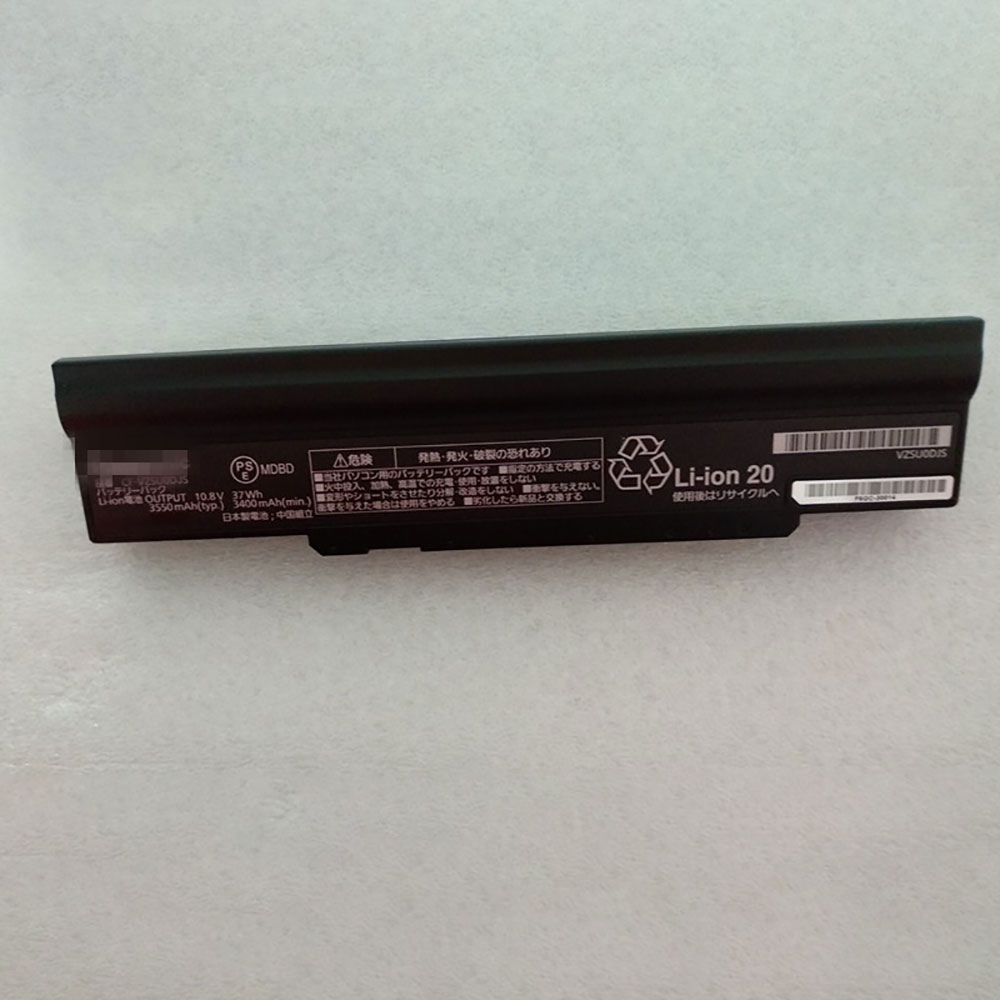
3550mAh/37WH 10.8V Panasonic CF-VZSU0DJS Li-ion Battery for Panasonic CF-LX

3550mAh/37WH 10.8V Panasonic CF-VZSU0DJS Batteries for Panasoni CF-LX, Panasonic CF-VZSU0DJS Laptop battery is a brand new,100% Compatible original and replacement Laptop battery,Purchase wholesale and retail CF-VZSU0DJS with high quality and low price!

Find ou your original model number or part number(P/N), and move your eyes on the tag of battery

CF-VZSU0DJS

Specifications

  • Brand:Panasonic
  • Capacity :3550mAh/37WH
  • Voltage :10.8V
  • Type :Li-ion
  • Battery Cell Quality: Grade A
  • Descriptive: Replacement Battery – 1 Year Warranty
  • Description: Brand New, 1 Year Warranty! 30-Days Money Back! Fast Shipping!

How we test this Panasonic CF-VZSU0DJS Battery
Step 1: Make sure customer bought the correct battery.
Step 2: Check battery’s appearance and interface.
Step 3: Test battery charger and recharger function.
Step 4: Charger the battery to 100% and recharger to 0% to get real battery capacity
Step 5: Use Ev2300 to check the voltage difference of each goroup cells.
Step 6: Charger battery power more than 30%.
Step 7: Package battery carefully and send out

Compatible Part Numbers:
CF-VZSU0DJS

Compatible Model Numbers:
Panasoni CF-LX

How much do you know about how to run laptop well as any place? The follow Tips cut way back on protecting battery life.


1). Please recharge or change your Laptop battery when battery power low.
2). Using Li-Ion Replacement Panasonic CF-VZSU0DJS Laptop Battery for your notebook which can work longer time than Non Li-ion one.
3). It is better to defragmentation regularly for your Laptop battery life.
4). In order to reduce the laptop power consumpition, you can use some optical drive spin-down and hard drive in your Laptop .
5). Please keep your laptop in sleep or standby model without long time using, which both save the Replacement Panasonic CF-VZSU0DJS Laptop Battery power and extend battery using life.
6). Leave your battery in a dry and cool condition when without using.
7). When you rarely or generally plugged in fixed power using, Please take down your battery to avoid hurting battery life.

Hot Products

4100mAh/62.32Wh GETAC GK5CN-00-13-4S1P-0 for GETAC GK5CN5Z GK5CN6Z GK5CN4Z930mAh/3.4Wh GARMIN 361-00035-01 for GARMIN Nuvi 2595LMT 1250 12556580mAh/25.333WH BLACKVIEW 726280P for Blackview BV6800 pro Phone1350mAh/4.995WH ALCATEL TLI013CA for Alcatel phone3310mAh/50WH FUJITSU FPB0338S for Fujitsu Lifebook E548 E558 T932800mAh/10.36WH INFOCUS P2424 for InFocus P242433Wh HP BV02XL for HP Envy X2 Detachable 13 Serie875mAh DJI HB3 for DJI Osmo Pocket 230.4Wh/4000mAh LG LBG722VH for LG Gram 14Z950 13Z940 13ZD9403575mAh/42WH LENOVO SB10J78991 for Lenovo ThinkPad Yoga 11E 3rd G