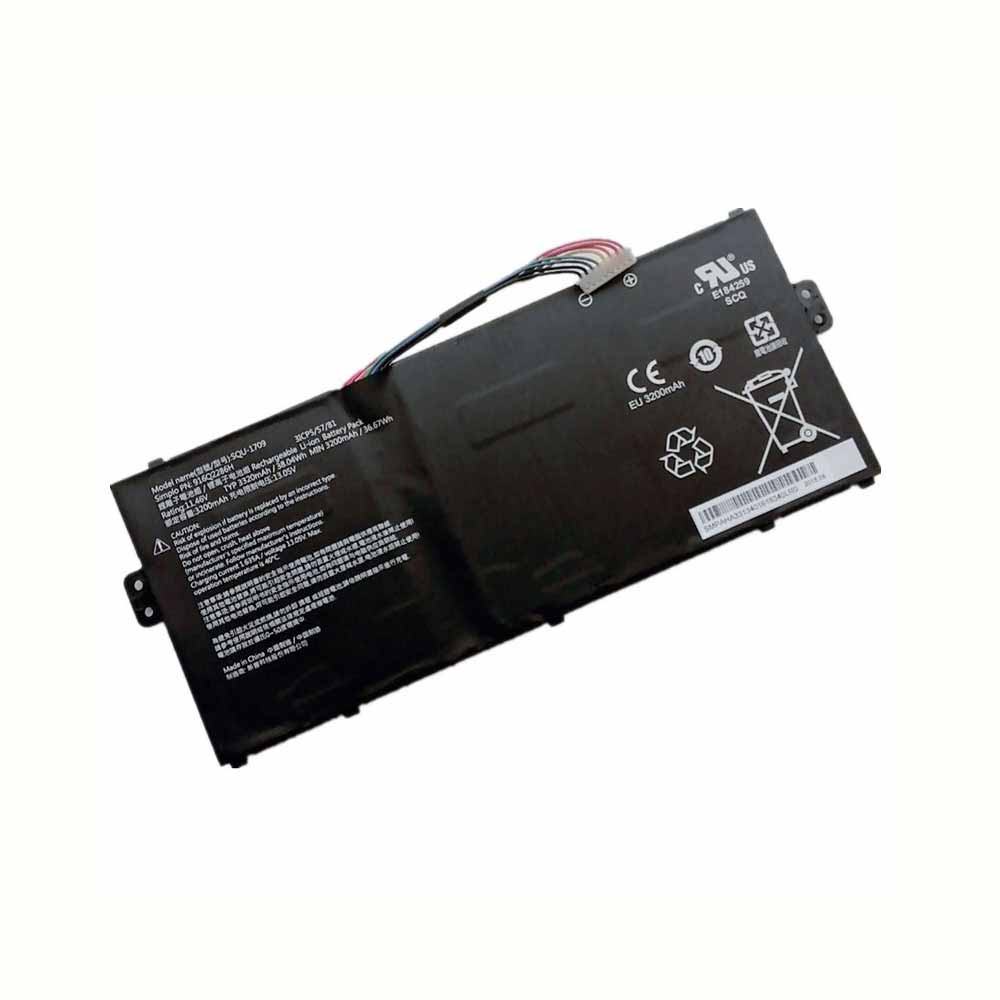
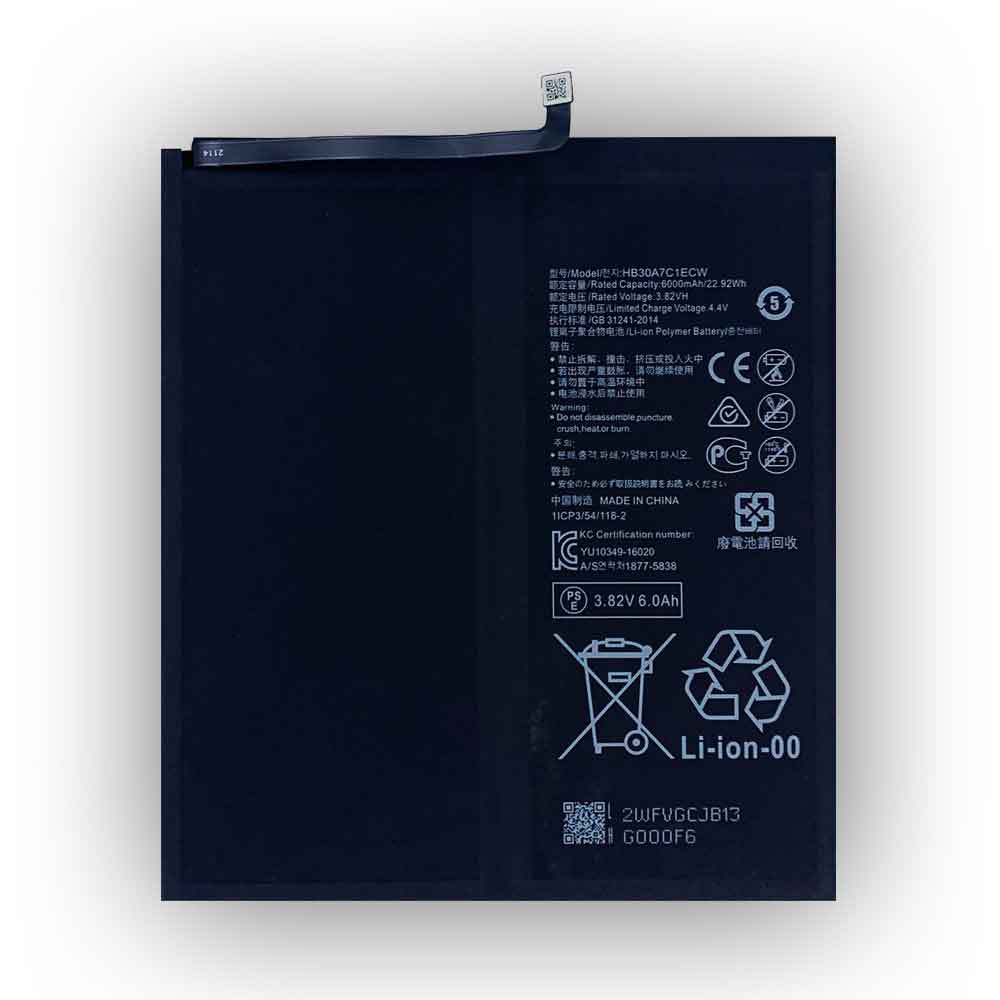
6000mAh/22.92WH 3.82V Huawei HB30A7C1ECW Li-ion Battery for HUAWEI M6 VRD-AL10

6000mAh/22.92WH 3.82V Huawei HB30A7C1ECW Batteries for HUAWEI M6 VRD-AL10, Huawei HB30A7C1ECW Tablets battery is a brand new,100% Compatible original and replacement Tablets battery,Purchase wholesale and retail HB30A7C1ECW with high quality and low price!

Find ou your original model number or part number(P/N), and move your eyes on the tag of battery
HB30A7C1ECW

Specifications

  • Brand:HUAWEI
  • Capacity :6000mAh/22.92WH
  • Voltage :3.82V
  • Type :Li-ion
  • Battery Cell Quality: Grade A
  • Descriptive: Replacement Battery – 1 Year Warranty
  • Description: Brand New, 1 Year Warranty! 30-Days Money Back! Fast Shipping!

How we test this Huawei HB30A7C1ECW Battery
Step 1: Make sure customer bought the correct battery.
Step 2: Check battery’s appearance and interface.
Step 3: Test battery charger and recharger function.
Step 4: Charger the battery to 100% and recharger to 0% to get real battery capacity
Step 5: Use Ev2300 to check the voltage difference of each goroup cells.
Step 6: Charger battery power more than 30%.
Step 7: Package battery carefully and send out

Compatible Part Numbers:
HB30A7C1ECW

Compatible Model Numbers:
HUAWEI M6 VRD-AL10

How much do you know about how to run laptop well as any place? The follow Tips cut way back on protecting battery life.


1). Please recharge or change your Tablets battery when battery power low.
2). Using Li-Ion Replacement Huawei HB30A7C1ECW Tablets Battery for your notebook which can work longer time than Non Li-ion one.
3). It is better to defragmentation regularly for your Tablets battery life.
4). In order to reduce the laptop power consumpition, you can use some optical drive spin-down and hard drive in your Tablets .
5). Please keep your laptop in sleep or standby model without long time using, which both save the Replacement Huawei HB30A7C1ECW Tablets Battery power and extend battery using life.
6). Leave your battery in a dry and cool condition when without using.
7). When you rarely or generally plugged in fixed power using, Please take down your battery to avoid hurting battery life.

Hot Products

6580mAh/25.333WH BLACKVIEW 726280P for Blackview BV6800 pro Phone1350mAh/4.995WH ALCATEL TLI013CA for Alcatel phone3310mAh/50WH FUJITSU FPB0338S for Fujitsu Lifebook E548 E558 T932800mAh/10.36WH INFOCUS P2424 for InFocus P242433Wh HP BV02XL for HP Envy X2 Detachable 13 Serie875mAh DJI HB3 for DJI Osmo Pocket 230.4Wh/4000mAh LG LBG722VH for LG Gram 14Z950 13Z940 13ZD9403575mAh/42WH LENOVO SB10J78991 for Lenovo ThinkPad Yoga 11E 3rd G5380mAh 20.713WH BLACKVIEW Li486690JLY for Blackview A704220mAh/16.33WH VIVO B-O9 for VIVO X60


Battery Calibration Laptop – Two Methods

 Battery calibration is a technique to fix incorrect battery statistics showing and giving incorrect battery runtime remaining. We recommend this as a regular laptop cleaning ritual. The process of calibrating a laptop battery isn’t difficult – it’s basically a method of fully discharging the battery to empty and then fully charging it to 100%, and some companies even offer integrated programs to do this for you. If you want to do this manually, then you can do this too. All newly purchased laptops and tablets should be calibrated immediately after purchase. This helps your laptop get an accurate reading of the remaining battery runtime. Lack of calibration, battery ratio readings will be inappropriate, and according to Apple, your computer may behave strangely — shutting down suddenly even if a new battery is “suddenly” partially charged, or even if the battery says it’s almost dead, you Your laptop will also take up your laptop for a long time.

Is Laptop Battery Calibration Necessary?

No matter how well-used your laptop battery is, its capacity will definitely decline over time due to unavoidable factors such as normal usage, battery aging, and heating. If the battery is not allowed to run from 100% to 0%, the battery’s gauge will not recognize the actual charge in the battery. In general, manufacturers recommend calibrating batteries every 2 to 3 months, which helps keep battery readings correct.

In fact, if you’re not too concerned about your laptop’s battery reading being completely correct, you really don’t have to do it very often. However, if you don’t calibrate your battery often, you may eventually find your laptop shuts down abruptly while you’re using it, without any prior notice. When this happens, it’s time to calibrate your laptop’s battery.

How do I calibrate my laptop’s battery?

Here’s how to calibrate your laptop’s battery with a step-by-step guide:

i. Standard calibration

Many companies offer built-in calibration routines integrated into the BIOS.

step 1

Turn on your laptop and press F2; ​​select the power menu in the top tab.

Step 2

Select Start battery calibration and hit “Enter”.

Step 3

Wait for the display to turn blue.

Step 4

The battery will continue to be discarded until fully discharged and the system shuts down. After that, plug in the adapter to fully charge it; when the battery is completely replaced, the calibration process is complete.

ii) Manual calibration process

If the standard process does not work for your laptop, you must do it manually

step 1

After booting the system, go to “Power Management Settings” on the laptop.

Step 2

Select Change plan settings.

Step 3

Go to “Change advanced power settings” and press “Battery”. Select “Critical Battery Operation” and select the “Hibernate” option. Also, select “Critical Battery Level” and set it to 5%.

Step 4

After updating all settings, close all running applications. Disconnect it from the adapter and turn it off when fully discharged.

After a few hours of pause, plug in the adapter again and charge the battery to 100%.

Remember, if you want to calibrate the battery when the laptop is not in use, then you should set the following options to “Never”, ie:

dim the display

Turn off the display

put the computer to sleep

Let the laptop sit for a while until it shuts down automatically. After calibration, make sure to configure all of the above power settings to normal values ​​before using the laptop again.

So, here are two ways to calibrate a laptop battery. You can choose the one you think is the easiest and most convenient. Or if the first method doesn’t work, try the manual method.

>>>>>>>>>>Laptop’s battery

Thanks for reading, hope it helps!

Friendly reminder: If you need to replace the battery, this battery store will be a good choice: www.batteryforpc.co.uk

How to Take a Screenshot on Mac: 4 Ways to Take a Screenshot

 Knowing how to take a screenshot is an essential skill if you want to capture what’s currently on your Mac, whether it’s an event ticket, an email you just received, or just a snapshot of your desktop.

If you own a Mac of any kind, there are three ways you can take a screenshot using keyboard shortcuts—and a fourth if you own a MacBook with the Touch Bar. Below we’ll show you the various keyboard shortcuts you need to take screenshots on your Mac. Let’s take a look together!

Command-Shift-3

This keyboard shortcut captures a screenshot of the entire screen.

Shift-Command-4

Use this keyboard combination to turn the cursor into a crosshair that you can drag to select a portion of the screen to capture. Release the mouse button or trackpad to shoot.

After pressing Shift-Command-4, you have many other options:

Press and release the space bar: The crosshair turns into a small camera icon that you can move over any open window. Click on the desired window to take a screenshot of it. The screenshot captured by this method has a white border around the window with a little shadow.

Press and hold the spacebar (after dragging to highlight an area but before releasing the mouse button or trackpad): This locks the shape and size of the selection, but lets you reposition it on the screen. This is handy if your initial selection is off by a few pixels; just hold down the spacebar to reposition it, then release the mouse button to take a screenshot.

Hold down the Shift key (after dragging to highlight the area but before releasing the mouse button or trackpad): This locks each side of the selection area made with the crosshairs, saving the bottom edge and letting you go up or down Move the mouse down to the bottom edge of the position.

Without releasing the mouse button, release the Shift key and press it again to reposition the right edge of the selection. You can toggle between moving the bottom edge and the right edge by holding down the mouse button or touchpad and pressing the Shift key.

Shift-Command-5

Introduced in MacOS Mojave (2018), this combination invokes a small panel with screen capture options at the bottom of your monitor. There are three screenshot buttons that allow you to capture the entire screen, a window, or your screen selection.

Likewise, two video recording buttons allow you to record the entire screen or part of it. On the left is the X button, which closes the screenshot panel, but you can also just press Escape to exit.

On the right is an option button. It allows you to choose where to save your screenshots – Desktop, Documents, Clipboard, Mail, Messages, Preview or other, and set a 5 or 10 second delay so you can line up items that might disappear while you’re using the screenshot tool .

By default, the “Show Floating Thumbnails” option is enabled, which places a small preview thumbnail of the screenshot just captured in the bottom right corner of the screen, similar to the iOS screenshot process. Unlike your iPhone, you can turn off this preview thumbnail on your Mac. Finally, you can choose to display the mouse pointer in the screenshot or video.

If the screenshot panel is blocking your view, you can grab its left edge and drag it to a new location on the screen.

Touch Bar MacBook Bonus: Command-Shift-6

If you have a 16-inch MacBook Pro or other model with a Touch Bar, did you know you can take a screenshot of what’s currently displayed on the Touch Bar? Just press Command-Shift-6 to take a very wide and narrow screenshot of your Touch Bar.

Annotate with ease

If you accept floating thumbnails, then you’ll have quick access to markup tools to annotate your screenshots. You can slide the floating thumbnail away, or let it slide away on its own, and it will save to where you last saved your screenshot. Click on the floating thumbnail and it will open in the Marker View preview window with all the markup tools you get in the preview.

You can right-click a floating thumbnail to do the following:

Save screenshots to desktop, documents folder or clipboard

Open it in Mail, Messages, Preview or Photos

Show in Finder

delete

Open in the above marker preview window

close (and save)

Longtime Mac screenshotters may be slow to adopt the new Command-Shift-5 shortcut, but I find myself using it more to annotate screenshots without having to open Preview and quickly delete I know right away I screwed up screenshot.

>>>>>>>>>>>Apple battery

Thanks for reading, hope it helps!

Friendly reminder: If you need to replace the battery, this battery store will be a good choice: www.batteryforpc.co.uk

5530mAh/21WH 3.8V Hp EA02 Li-ion Battery for HP Pro Tablet 608 G1 799499-2C1 EAO2 799578-055

5530mAh/21WH 3.8V Hp EA02 Batteries for HP Pro Tablet 608 G1 799499-2C1 EAO2 799578-055 HSTNN-Q93C, Hp EA02 Tablets battery is a brand new,100% Compatible original and replacement Tablets battery,Purchase wholesale and retail EA02 with high quality and low price!

Find ou your original model number or part number(P/N), and move your eyes on the tag of battery

EA02

Specifications

  • Brand:HP
  • Capacity :5530mAh/21WH
  • Voltage :3.8V
  • Type :Li-ion
  • Battery Cell Quality: Grade A
  • Descriptive: Replacement Battery – 1 Year Warranty
  • Description: Brand New, 1 Year Warranty! 30-Days Money Back! Fast Shipping!

How we test this Hp EA02 Battery
Step 1: Make sure customer bought the correct battery.
Step 2: Check battery’s appearance and interface.
Step 3: Test battery charger and recharger function.
Step 4: Charger the battery to 100% and recharger to 0% to get real battery capacity
Step 5: Use Ev2300 to check the voltage difference of each goroup cells.
Step 6: Charger battery power more than 30%.
Step 7: Package battery carefully and send out

Compatible Part Numbers:
EA02

Compatible Model Numbers:
HP Pro Tablet 608 G1 799499-2C1 EAO2 799578-055 HSTNN-Q93C

How much do you know about how to run laptop well as any place? The follow Tips cut way back on protecting battery life.


1). Please recharge or change your Tablets battery when battery power low.
2). Using Li-Ion Replacement Hp EA02 Tablets Battery for your notebook which can work longer time than Non Li-ion one.
3). It is better to defragmentation regularly for your Tablets battery life.
4). In order to reduce the laptop power consumpition, you can use some optical drive spin-down and hard drive in your Tablets .
5). Please keep your laptop in sleep or standby model without long time using, which both save the Replacement Hp EA02 Tablets Battery power and extend battery using life.
6). Leave your battery in a dry and cool condition when without using.
7). When you rarely or generally plugged in fixed power using, Please take down your battery to avoid hurting battery life.

Hot Products

6580mAh/25.333WH BLACKVIEW 726280P for Blackview BV6800 pro Phone1350mAh/4.995WH ALCATEL TLI013CA for Alcatel phone3310mAh/50WH FUJITSU FPB0338S for Fujitsu Lifebook E548 E558 T932800mAh/10.36WH INFOCUS P2424 for InFocus P242433Wh HP BV02XL for HP Envy X2 Detachable 13 Serie875mAh DJI HB3 for DJI Osmo Pocket 230.4Wh/4000mAh LG LBG722VH for LG Gram 14Z950 13Z940 13ZD9403575mAh/42WH LENOVO SB10J78991 for Lenovo ThinkPad Yoga 11E 3rd G5380mAh 20.713WH BLACKVIEW Li486690JLY for Blackview A704220mAh/16.33WH VIVO B-O9 for VIVO X60
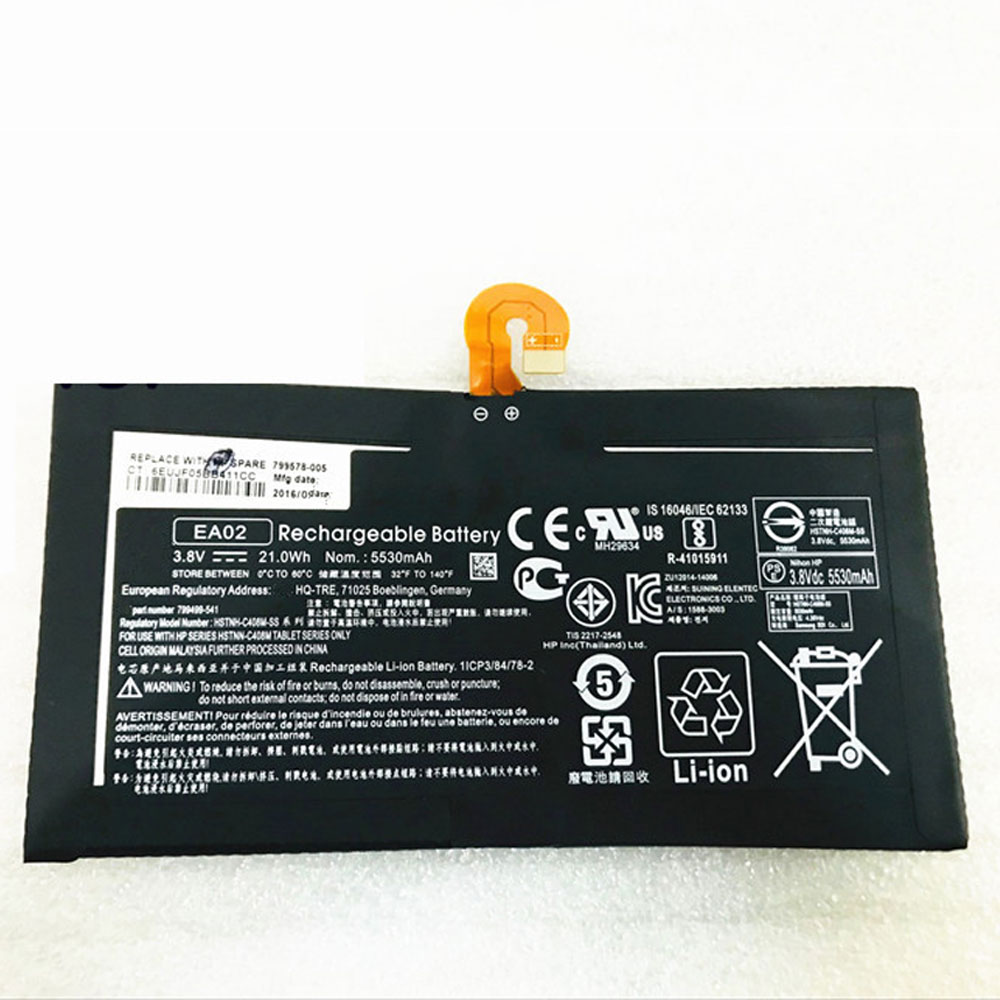
5950mAh/47Wh 7.4V/8.8V Hp MR02XL Li-ion Battery for HP HSTNN-DB9E L45645-2C1 L46601-005 series

5950mAh/47Wh 7.4V/8.8V Hp MR02XL Batteries for HP HSTNN-DB9E L45645-2C1 L46601-005 series, Hp MR02XL Tablets battery is a brand new,100% Compatible original and replacement Tablets battery,Purchase wholesale and retail MR02XL with high quality and low price!

Find ou your original model number or part number(P/N), and move your eyes on the tag of battery

MR02XL

Specifications

  • Brand:HP
  • Capacity :5950mAh/47Wh
  • Voltage :7.4V/8.8V
  • Type :Li-ion
  • Battery Cell Quality: Grade A
  • Descriptive: Replacement Battery – 1 Year Warranty
  • Description: Brand New, 1 Year Warranty! 30-Days Money Back! Fast Shipping!

How we test this Hp MR02XL Battery
Step 1: Make sure customer bought the correct battery.
Step 2: Check battery’s appearance and interface.
Step 3: Test battery charger and recharger function.
Step 4: Charger the battery to 100% and recharger to 0% to get real battery capacity
Step 5: Use Ev2300 to check the voltage difference of each goroup cells.
Step 6: Charger battery power more than 30%.
Step 7: Package battery carefully and send out

Compatible Part Numbers:
MR02XL

Compatible Model Numbers:
HP HSTNN-DB9E L45645-2C1 L46601-005 series

How much do you know about how to run laptop well as any place? The follow Tips cut way back on protecting battery life.


1). Please recharge or change your Tablets battery when battery power low.
2). Using Li-Ion Replacement Hp MR02XL Tablets Battery for your notebook which can work longer time than Non Li-ion one.
3). It is better to defragmentation regularly for your Tablets battery life.
4). In order to reduce the laptop power consumpition, you can use some optical drive spin-down and hard drive in your Tablets .
5). Please keep your laptop in sleep or standby model without long time using, which both save the Replacement Hp MR02XL Tablets Battery power and extend battery using life.
6). Leave your battery in a dry and cool condition when without using.
7). When you rarely or generally plugged in fixed power using, Please take down your battery to avoid hurting battery life.

Hot Products

6580mAh/25.333WH BLACKVIEW 726280P for Blackview BV6800 pro Phone1350mAh/4.995WH ALCATEL TLI013CA for Alcatel phone3310mAh/50WH FUJITSU FPB0338S for Fujitsu Lifebook E548 E558 T932800mAh/10.36WH INFOCUS P2424 for InFocus P242433Wh HP BV02XL for HP Envy X2 Detachable 13 Serie875mAh DJI HB3 for DJI Osmo Pocket 230.4Wh/4000mAh LG LBG722VH for LG Gram 14Z950 13Z940 13ZD9403575mAh/42WH LENOVO SB10J78991 for Lenovo ThinkPad Yoga 11E 3rd G5380mAh 20.713WH BLACKVIEW Li486690JLY for Blackview A704220mAh/16.33WH VIVO B-O9 for VIVO X60
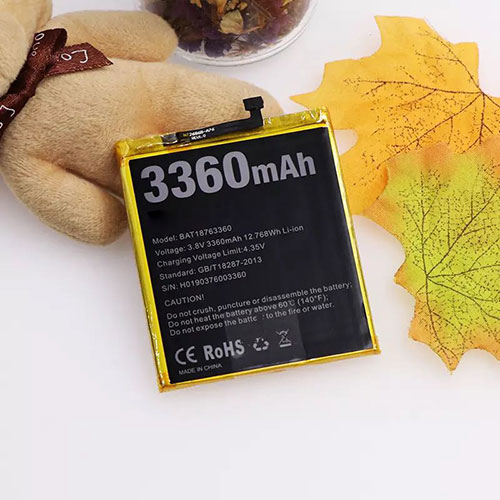
3360mah/12.768Wh 3.8V/4.35V Doogee BAT18763360 Li-ion Battery for Doogee Y7 N10 phone

3360mah/12.768Wh 3.8V/4.35V Doogee BAT18763360 Batteries for Doogee Y7 N10 phone, Doogee BAT18763360 Cell Phone battery is a brand new,100% Compatible original and replacement Phone battery,Purchase wholesale and retail BAT18763360 with high quality and low price!

Find ou your original model number or part number(P/N), and move your eyes on the tag of battery

BAT18763360

Specifications

  • Brand:Doogee
  • Capacity :3360mah/12.768Wh
  • Voltage :3.8V/4.35V
  • Type :Li-ion
  • Battery Cell Quality: Grade A
  • Descriptive: Replacement Battery – 1 Year Warranty
  • Description: Brand New, 1 Year Warranty! 30-Days Money Back! Fast Shipping!

How we test this Doogee BAT18763360 Battery
Step 1: Make sure customer bought the correct battery.
Step 2: Check battery’s appearance and interface.
Step 3: Test battery charger and recharger function.
Step 4: Charger the battery to 100% and recharger to 0% to get real battery capacity
Step 5: Use Ev2300 to check the voltage difference of each goroup cells.
Step 6: Charger battery power more than 30%.
Step 7: Package battery carefully and send out

Compatible Part Numbers:
BAT18763360

Compatible Model Numbers:
Doogee Y7 N10 phone

How much do you know about how to run laptop well as any place? The follow Tips cut way back on protecting battery life.


1). Please recharge or change your Cell Phone battery when battery power low.
2). Using Li-Ion Replacement Doogee BAT18763360 Cell Phone Battery for your notebook which can work longer time than Non Li-ion one.
3). It is better to defragmentation regularly for your Cell Phone battery life.
4). In order to reduce the laptop power consumpition, you can use some optical drive spin-down and hard drive in your Cell Phone .
5). Please keep your laptop in sleep or standby model without long time using, which both save the Replacement Doogee BAT18763360 Cell Phone Battery power and extend battery using life.
6). Leave your battery in a dry and cool condition when without using.
7). When you rarely or generally plugged in fixed power using, Please take down your battery to avoid hurting battery life.

Hot Products

6580mAh/25.333WH BLACKVIEW 726280P for Blackview BV6800 pro Phone1350mAh/4.995WH ALCATEL TLI013CA for Alcatel phone3310mAh/50WH FUJITSU FPB0338S for Fujitsu Lifebook E548 E558 T932800mAh/10.36WH INFOCUS P2424 for InFocus P242433Wh HP BV02XL for HP Envy X2 Detachable 13 Serie875mAh DJI HB3 for DJI Osmo Pocket 230.4Wh/4000mAh LG LBG722VH for LG Gram 14Z950 13Z940 13ZD9403575mAh/42WH LENOVO SB10J78991 for Lenovo ThinkPad Yoga 11E 3rd G5380mAh 20.713WH BLACKVIEW Li486690JLY for Blackview A704220mAh/16.33WH VIVO B-O9 for VIVO X60
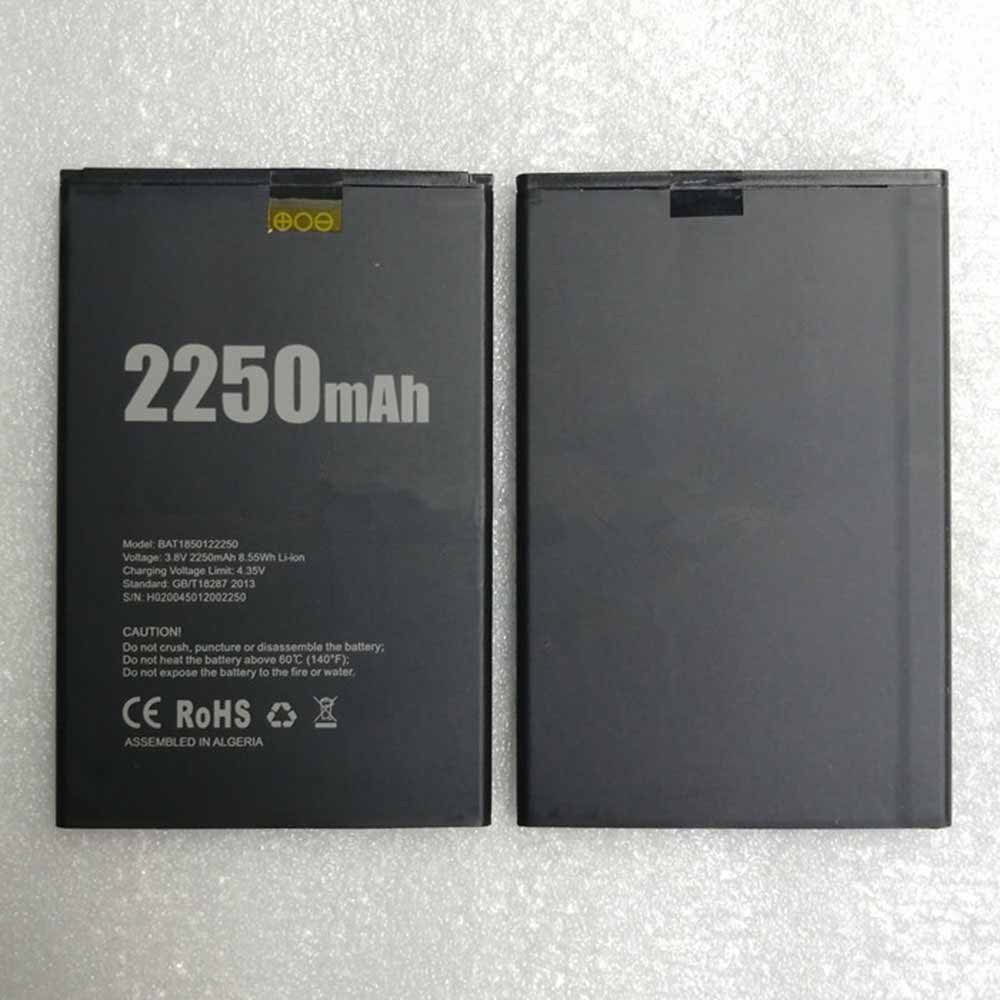
2250mAh 8.55Wh 3.8V/4.35V Doogee BAT1850122250 Li-ion Battery for Doogee X11

2250mAh 8.55Wh 3.8V/4.35V Doogee BAT1850122250 Batteries for Doogee X11, Doogee BAT1850122250 Cell Phone battery is a brand new,100% Compatible original and replacement Phone battery,Purchase wholesale and retail BAT1850122250 with high quality and low price!

Find ou your original model number or part number(P/N), and move your eyes on the tag of battery

BAT1850122250

Specifications

  • Brand:Doogee
  • Capacity :2250mAh 8.55Wh
  • Voltage :3.8V/4.35V
  • Type :Li-ion
  • Battery Cell Quality: Grade A
  • Descriptive: Replacement Battery – 1 Year Warranty
  • Description: Brand New, 1 Year Warranty! 30-Days Money Back! Fast Shipping!

How we test this Doogee BAT1850122250 Battery
Step 1: Make sure customer bought the correct battery.
Step 2: Check battery’s appearance and interface.
Step 3: Test battery charger and recharger function.
Step 4: Charger the battery to 100% and recharger to 0% to get real battery capacity
Step 5: Use Ev2300 to check the voltage difference of each goroup cells.
Step 6: Charger battery power more than 30%.
Step 7: Package battery carefully and send out

Compatible Part Numbers:
BAT1850122250

Compatible Model Numbers:
Doogee X11

How much do you know about how to run laptop well as any place? The follow Tips cut way back on protecting battery life.


1). Please recharge or change your Cell Phone battery when battery power low.
2). Using Li-Ion Replacement Doogee BAT1850122250 Cell Phone Battery for your notebook which can work longer time than Non Li-ion one.
3). It is better to defragmentation regularly for your Cell Phone battery life.
4). In order to reduce the laptop power consumpition, you can use some optical drive spin-down and hard drive in your Cell Phone .
5). Please keep your laptop in sleep or standby model without long time using, which both save the Replacement Doogee BAT1850122250 Cell Phone Battery power and extend battery using life.
6). Leave your battery in a dry and cool condition when without using.
7). When you rarely or generally plugged in fixed power using, Please take down your battery to avoid hurting battery life.

Hot Products

6580mAh/25.333WH BLACKVIEW 726280P for Blackview BV6800 pro Phone1350mAh/4.995WH ALCATEL TLI013CA for Alcatel phone3310mAh/50WH FUJITSU FPB0338S for Fujitsu Lifebook E548 E558 T932800mAh/10.36WH INFOCUS P2424 for InFocus P242433Wh HP BV02XL for HP Envy X2 Detachable 13 Serie875mAh DJI HB3 for DJI Osmo Pocket 230.4Wh/4000mAh LG LBG722VH for LG Gram 14Z950 13Z940 13ZD9403575mAh/42WH LENOVO SB10J78991 for Lenovo ThinkPad Yoga 11E 3rd G5380mAh 20.713WH BLACKVIEW Li486690JLY for Blackview A704220mAh/16.33WH VIVO B-O9 for VIVO X60
How Much Battery Health Is Good for an iPhone and Signs of a Bad iPhone Battery

 If you’re an iPhone lover, you won’t deny that the battery is the backbone of the iPhone. Because it always keeps your phone powered on and ready for anything you need. That’s why it must be taken care of properly. So do you know how much battery health is good for your iPhone and what happens to indicate that you need to replace the battery? The following will tell you the answer, let’s take a look!

How much battery health is good for an iPhone?

You might assume that since your iPhone’s maximum capacity starts at 100%, this is the only situation that can be called optimal. However, this is not accurate. Apple considers any iPhone with a battery capacity of 80% or higher to be in top condition.

Apple takes battery health very seriously, so its 1-year warranty protects any battery at or above 80% charge. It’s not surprising to see an iPhone with a battery capacity of 95% or higher after a year.

The explanation for this is a form of failsafe: Apple designs its batteries with excess energy to ensure that when its battery is at 100% health, it doesn’t necessarily use all its potential processing power. Even at 80%, your phone is still running in optimal conditions.

Now you know the best state of battery health, but here’s how to check the state:

You can check battery health on any iPhone with iOS 11.3 or later by going to Settings > Battery > Battery Health.

You can also see an important secondary metric on the battery health screen: peak performance capability. In fact, this screen may be more critical than power due to the nuances described above.

If you see a warning, your phone will still run, but the time between charge cycles will be significantly shorter. This message is only displayed when the battery capacity is at or below 79%.

What are the signs of a bad iPhone battery?

If your iPhone is more than a year old, there’s a good chance the answer to this question is yes. According to Apple, the battery will accept 500 full charge cycles while maintaining 80% of its original charge. So, if you charge your iPhone every day, the battery will show signs of wear and tear.

If the following problems occur, it is time for you to upgrade the battery of your iPhone.

1. Your iPhone suddenly shuts down

It’s not a good sign if your iPhone suddenly shuts down when the battery is full. Calibration issues are likely to be the culprit – a full charge and a soft reset are easy to fix – a sudden shutdown is more likely due to battery wear. You may need a new iPhone battery to prevent potential shutdowns.

2. Your iPhone works when plugged in

Your iPhone should work while it’s charging — but not just while it’s charging. It’s unnatural if you unplug your phone from the charger and it freezes instantly. The battery may not be lifeless, but it needs to be replaced if you want to end your reliance on external power.

3. Your iPhone feels hot to the touch

You don’t feel any heat when you pick up your smartphone – the battery is designed to keep the heat from charging inside. If you have no weather reasons, you may need to replace your iPhone battery with a new one.

4. Your battery has more capacity than your iPhone

If your battery is out of the case, it needs to be replaced! Even if this isn’t severe swelling, steps need to be taken quickly to safely dispose of the battery.

>>>>>>>>>>>>Apple battery

Thanks for reading, hope it helps!

Friendly reminder: If you need to replace the battery of your device, this battery store will be a good choice: www.batteryforpc.co.uk

Google: 6 useful Google Maps tricks you need

 The Google Maps app has several useful features that you can use on all your trips. Whether you’re commuting to work or driving to an exotic location across the country, you probably need to open the Google Maps app on your phone at least once. The leading navigation app has several useful features that can help prevent setbacks on your journey.

It can help ensure you get to your destination on time and prevent you from getting lost along the way. With its hidden features, the Google Maps app can also act as your co-pilot, allowing you to get from point A to point B with ease. Take a look at these 6 useful tips below!

Live View lets you see where you’re going without leaving your phone

When you’re parked five blocks from your destination, trying to follow a little blue dot to figure out where you’re going can be tricky. With Google‘s Live View tool, you can see exactly where you’re going by simply raising your phone’s screen.

The feature uses your camera to scan buildings around you and places a giant arrow on the display to help you find the exact location you need. Here’s how to use it:

1. In the Google Maps app, enter your destination and tap Directions.

2. Select the walk icon at the top of the map screen.

3. At the bottom of the screen, tap the Live View button. It’s next to the “Start” button.

4. Point your camera at the buildings and signs on the street. As you start walking towards your destination, large arrows and street names will appear on your screen to guide you.

Use Google Maps offline when the signal is weak

When you need directions most, your phone loses signal at the most inopportune time. Luckily, Google Maps lets you download your route ahead of time so you don’t have to worry about getting lost.

1. In the Google Maps app, enter your destination.

2. At the bottom of the screen, tap the location name or address.

3. Scroll right and tap Download.

4. Click Download again. A map of the area you selected will now be available for you to use offline.

Hide your location with Google Maps incognito

A feature for Android and iPhone users makes you invisible when using Google Maps. This means you can hide your location and the locations you’ve searched for from other Maps users. method:

Open the Google Maps app, click the profile icon in the upper right corner, and select Turn on incognito mode. When you’re ready to turn off the settings, follow the same steps and select Turn off incognito mode.

How many stops are you planning to make on the way? Google Maps can explain its time

If Google says your trip takes 7 hours, but it ends up taking 8 hours, it’s probably because you didn’t include multiple stops along the way. Google Maps lets you add stops for more accurate destination times. Methods as below:

1. In the Google Maps app, enter your first destination, such as a gas station or coffee shop.

2. Click Route.

3. Tap the three-dot menu in the upper right corner.

4. Click Add Site. Add as many sites as you want.

5. Press Done when finished adding stops. You’ll now have a more accurate ETA when planning your trip.

Find parking easily instead of circling the street

Knowing where you can and cannot park is important, especially if you’re running late for work or driving to an unfamiliar place. Rather than driving around and hoping to eventually find a parking spot, use Google Maps to point you in the right direction.

1. In the Google Maps app, enter the location or nearby where you need to park.

2. Click Route.

3. Zoom in on the location to see all P icons located near the destination. Tap P (Park).

4. Click Add Site. A parking spot will be added as the first stop on your route, and you can continue to your next destination.

See Street View of places you plan to visit

Pictures can be deceiving, so before you book a hotel that looks good, check it out on Google Maps.

1. In the Google Maps app, search for a location, such as a hotel you’re considering.

2. In the lower left corner, you will see a small box with a photo of the building. Here’s a Street View of the area, so click on it to see what it looks like.

3. You can zoom in and out and view the area by sliding your finger on the screen.

>>>>>>>>>>>>>Google battery

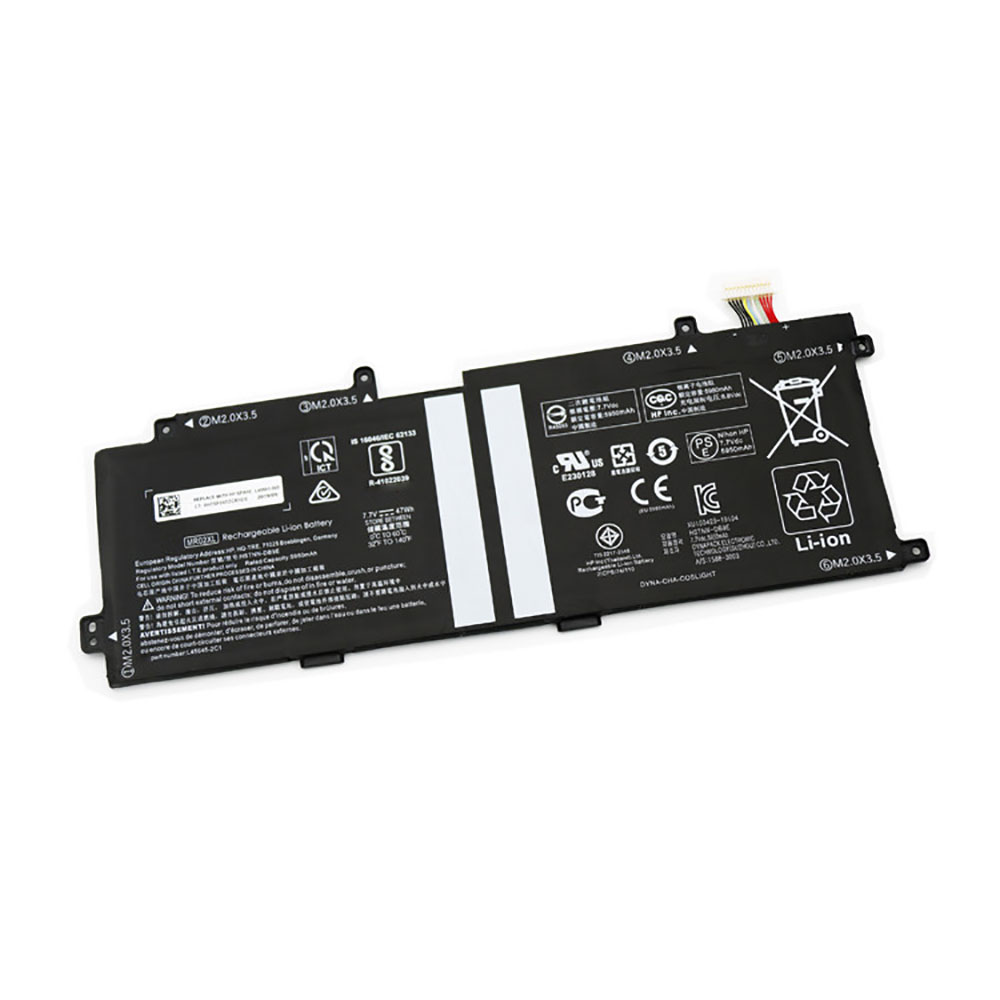
3320mAh/38.04WH 11.46V/13.05V Hasee SQU-1709 Li-ion Battery for Hasee 3ICP5 916Q2286H

3320mAh/38.04WH 11.46V/13.05V Hasee SQU-1709 Batteries for Hasee 3ICP5 916Q2286H, Hasee SQU-1709 Laptop battery is a brand new,100% Compatible original and replacement Laptop battery,Purchase wholesale and retail SQU-1709 with high quality and low price!

Find ou your original model number or part number(P/N), and move your eyes on the tag of battery

SQU-1709

Specifications

  • Brand:Hasee
  • Capacity :3320mAh/38.04WH
  • Voltage :11.46V/13.05V
  • Type :Li-ion
  • Battery Cell Quality: Grade A
  • Descriptive: Replacement Battery – 1 Year Warranty
  • Description: Brand New, 1 Year Warranty! 30-Days Money Back! Fast Shipping!

How we test this Hasee SQU-1709 Battery
Step 1: Make sure customer bought the correct battery.
Step 2: Check battery’s appearance and interface.
Step 3: Test battery charger and recharger function.
Step 4: Charger the battery to 100% and recharger to 0% to get real battery capacity
Step 5: Use Ev2300 to check the voltage difference of each goroup cells.
Step 6: Charger battery power more than 30%.
Step 7: Package battery carefully and send out

Compatible Part Numbers:
SQU-1709

Compatible Model Numbers:
Hasee 3ICP5 916Q2286H

How much do you know about how to run laptop well as any place? The follow Tips cut way back on protecting battery life.


1). Please recharge or change your Laptop battery when battery power low.
2). Using Li-Ion Replacement Hasee SQU-1709 Laptop Battery for your notebook which can work longer time than Non Li-ion one.
3). It is better to defragmentation regularly for your Laptop battery life.
4). In order to reduce the laptop power consumpition, you can use some optical drive spin-down and hard drive in your Laptop .
5). Please keep your laptop in sleep or standby model without long time using, which both save the Replacement Hasee SQU-1709 Laptop Battery power and extend battery using life.
6). Leave your battery in a dry and cool condition when without using.
7). When you rarely or generally plugged in fixed power using, Please take down your battery to avoid hurting battery life.

Hot Products

2800mAh/10.36WH INFOCUS P2424 for InFocus P242433Wh HP BV02XL for HP Envy X2 Detachable 13 Serie875mAh DJI HB3 for DJI Osmo Pocket 230.4Wh/4000mAh LG LBG722VH for LG Gram 14Z950 13Z940 13ZD9403575mAh/42WH LENOVO SB10J78991 for Lenovo ThinkPad Yoga 11E 3rd G5380mAh 20.713WH BLACKVIEW Li486690JLY for Blackview A704220mAh/16.33WH VIVO B-O9 for VIVO X60400mAh APACK APP00169 for Apack APP001694220mAh/16.33WH VIVO B-O9 for VIVO X603000mAh/11.4wh LEAGOO BT-5705 for LEAGOO M9 Pro Mobile Cell phon