I had a problem with the battery of a laptop, so I removed the battery and continued to use the laptop on AC power. Does it affect computer performance or harm it in any way? No, it doesn’t. Does it continue to work as before? Yes, it does.
There’s no reason a laptop can’t function properly without a battery, as long as a few things are considered.
First, make sure you’re using the original power adapter that came with your laptop. Power changes can cause components on the laptop’s motherboard to fail, and a battery can prevent this by way of a UPS.
Speaking of power, if you live in an area where there may be heavy electrical loads, you probably shouldn’t use a laptop without a battery. If you know you don’t have high-quality current, don’t do that, or use a UPS as well. This way, you can ensure that your laptop won’t suffer any damage under heavy load. Not to mention that UPSs are essential anyway because you won’t lose your job in the event of a power outage, and they also act as surge protectors.
Another important thing is to never unplug the power cord from the laptop while it is working as this could damage its components.
Also, do not touch the battery contacts when inserting. In the case of most laptops, they’re well hidden, but you might get a little jarring. This is a fairly low voltage. Remember to only remove the battery when the laptop is turned off and unplugged!
If you’re doing this to protect your battery, which makes sense if the laptop isn’t going anywhere and is only sitting on your desk, make sure to charge the battery to around 40% before taking it out and storing it. To maximize its lifespan, you can store it in a Ziploc bag in the refrigerator. If you don’t want to do this, you should at least go through a full charge-discharge cycle regularly. This should improve your battery life.
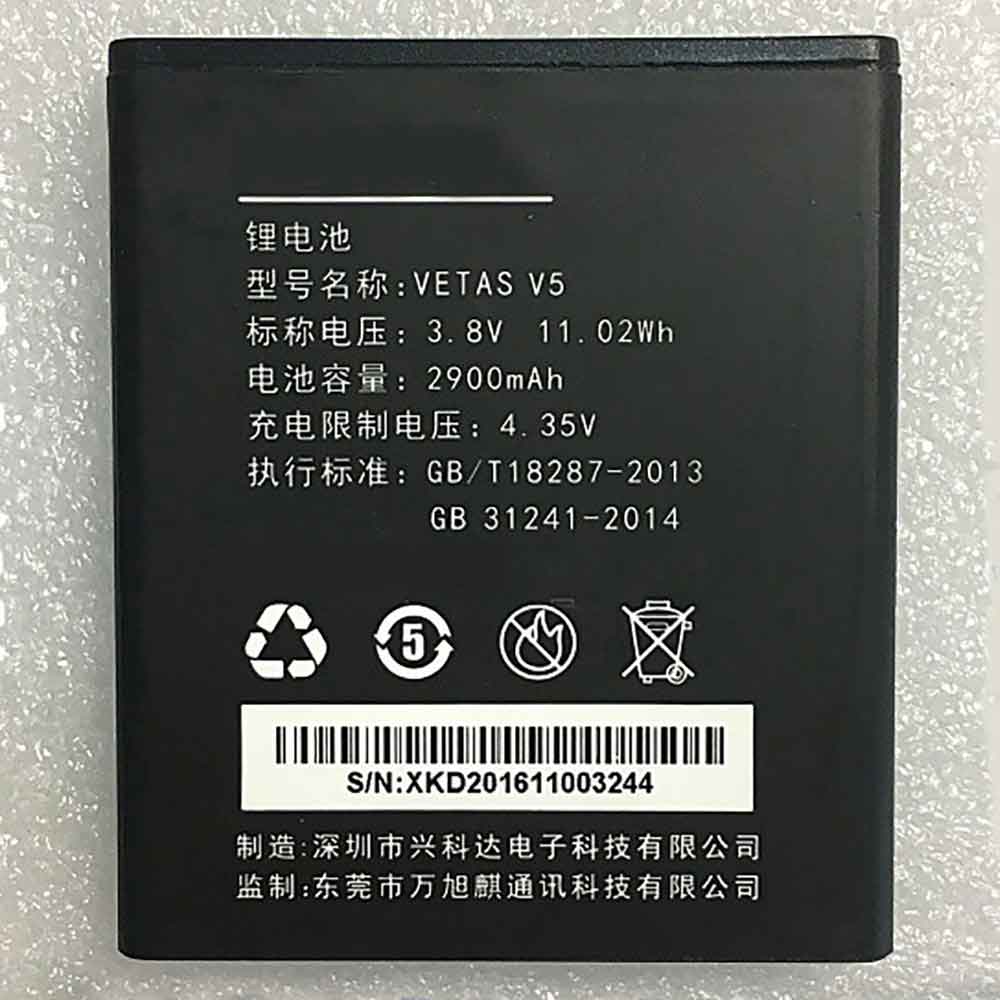
2900MAH 11.02WH 3.8V 4.35V Vetas V5 Batteries for Vetas V5, Vetas V5 Cell Phone battery is a brand new,100% Compatible original and replacement Phone battery,Purchase wholesale and retail V5 with high quality and low price!
Find ou your original model number or part number(P/N), and move your eyes on the tag of battery
Descriptive: Replacement Battery – 1 Year Warranty
Description: Brand New, 1 Year Warranty! 30-Days Money Back! Fast Shipping!
How we test this Vetas V5 Battery Step 1: Make sure customer bought the correct battery. Step 2: Check battery’s appearance and interface. Step 3: Test battery charger and recharger function. Step 4: Charger the battery to 100% and recharger to 0% to get real battery capacity Step 5: Use Ev2300 to check the voltage difference of each goroup cells. Step 6: Charger battery power more than 30%. Step 7: Package battery carefully and send out
How much do you know about how to run laptop well as any place? The follow Tips cut way back on protecting battery life.
1). Please recharge or change your Cell Phone battery when battery power low. 2). Using Li-Ion Replacement Vetas V5 Cell Phone Battery for your notebook which can work longer time than Non Li-ion one. 3). It is better to defragmentation regularly for your Cell Phone battery life. 4). In order to reduce the laptop power consumpition, you can use some optical drive spin-down and hard drive in your Cell Phone . 5). Please keep your laptop in sleep or standby model without long time using, which both save the Replacement Vetas V5 Cell Phone Battery power and extend battery using life. 6). Leave your battery in a dry and cool condition when without using. 7). When you rarely or generally plugged in fixed power using, Please take down your battery to avoid hurting battery life.
1300MAH Sony NWZ-ZX1 Batteries for Sony ZX1 MP3, Sony NWZ-ZX1 Other battery is a brand new,100% Compatible original and replacement battery,Purchase wholesale and retail NWZ-ZX1 with high quality and low price!
Find ou your original model number or part number(P/N), and move your eyes on the tag of battery
Descriptive: Replacement Battery – 1 Year Warranty
Description: Brand New, 1 Year Warranty! 30-Days Money Back! Fast Shipping!
How we test this Sony NWZ-ZX1 Battery Step 1: Make sure customer bought the correct battery. Step 2: Check battery’s appearance and interface. Step 3: Test battery charger and recharger function. Step 4: Charger the battery to 100% and recharger to 0% to get real battery capacity Step 5: Use Ev2300 to check the voltage difference of each goroup cells. Step 6: Charger battery power more than 30%. Step 7: Package battery carefully and send out
How much do you know about how to run laptop well as any place? The follow Tips cut way back on protecting battery life.
1). Please recharge or change your Other battery when battery power low. 2). Using Li-Ion Replacement Sony NWZ-ZX1 Other Battery for your notebook which can work longer time than Non Li-ion one. 3). It is better to defragmentation regularly for your Other battery life. 4). In order to reduce the laptop power consumpition, you can use some optical drive spin-down and hard drive in your Other . 5). Please keep your laptop in sleep or standby model without long time using, which both save the Replacement Sony NWZ-ZX1 Other Battery power and extend battery using life. 6). Leave your battery in a dry and cool condition when without using. 7). When you rarely or generally plugged in fixed power using, Please take down your battery to avoid hurting battery life.
3000MAH 3.85V Vertex Impress_Razor Batteries for Vertex Impress Razor, Vertex Impress_Razor Cell Phone battery is a brand new,100% Compatible original and replacement Phone battery,Purchase wholesale and retail Impress_Razor with high quality and low price!
Find ou your original model number or part number(P/N), and move your eyes on the tag of battery
Descriptive: Replacement Battery – 1 Year Warranty
Description: Brand New, 1 Year Warranty! 30-Days Money Back! Fast Shipping!
How we test this Vertex Impress_Razor Battery Step 1: Make sure customer bought the correct battery. Step 2: Check battery’s appearance and interface. Step 3: Test battery charger and recharger function. Step 4: Charger the battery to 100% and recharger to 0% to get real battery capacity Step 5: Use Ev2300 to check the voltage difference of each goroup cells. Step 6: Charger battery power more than 30%. Step 7: Package battery carefully and send out
How much do you know about how to run laptop well as any place? The follow Tips cut way back on protecting battery life.
1). Please recharge or change your Cell Phone battery when battery power low. 2). Using Li-Ion Replacement Vertex Impress_Razor Cell Phone Battery for your notebook which can work longer time than Non Li-ion one. 3). It is better to defragmentation regularly for your Cell Phone battery life. 4). In order to reduce the laptop power consumpition, you can use some optical drive spin-down and hard drive in your Cell Phone . 5). Please keep your laptop in sleep or standby model without long time using, which both save the Replacement Vertex Impress_Razor Cell Phone Battery power and extend battery using life. 6). Leave your battery in a dry and cool condition when without using. 7). When you rarely or generally plugged in fixed power using, Please take down your battery to avoid hurting battery life.
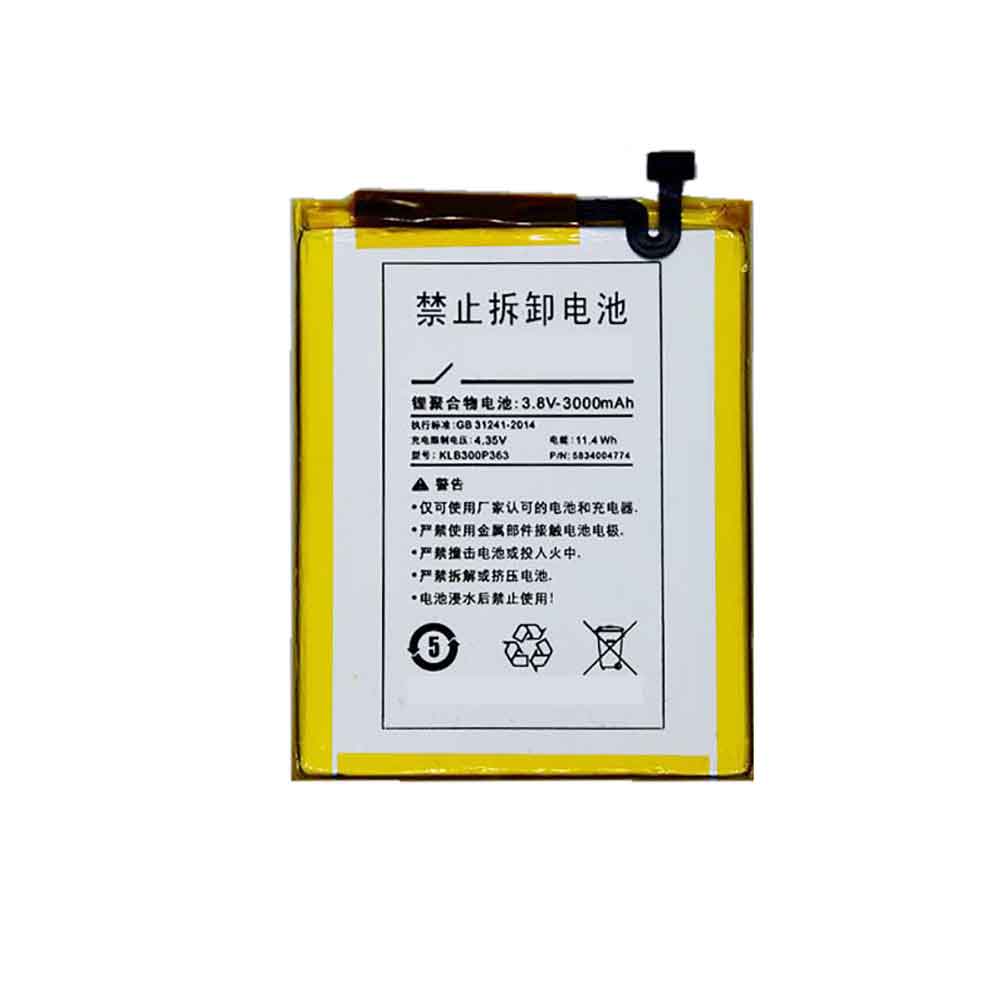
3000MAH 11.4WH 3.8V 4.35V Konka KLB300P363 Batteries for Konka R7, Konka KLB300P363 Cell Phone battery is a brand new,100% Compatible original and replacement Phone battery,Purchase wholesale and retail KLB300P363 with high quality and low price!
Find ou your original model number or part number(P/N), and move your eyes on the tag of battery
Descriptive: Replacement Battery – 1 Year Warranty
Description: Brand New, 1 Year Warranty! 30-Days Money Back! Fast Shipping!
How we test this Konka KLB300P363 Battery Step 1: Make sure customer bought the correct battery. Step 2: Check battery’s appearance and interface. Step 3: Test battery charger and recharger function. Step 4: Charger the battery to 100% and recharger to 0% to get real battery capacity Step 5: Use Ev2300 to check the voltage difference of each goroup cells. Step 6: Charger battery power more than 30%. Step 7: Package battery carefully and send out
How much do you know about how to run laptop well as any place? The follow Tips cut way back on protecting battery life.
1). Please recharge or change your Cell Phone battery when battery power low. 2). Using Li-Ion Replacement Konka KLB300P363 Cell Phone Battery for your notebook which can work longer time than Non Li-ion one. 3). It is better to defragmentation regularly for your Cell Phone battery life. 4). In order to reduce the laptop power consumpition, you can use some optical drive spin-down and hard drive in your Cell Phone . 5). Please keep your laptop in sleep or standby model without long time using, which both save the Replacement Konka KLB300P363 Cell Phone Battery power and extend battery using life. 6). Leave your battery in a dry and cool condition when without using. 7). When you rarely or generally plugged in fixed power using, Please take down your battery to avoid hurting battery life.
Have you ever wondered why laptop batteries don’t provide a lot of power? How do they reset it themselves at home? How to calibrate manually? If you have these numerous questions, the following will explain it to you.
There is no doubt that laptops have become a necessity in everyone’s life. This can be frustrating if your battery isn’t delivering a lot of power. While you can work with your laptop plugged into an outlet, it also creates an annoying situation. But don’t worry, as you can reset the laptop to provide more consistent or accurate charging.
Now let’s take a deeper look at how to reset a laptop battery. Let’s have a look!
Even if you don’t have any professional computer knowledge, you can reset your laptop battery at home without any tools. First, let your laptop battery drain completely: save all your files or any sensitive work because you’re going to have to let your laptop freeze. When this happens, shut down and flip the laptop over to access the battery. Remove any used tabs or buttons on the bottom of the laptop case. If you have a dedicated “reset” button in your laptop battery, press it.
If not, you’ll need to remove any dust or buildup from the connector and set the battery aside. Connect the laptop to the power cord and press the power button. If your laptop can boot without a battery, let it fully boot, then shut it down through the OS menu. If your laptop needs to connect the battery to the trunk, press and hold the power button for 30 seconds. Reconnect the battery and let the laptop charge for an hour without power. Your battery should reset after this hour – you should get a more accurate battery reading when you start your laptop.
What should I do when my laptop battery needs manual calibration?
After resetting your laptop’s battery, fully charge it, then let the laptop drain to monitor battery life. Once it’s fully charged again, you may need to calibrate your laptop’s battery and power usage to get the most out of your battery. While it’s usually done using a battery calibration tool, you can adjust your laptop’s power usage through the Battery Settings menu built into Windows 10. To get this feature, press the battery icon in the upper right corner of the taskbar, then tap “Battery Settings.”
From here, you can change the laptop’s settings to prioritize battery life, or let the laptop freeze by turning off any power-saving settings, then turn it on before re-enabling the setting for further calibration for more accurate readings. Calibration can reveal that the battery has less capacity than you think, or can only squeeze an extra 30 minutes to an hour of runtime out of the battery. If your laptop battery does fail, replacing it with a new one is still the best option.
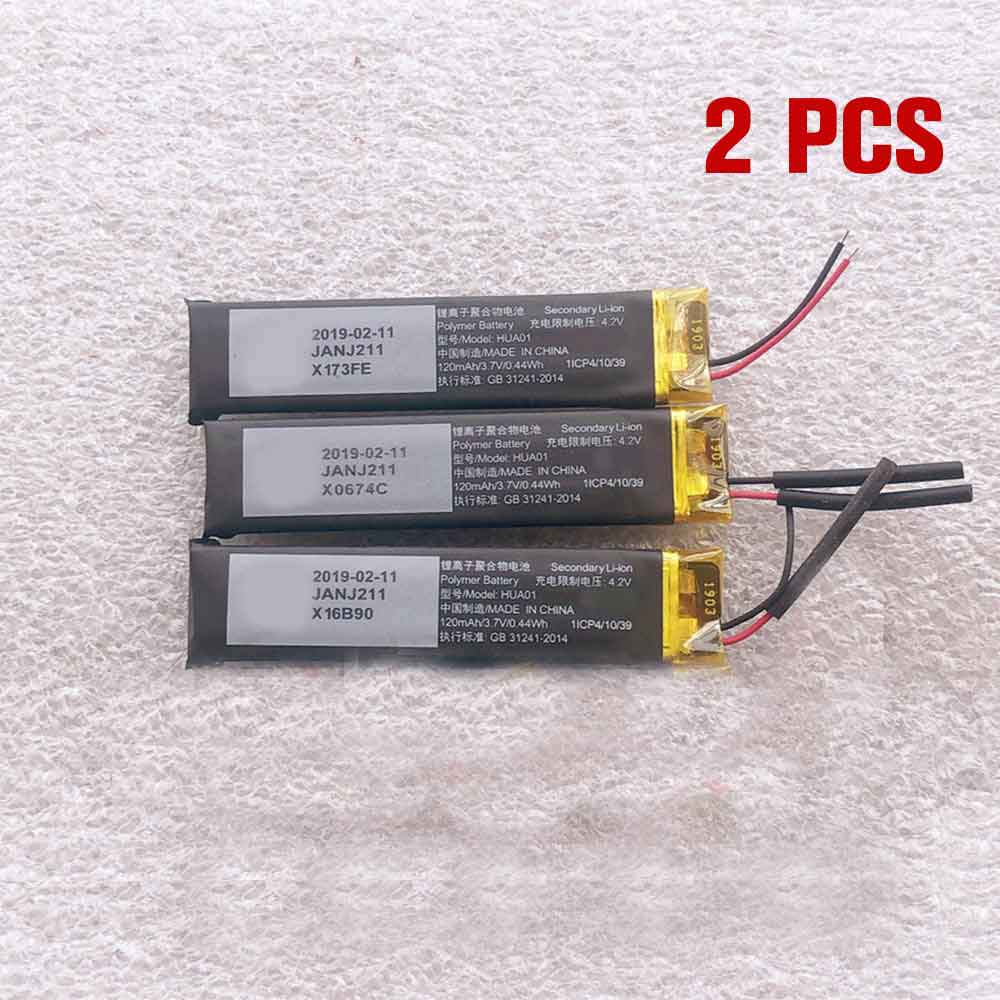
120MAH 0.44WH 3.7V 4.2V Huawei HUA01 Batteries for Huawei FreeLace Bluetooth Earbuds, Huawei HUA01 Other battery is a brand new,100% Compatible original and replacement battery,Purchase wholesale and retail HUA01 with high quality and low price!
Find ou your original model number or part number(P/N), and move your eyes on the tag of battery
Descriptive: Replacement Battery – 1 Year Warranty
Description: Brand New, 1 Year Warranty! 30-Days Money Back! Fast Shipping!
How we test this Huawei HUA01 Battery Step 1: Make sure customer bought the correct battery. Step 2: Check battery’s appearance and interface. Step 3: Test battery charger and recharger function. Step 4: Charger the battery to 100% and recharger to 0% to get real battery capacity Step 5: Use Ev2300 to check the voltage difference of each goroup cells. Step 6: Charger battery power more than 30%. Step 7: Package battery carefully and send out
Compatible Model Numbers: Huawei FreeLace Bluetooth Earbuds
How much do you know about how to run laptop well as any place? The follow Tips cut way back on protecting battery life.
1). Please recharge or change your Other battery when battery power low. 2). Using Li-Ion Replacement Huawei HUA01 Other Battery for your notebook which can work longer time than Non Li-ion one. 3). It is better to defragmentation regularly for your Other battery life. 4). In order to reduce the laptop power consumpition, you can use some optical drive spin-down and hard drive in your Other . 5). Please keep your laptop in sleep or standby model without long time using, which both save the Replacement Huawei HUA01 Other Battery power and extend battery using life. 6). Leave your battery in a dry and cool condition when without using. 7). When you rarely or generally plugged in fixed power using, Please take down your battery to avoid hurting battery life.
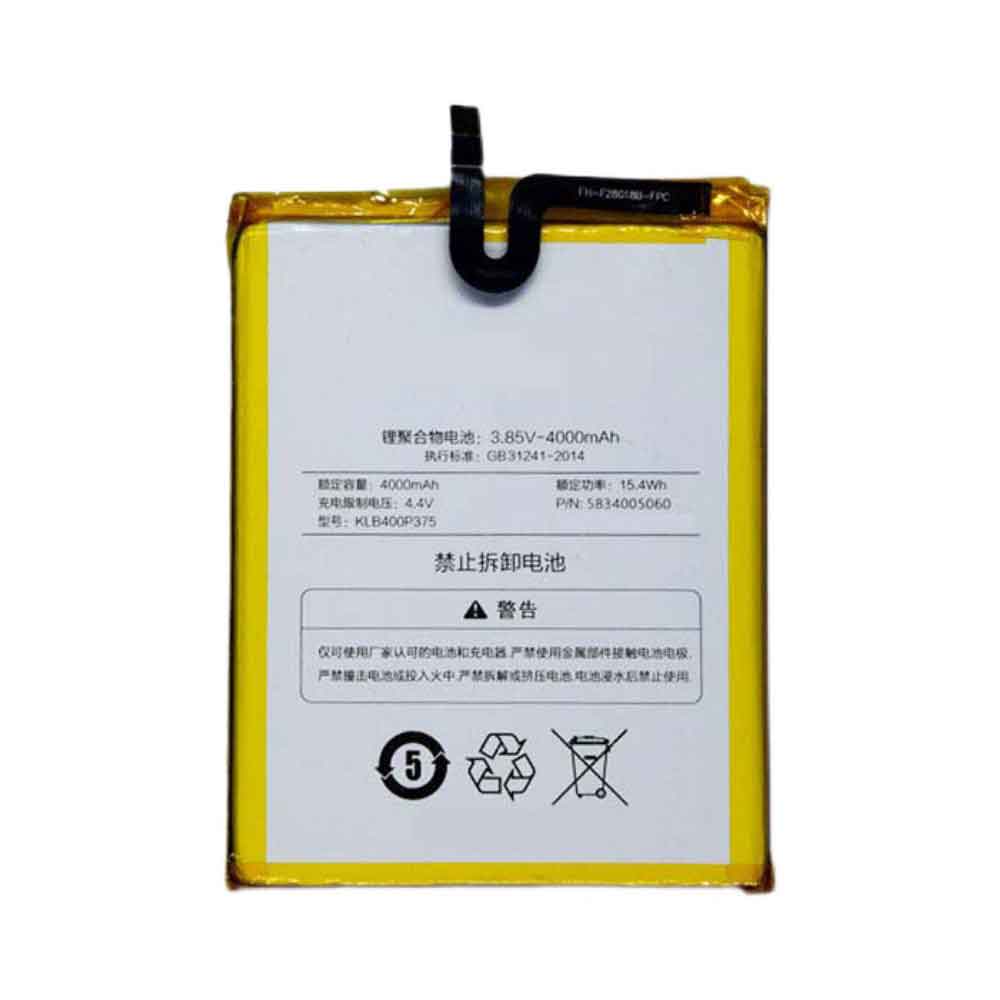
4000MAH 15.4WH 3.85V 4.40V Konka KLB400P375 Batteries for Konka E2 Vivax Fly4, Konka KLB400P375 Cell Phone battery is a brand new,100% Compatible original and replacement Phone battery,Purchase wholesale and retail KLB400P375 with high quality and low price!
Find ou your original model number or part number(P/N), and move your eyes on the tag of battery
Descriptive: Replacement Battery – 1 Year Warranty
Description: Brand New, 1 Year Warranty! 30-Days Money Back! Fast Shipping!
How we test this Konka KLB400P375 Battery Step 1: Make sure customer bought the correct battery. Step 2: Check battery’s appearance and interface. Step 3: Test battery charger and recharger function. Step 4: Charger the battery to 100% and recharger to 0% to get real battery capacity Step 5: Use Ev2300 to check the voltage difference of each goroup cells. Step 6: Charger battery power more than 30%. Step 7: Package battery carefully and send out
How much do you know about how to run laptop well as any place? The follow Tips cut way back on protecting battery life.
1). Please recharge or change your Cell Phone battery when battery power low. 2). Using Li-Ion Replacement Konka KLB400P375 Cell Phone Battery for your notebook which can work longer time than Non Li-ion one. 3). It is better to defragmentation regularly for your Cell Phone battery life. 4). In order to reduce the laptop power consumpition, you can use some optical drive spin-down and hard drive in your Cell Phone . 5). Please keep your laptop in sleep or standby model without long time using, which both save the Replacement Konka KLB400P375 Cell Phone Battery power and extend battery using life. 6). Leave your battery in a dry and cool condition when without using. 7). When you rarely or generally plugged in fixed power using, Please take down your battery to avoid hurting battery life.
If your work takes you a lot, a laptop without a usable battery can get in the way. Several factors can cause laptop batteries to fail to charge, drain quickly, or otherwise fail, including aging, damaged power cords, or damaged charging circuits. You can fix most battery problems by purchasing replacement parts. Let’s have a look!
old battery
All rechargeable batteries lose capacity over time. Laptop batteries lose their useful life significantly after only a few years. If you keep using the old battery, its runtime will decrease further until the battery only lasts a few minutes before it dies. To restore lost power, you will need to order a new battery from the computer manufacturer. Most laptops have user-replaceable batteries, but some may require professional disassembly.
bad power cord
A defective power cord can make your battery appear unchargeable – if the cord switches between working and not working, the battery will lose charge at the fastest rate. You can test the power cord by trying to run the laptop on AC power with the battery removed. If it works intermittently, it may be a loose connection.
charging circuit
If your laptop still fails even with a new battery or power cord, the internal charging circuitry may be damaged. If the wires inside the laptop from the power cord to the battery are damaged, the battery will not charge properly.
Laptop batteries don’t need special treatment like some old rechargeable batteries. They don’t “overcharge” and don’t need to be fully discharged before each charge. If your laptop shuts down while you seem to have power left, you can try a full drain to reset the battery’s calibration. However, this process will not actually repair a damaged battery. If your computer becomes very hot during use, you may need to remove the battery while using the laptop on AC power, as heat can shorten the life of the battery.
Did you know that most laptop batteries only last one to two years? That’s right! No matter how well you take care of your laptop, eventually it needs a new battery. So how do you know if you need a new laptop battery? The following will tell you the answer, let’s take a look!
What is causing your battery to wear out in the first place?
Laptop batteries degrade over time and use. On each charge, they took slightly less time than before. There are some obvious signs that your battery is the culprit of your computer problem:
1. Overheating
A slight increase in heat is normal when the battery is running. Your laptop has fans and heatsinks to manage and dissipate excess heat. When your battery dies, your computer can start working harder, which generates more heat and your fans can’t keep up. You may notice your laptop getting noisy as the fans work overtime to try and cool it down. If you notice loud fan noise, lightly touch the bottom of the laptop to see if it feels hot to the touch. A little heat is normal, but your laptop shouldn’t burn your knees!
If you notice your laptop running hotter, then this could be a sign that your battery is dying. If you find your computer is hot to the touch, shut down and unplug the computer immediately to avoid further damage. And, it might be a good idea to take it to a professional computer repair shop so they can test your battery and verify that you need a new one. Shutting down your computer after it shows signs of overheating is better than risking damage.
2. Not charging
Your laptop battery not charging when plugged in may be a sign that it needs to be replaced. There are other possible causes of this issue that you may want to investigate first:
If you plug in a surge protector or UPS and it fails, the problem is probably not the laptop battery. Plugs directly into the wall to eliminate variables from faulty power strips or other equipment.
If you have an external battery, use the quick release on the bottom of the computer to remove it and check for proper connections. Check for dust buildup and wipe with a dry soft cloth. Then put the battery back in, making sure it is securely installed and the contacts are connected.
If the battery still won’t charge after these, then you may really need to replace the battery.
3. Short run times and downtime
If you find yourself constantly running back to the charger, or finding yourself tethered to your desk because your computer doesn’t get any work done because of the frequency that your computer needs to charge, chances are you’ll need a new battery.
Typically, a fully charged laptop battery should run for about 6 hours. Some things can affect how long the battery will last between charges. Screen brightness, the number of programs you have open, and whether you’re listening to audio or watching video can all affect battery runtime.
Doing a lot of things at once can cause your computer to use more power and drain the battery faster. However, if you find it only takes half an hour or less to fully charge, there is a problem. If your computer shuts down without warning, this could also be a sign of a failing battery. While a failed battery isn’t the only cause of a computer crash, a sudden loss of power is definitely a sign that you should double-check your battery.
4. Replacement warning
Both Windows and Mac operating systems have an indicator for when the battery has reached a very low capacity level. Starting with Windows 7, Microsoft added a battery life warning feature. Once your battery is low, Windows will warn you that the battery needs to be replaced. A red “X” will appear above the battery icon. If you click the icon for more information, you may see a message that reads “Plug in, not charging. Consider replacing the battery.”
On Macs, if you click the battery icon displayed in the menu bar at the top of your Mac, it will display more detailed information about the current state of the battery. If there is a problem with your battery, or its lifespan has reached a low level, it will display one of the three messages below. If you see “Replace ASAP,” “Replace Now,” or “Repair Battery,” it’s time to act!