Huawei MateBook 13 AMD Edition launched in the UK

Huawei is updating its ultra-portable MateBook 13 with an AMD Ryzen 5 series processor and Radeon Vega 8 graphics card and it’s now available in the UK. The laptop features a 13-inch IPS LCD with a 2160 x 1440 pixel resolution and a 3:2 aspect ratio. It covers 100% of the sRGB color space and also packs a 1MP camera for video conferencing.

The MateBook 13 features an aluminum alloy unibody design and weighs in at 1.31kg. It features a full-sized chiclet keyboard with adjustable backlighting and a fingerprint reader for fast log-ins. In terms of I/O, you get two USB-C 3.1 ports and a 2 in 1 headphone jack and microphone combo. There’s also a bottom-firing dual speaker setup with Dolby Atmos.

The big difference this year is the AMD Ryzen 5 3500U processor which is paired with the Radeon Vega 8 graphic card – disappointingly it’s not one of the current gen 8nm Ryzen CPUs. The laptop features 8GB DDR4 RAM and 256GB or 512 GB PCIe NVMe SSD storage.

The battery is rated at 42 Wh and Huawei is bundling a 65W USB-C charger with Huawei SuperCharge which can also charge compatible Huawei and Honor smartphones. On the software side, you get Windows 10 Home with Huawei Share which brings seamless continuity features for Huawei phones.

The 8/256GB version of the MateBook 13 AMD Edition is available for £699 from the official Huawei Store. Select retailers will also offer an 8/512GB version for £749.

This EKWB custom loop kit reignited my love for building a gaming PC

There’s something about building your own custom water-cooled PC from the ground up that makes that moment when the fans whirr to life, and ‘American Megatrends’ flashes across the screen, all that much sweeter. You earned that post screen with your sweat and blood—no, seriously, blood—and damn, if you don’t just want to do it all over again.

I won’t pretend building a custom water-cooling loop is for everyone. I wouldn’t recommend a day and a half toiling with tubing and tearing your hands to shreds to many. But if there’s one thing I’ve learned from my experience, it’s that to the right person—someone that loves to fiddle with their PC more than most—building a custom loop water-cooled PC with hardline tubing is more than an exercise in efficient cooling solutions: it’s an entire hobby in itself.

I’ve often found myself drawn to the lure of a shiny GPU water block or reservoir, but honestly never had much luck actually going about picking the parts, tools, and fittings required to actually use one in a build for myself. That was until we were offered the EKWB Fluid Gaming barebones kit—essentially all you need for your own, fully-fledged custom loop PC for $650.

EKWB admits it doesn’t talk about its Fluid Gaming lineup quite as much as it perhaps should. This build was the first I’d heard of it. But the premise is relatively simple and straightforward. Essentially it’s a case—the highly-configurable Lian Li O11 Dynamic—with a reservoir/pump combo distro plate and triple-fan radiator pre-installed. In the box is a CPU block, GPU water block, and all the fittings, tubes, and tools required to piece it all together.

The kit amounts to a lot of gear once tallied up. Here’s a full breakdown of what’s included:

EK D-RGB CPU block (Intel – 1151 or AMD AM4)

EK D-RGB GPU Block (Nvidia RTX – full compatibility list here)

D-RGB Distribution plate with Integrated SPC-60 pump

Acrylic hard tubing

Black and silver G1/4 compression fittings

3x 120mm D-RGB Fans

360mm radiator

3x EKWB Vardar RGB fans

Saw

Mitre box

Sandpaper

Fan splitter

Pump and PSU jumpers

Thermal paste

Lian Li O11 Dynamic case

GPU thermal pads

All you need to bring to the workbench is compatible PC hardware and coolant (pre-mixed fluid, preferably, as none is included with the kit). In lieu of office access, I had to grab what was at hand. My personal gaming PC is fit with an Intel Core i7 9700K and Nvidia RTX 2080 Founders Edition. Using my own personal parts for this build also meant the pressure was on—if I broke anything, it would be my own hardware that would pay the ultimate price.

My old build wasn’t exactly screaming for an update, I’ll admit. My BeQuiet! case, capable twin-fan Founders Edition graphics card, and colossal Noctua D15 cooler kept everything running cool and quiet—these high-end components all made for stern competition for the finished loop, too.

But it’s not everyday that you’re offered the chance to sink some time into a custom loop on the clock, and I had been vying for a chance to do just that for the past two and a half years.

After dismantling my existing gaming PC, it was time to prep my components for a liquid lifestyle. To ensure a clean application (but mostly for my own peace of mind) I cracked out the Arcticlean thermal grease remover and got to work. It makes quick work of just about any thermal paste going, and my CPU was spick-and-span sharpish.

Following that, it was time to load up my motherboard and start the process of building into the Lian-Li O11. It’s a relatively simple case layout, with a gratuitous access and copious cable tidy grommets. The side and front panels simply slide out once the top panel’s been removed. Only two thumbscrews in and the whole case falls away, essentially.

My motherboard of choice for this build is the rather excessive Asus ROG Maximus XI Formula Z390, which is fitted with the EKWB Crosschill EK III VRM block. A dedicated VRM cooling block is not a requirement for a custom-loop PC, not by any means, and in fact this included water block brings us onto one very important aspect of open-loop building: choice of metal.

Despite having a compatible block already built-in to my motherboard, and just begging to be connected up, if I were to do so I’d break the whole damn thing. The EK III VRM block is made of copper. Every component included with the EKWB kit is manufactured out of aluminium. These metals cannot be mixed—’try telling Linkin Park that’, my housemate responds.

If I were to mix my metals, the less noble of the two, in this case the aluminium, would slowly but surely dissolve and wear away due to the water flowing through it and the copper components. Eventually, the corrosion would render my entire rig useless.

Copper, and nickel-plated copper, are common across water blocks, and are favoured for their exceptional thermal performance. These don’t come cheap, however, and that’s why EK has settled for aluminium for its Fluid Gaming lineup—it’s the more budget-oriented product line, after all. It still promises decent thermal performance nonetheless.

Onward with the (hopefully) corrosion-free build!

With the CPU slotted into place and the motherboard secured, it was time to fit the CPU water block sans tubing or fittings. The installation process is a simple one, not unlike the best all-in-one coolers available today, albeit a little more heavy-duty than most. Simply fit the rear rubber layer to the rear of the mobo, hold firm the metal backplate atop of that, and secure with some lengthy bolts through the mobo on the front-facing side. The instruction manual recommends proceeding with this whole process before you install the motherboard, but to hell with it—it works.

Once fitted, you can apply a decent serving of the included thermal paste to the CPU heat spreader, slot the cooler on top, and then tighten the included screws to secure it in place.

From there it’s straight onto dismantling the graphics card. And what a mammoth task that is. I had no idea how many screws I would have to remove in order to take apart an Nvidia RTX 2080 Founders Edition. I naively thought this to be the easiest job of the lot (and the most dangerous; GPU dies are fragile) but it turned out to be just the most arduous and time-consuming.

Even the screw holes on an RTX 2080 have screw holes.

Everything is a screw, and those screws unscrew from screw holes that are themselves screws. My housemates asked me how I was getting along and I felt like I was losing my mind trying to explain it to them. You’ll need a selection of cross-head screwdriver tips to get them all out, and a nut driver, too.

Thankfully, I came prepared with an iFixit kit I’ve been using for a couple of years now, and that had all the necessary bits to get the job done.

I’ll admit I felt a little bad removing the Founders Edition shroud, too. It’s a fantastic cooler, and its twin-fan design is a huge improvement on the old radial blowers of days gone. Of all the 20-series graphics cards I’ve tested since their release, the Founders Edition remains my favourite. Now it’s in pieces sat in a box in my garage.

With the shroud in two pieces and the bare PCB in all its flimsy and very breakable glory in front of me, it was time to clean off the old thermal paste and pads. I think I did a pretty damn good job of it, too. That chip sparkled once I was done.

Thermal pads for the MOSFETs and GDDR6 memory come included in the kit, and you need only trim the former down to size. Once installed, I showed the GPU the thermal paste and gently lowered the water block onto the chip and PCB. Once it was in the right spot you have to flip the whole card over and go about screwing it all carefully down into place. Once secured to the PCB, the included black metal backplate can be screwed in on top and the GPU mounted in the build alongside the remaining key components.

The GPU block has to be the best part of the build for me. There’s something about this weighty hunk of aluminium and acrylic, carved into heat-dissipating channels, that speaks to me on an unfathomably more nerdy level than any other piece of PC hardware. But I couldn’t get distracted for long—as my PC Gamer cohort Alan Dexter tells me: proclaiming you’re nearly there with a custom-loop PC build before even touching saw to tube is like laying your running gear on your bed the night before a marathon and claiming you ran the whole 26 miles.

Not one to be deterred, my next step was to attempt to measure the exact length and angle of tubing required for my new custom-loop gaming PC using only a tape measure from a Christmas cracker. To my surprise, it actually worked out rather well. The tubing, anyways. The rest of it… oh god.

To get the tubing just right you have to measure both the horizontal and vertical distance between the tube and the dead-middle point of the port on the water block. The easiest run was the intake for the GPU, which runs from the bottom left of the distribution plate, just above the pump, and along the length of the GPU. It’s a straight shot, so you don’t have to worry too much for bends or angles.

Measure the length, lay your tubing into the included mitre, measure the length again, leave a millimetre or so on the end as extra precaution (it can always be worked with a little sandpaper later), and get to lopping the rest off. Once your done, sand the edge down and wipe the tube down. I also blasted a little compressed air through each tube to ensure no loose plastic was still lingering around.

Once I’d checked the length, I did the same thing for the slightly shorter top run, which would eventually loop liquid back into distro plate, into the CPU, back out of the CPU, into the radiator, out of the radiator, and finally back into the reservoir to be cycled back through the pump ad infinitum until I eventually get bored and want to change juice flavour—that is to say: anti-growth, low-conductivity EKWB Cryofuel. Don’t smoke this, vapers.

But before we get to filling this rig to the brim with liquid, we need to finish the loop runs. This is where things get a little tricky. Not every LGA 1151 socket is located in the exact same position. Hence why EK chucks in a couple of pre-angled pipes for you to cut-down to fit the slight variance between boards. It’s a slightly daunting but relatively straightforward process once you get a grasp of the diagram located in the manual that explains just how short you need to chop each tube for an optimal fit.

What makes this cut a little more frightening than the last is the fact you only get two angled tubes in the box. You need two angled tubes for the build—there are no second chances. I crack out the trusty tape measure, loosely measure the vertical distance, and get to sawing. Lo and behold, it comes together nicely. Admittedly, I have to trim a little more off the end of this first run—I was a little careful to leave some spare length just in case—but it fits a treat. The second run, too, goes off without a hitch.

‘Smashed it’, I think to myself as I sit there, three beers into a liquid-cooled PC build in the early evening, ‘I’ll be done by 11 o’clock’. My overconfidence was to be my downfall; my hubris the three weekday beers.

It was at this point that I decided to prep the fittings in order to ready everything for the final step: filling. I picked up one of the angled G1/4 fittings, one of the compression fittings, and screwed them together. There we, ready for the tube to slot in—oh no, wait, I’m being an idiot. I need to load the tube in first and then tighten the compression fitting.

Ah, it’s stuck, like really stuck. What I’ve done is tightened the thread onto the angled fitting prior to actually stuffing it with the tube, meaning the tube no longer fits and the two fittings are effectively glued together by my own hand.

This never happens. I’m a whizz at IKEA furniture. Hell, I’m one of those weirdos who enjoys it. There’s a lip of thread about 2mm deep visible from the outside of the fitting. That lip is all I’ve got available in order to wrench this thing back off. So I start twisting at it. I twist at it a lot. I twist at it so much that the side of my index finger and thumb, on both hands, start bleeding.

Maybe two hours later and I’ve finally freed the damn thing using a contraption of tubes and fittings—a relatively simple rig that enabled me to gain enough leverage on the compression fitting alone. I would likely have had success with a pair of small pliers, but they aren’t a common Christmas cracker surprise, and therefore I do not own any.

With sliced hands, a tea towel soaked in blood and WD-40, and two now separate fittings, I could continue with my PC build. This was around 11:00 PM on a Thursday. With the knowledge that I could never rest easy knowing the PC was only half-built, I soldiered on. I eventually fitted all the tubing into the build, correctly fitting the tubes, prior to tightening the compression rings, and completed the loop.

The next morning, after a fitful sleep, I swiftly returned to the building process, and to my surprise it actually all looked rather impressive. The tubing runs are clean and consistent, the fittings look in good order, and the whole build honestly looks fantastic.

Next step: filling and checking for leaks. I ordered two bottles of EKWB CryoFuel prior to the build, which is premixed fluid that ticks all the necessary anti-bacterial, non-conductive boxes. There are a heap of colours available—from navy blue to blood red—but I went for pink. Power Pink, to be exact.

Thanks to the inclusion of a filling port on the upper left-hand corner of the distro plate, it’s easy to gently fill the system. It didn’t take long to fill the entire loop, switching the pump on for a moment every so often to cycle the liquid through the system, as instructed. I lay down some tissue beneath most of the fittings to monitor to soggy patches, and following the shenanigans of the night before I was a little surprised to find that there were no evident leaks.

A quick build of the remaining parts, helped along by the Lian Li’s superb cable management, and my PC was essentially finished. Each fan, along with the distro plate, CPU block, and GPU block, all feature RGB lighting controllable through a 5V header, and an included splitter cable makes easy work of connected them all up, too.

As I mentioned previously, my old gaming PC was no slouch. The BeQuiet! Dark Base 900 Pro case is heavily insulated to keep the whirring of fans contained within, and comes with three 140mm fans. I also specifically opted for the hefty Noctua D15 air cooler, and not an all-in-one liquid cooler, for high-performance, low-noise operation, courtesy of twin 140mm fans.

So the bar was high for the custom-loop PC. I’d of course heard of the efficacy of custom-loop cooling, but with the combination of an already thermally content system, along with the aluminium parts, I really wasn’t sure where the EKWB Fluid Gaming kit would fall in comparison.

To find out, I ran Cinebench R20 and Metro Exodus and jotted down the results. I left the fan curves to the standard Asus BIOS preset and the CPU at 4.9GHz all-core, for now.

As you can see in the graphs above, the liquid-cooled machine manages to significantly lower GPU temperatures throughout three runs of Metro Exodus and drop CPU temperatures a touch across videogame and Cinebench R20 runs.

I originally reported that the GPU temperatures were hovering only slightly below the air-cooled values, but it turned out I hadn’t tightened the water block fully and as a result it wasn’t making complete contact with the die—that’s what you get for being terrified of shattering a GPU die, I suppose. EKWB’s own in-house benchmarking puts an RTX 2080 below 55°C in a selection of games, but I’m hesitant to flush the entire loop in order to tinker with the block directly and so I’m settling with the performance I’ve got for now.

What’s also impressive with the custom loop is that it manages to such cooling efficacy without necessitating an increase in decibels. I don’t have a sound stage in which to test the exact acoustics, nor do I think that particularly necessary in this case, but I can say I haven’t noticed any considerable difference with my own two ears.

That’s actually quite the compliment for the liquid-cooled rig. Sans acoustic baffling, clever and quiet ventilation, or large 140mm fans, it manages to maintain a steady hum no matter what I throw at my machine. The SPC-60 pump, too, is exceptionally quiet—despite always running at 100%. When the rig does ramp up, it’s only the triple EKWB Vardar fans that make any audible noise.

And was it worth it? Every bit. The results are nothing short of spectacular in appearance: no place more so than the GPU block with a maze of fluid snaking around and sapping heat away from the RTX 2080 beneath. The three RGB fans ignite the pink liquid within the tubing runs and create a dazzling semi-fluorescent appearance, and the CPU block sits centre-stage above the Formula’s small OLED screen—vibrant, stunning, and personal.

I was worried that I would be missing something in first dipping my toe into the custom-loop pool with a pre-built kit. And I suppose I can’t confirm if I did or not. It sure feels like I got the full custom-loop experience, no matter the boilerplate design or build by numbers manual.

And it sure feels like the final custom-loop gaming PC is unlike any other, too. A day and a half I spent toiling over this machine, and adding the final touches one week on I can confirm that my love for it hasn’t subsided, nor has it leaked, thankfully. Its many imperfections are reflections of my time building it. I bled for this PC, and, surprisingly, it still works.

OxygenOS Open Beta 15 update brings Dark mode toggle to the OnePlus 7/7 Pro

One reason why fans of the OnePlus brand has stuck to the brand over the years after from its affordable flagship models is the regular software updates it pushes to the custom OxygenOS. The company has now started pushing OxygenOS Open Beta 15 update for the OnePlus 7 and 7 Pro models.

The main highlight of this new update is the dark mode toggle option it brings to the UI. The toggle button is accessible on the notification bar, alongside other quick toggles. The toggle button is a shortcut to switch between light and dark modes instead of navigating to the Dak mode switch in the settings menu.

Apart from the new Dark mode toggle, the new update also brings fix for the sharp edges of application cards in the recent apps screen. In addition, the update ushers in a fix for the screen flashing issue after locking the device. The OnePlus brand logo has also been updated for a refreshed look.

Yet another entry on the changelog is the addition of the Bluetooth hearing aid app connection under the Android 10 Audio Streaming for Hearing Aid (ASHA) Agreement. The step counter’s accuracy for recording movement has also been improved.

Furthermore, OxygenOS Open Beta 15 update also ushers in Android Security Patch for June 2020. That is the latest security patch that Google released for the Android operating system. Finally, the call app now shows a list of frequently dialled contacts in the number dial interface of the app.

OnePlus 7 and 7 Pro users running the OxygenOS open Beta build are now receiving the Open Beta 15 update via OTA. Users running stable build can also install the new update manually by downloading the update package when it becomes available. The package can be installed manually without any loss of data. However, such users won’t be able to switch back to the stable version without loss of data.

The 2019 Razer Blade Stealth series was a huge mess. The 2020 series puts it back on track

Normally, yearly laptop updates should offer faster performance or better features than the year before them even if the differences are sometimes marginal. After all, it would be counter-intuitive for an older version to perform faster than the newer, pricier version. The 2019 Blade Stealth series was an unfortunate victim of this as these first Ice Lake SKUs from Razer would perform slower than the Whiskey Lake-U-powered 2018 Blade Stealth that came before it. In other words, Razer was charging users more for less processor performance.

Now that the 2020 Blade Stealth series is available, Razer has right this wrong by dropping the 10 W Core i7 CPU and having the 25 W version be standard on these latest configurations. The 10 W Core i7-1065G7 was disappointing to say the least as it would perform 15 percent slower than the Core i7-8565U in the older 2018 Blade Stealth. In our reviews of the two different 2019 Blade Stealth SKUs last year, we didn’t recommend either of them because the 2018 Core i7-8565U and GeForce MX150 would still outperform the 10 W Core i7-1065G7 and integrated Iris Plus G7 GPU, respectively.

Our tables below comparing the 2018 Blade Stealth, 2019 Blade Stealth, and 2020 Blade Stealth show the 2020 version being comfortably ahead in key benchmarks like CineBench and 3DMark. It took Razer two years to release something that we can finally say is a worthy successor to the 2018 version. If you’re in the market for one, you may want to skip the 2019 series and go with the 2020 series or 2018 series if GeForce GTX graphics aren’t your thing.

See our full review on the 2020 Blade Stealth here to learn more about the high-end 4K SKU. Keep in mind that the chassis has remained almost the same between the 2018 and 2020 SKUs meaning that the faster 2020 version will inevitably run louder and warmer than its previous iterations.

The DSLR Camera Isn’t Dead Yet, But Is It Time to Ditch Yours?

The DSLR camera market has truly been struggling with the growing popularity of mirrorless cameras. They may not be dead entirely, but the ones you have are getting hit even worse.

For the past couple of years, due to the emergence of faster and higher-resolution mirrorless cameras, along with the exponential growth of lens lineups for most major brands, people have been anticipating the death of the DSLR. But what are the parameters to be able to pronounce it dead? More importantly, who pronounces it dead? The truth is that no one can really tell until we all realized that it truly has died. It is most likely that we all only begin to realize it’s death when we notice that no new DSLR camera model has been released in the past few years. But for now, we know that it is still alive, but we have to think of our longevity as photographers with this camera format. 

Signs of Life

We know that camera manufacturers still have not entirely given up on the line because of the development of the Canon 90D, the Canon 1D X Mark III, the Nikon D780, and the D6. But we should admit that about six years ago, the rate at which new DSLR models were released was at least three times faster. You would expect that by now, we should have at least the Canon 5D Mark V or VI or something similar. We must also acknowledge the fact that lens development for DSLR cameras has gravely declined. Canon and Nikon may have already established their DSLR lens lineups by now, so that is acceptable, but if we look at the third-party lens manufacturers previously aggressive in the DSLR game, namely Tamron, Sigma, and Tokina, we know that they could have developed more lenses (like a more affordable tilt-shift lens, for example) but got sidetracked by the rapid growth of demand in mirrorless camera lenses. In the past year alone, they have barely released anything for the DSLR system, and for the one brand that did, it was a mere update of a really old lens variant.

Is Yours a Dying Investment?

Because of the so-called “mirrorless revolution” that boosted the demand for the newer cameras, demand for DSLR cameras rapidly declined. Since people were more interested in the lighter and more compact cameras, there are consequently fewer people interested in used DSLR gear as well. Because of that, the used market for DSLR cameras and lenses suffered as well. Depreciation of value for such cameras and lenses accelerated. With a random search for used gear on B&H, Amazon, and even Craigslist, you would see that most high-value DSLR gear released in the last three years and in good condition is, at best, 40-60% of their original price. That means that if you have gear that is about five years old and up, its value has definitely gone down very quickly, with the exception, of course, of not-so-common pieces of gear.

Is It Time to Adapt?

If you are a DSLR user who still hasn’t gotten one foot through the door into the mirrorless ecosystem, you have quite a limited number of choices on what actions to take in response to this. First, you can shift now. Get that new mirrorless camera body and its native lenses. That way, they don’t depreciate as fast, and your money’s worth won’t go down as quickly. Doing so would also allow you to sell your current gear. That may not give you any significant profit and won’t really decrease your expenses since prices for used gear have gone down, but at this point, you can, at least, prevent any further losses rather than waiting for what you have to lose even more value.

Another option, of course, is to upgrade to a new-old DSLR camera or lens that was much more expensive a couple of years ago. This way, you can actually take advantage of what is happening and upgrade to something that you may have been wanting for a couple of years now. Of course, if you’re going to get it cheap, keep in mind that it’s only going to get cheaper in the future. Don’t expect to sell it for a good price in the future.

Lastly, of course, you can opt to stick to what you have right now and let your gear live out its life. Especially if you don’t do photography professionally or if your line of work doesn’t really require so much on the technical aspects, then, of course, you can survive the rest of your life without having to upgrade. It is just important to realize early on that if you ever do upgrade, selling or trading your current gear for an upgrade can be quite helpful in decreasing the amount of money that you spend on your next camera. Older cameras are obviously also less likely to be accepted for such deals.

Planning Long-Term for Your Gear

Let’s face it. After everything discussed, the reality is that 99% of us can survive life without an upgrade. If your gear has delivered the images that you’ve needed in the past few years, the chances are that it can still deliver what you need in the next three years. Camera models turn over pretty quickly, but this is not in any way due to a certain need or requirement for most of us but is instead simply driven by the desire for new gear.

The past and next couple of years are quite crucial for photographers in terms of making gear choices. It may be tempting to shift to a mirrorless system of the same brand or maybe even shift to a new brand altogether. Know that every choice you make should always be 10 steps ahead of the game. Unless you have unlimited resources, you should think of how feasible your gear choices are and how quickly they might depreciate in the coming years. On the other hand, you should also know which pieces of gear you are willing to keep for the long haul. Many photographers (including myself) have one or two lenses in their lineup that are only used about 3-5% of the time, and it’s important to remember that no matter what, they will depreciate. Lastly, we are in a time of rapid development, at least for the mirrorless systems. If the need is not that compelling, then it may be prudent to wait things out and weigh your options once more of them are available.

As for the DSLR, who knows? The chances are that it won’t really ever die since we’ve seen so many camera formats survive the advancements of technology and digital cameras. Heck, film is certainly not dead. They may be reduced to the bare minimum, but the DSLR format will always have its value. 

Stable MIUI 12 update arrives for the Xiaomi Redmi K30 5G, Redmi K20 Pro and Mi 9T Pro

Xiaomi has released stable versions of MIUI 12 to the Redmi K30 5G, Redmi K20 Pro and Mi 9T Pro. Both updates are based on Android 10, with Android 11 versions inevitably arriving later this year. The arrival of MIUI 12 on the Redmi K30 5G, Redmi K20 Pro and Mi 9T Pro follows the release of the OS upgrade for the Mi 9, Mi 9T and Redmi K20.

The update for the Redmi K30 5G carries the build number V12.0.1.0.QGICNXM and is a 759 MB download. Meanwhile, Xiaomi has released V12.0.1.0.QFKCNXM to the Redmi K20 Pro and Mi 9T Pro. Both builds have been released to the China Stable branch of MIUI, but other branches should soon receive the MIUI 12 update too.

MIUI 12 will also reach a host of devices in Round 2 of Xiaomi’s release schedule. Seemingly, Round 2 will commence when Xiaomi has finished upgrading the Mi 9, Mi 9T/Redmi K20 and the Mi 9T Pro/Redmi K20 Pro.

We have included the changelog for MIUI 12 below. Please be aware that Xiaomi has included a comprehensive changelog, meaning that it is rather long. Both updates will arrive over-the-air (OTA). Xiaomi may be issuing the update in batches, but you can download the builds manually from MIUI11_Updates and Xiaomi Firmware Updater.

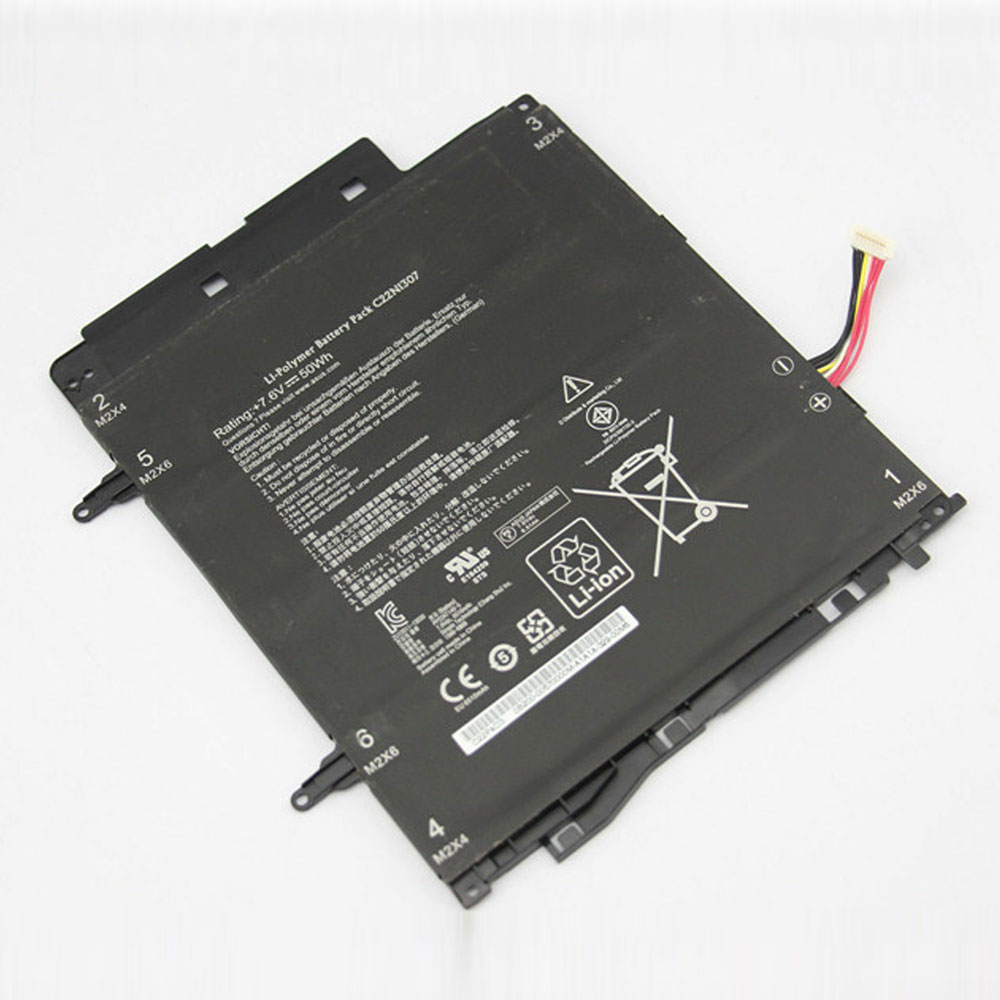
Cheap Asus C22N1307 Li-ion Tablets battery, Brand New C22N1307 replacement battery for ASUS Transformer Book T300LA T300LA-BB31T

50WH 7.6V Asus C22N1307 Batteries for ASUS Transformer Book T300LA T300LA-BB31T, Asus C22N1307 Tablets battery is a brand new,100% Compatible original and replacement Laptop battery,Purchase wholesale and retail C22N1307 with high quality and low price!

C22N1307 Battery asus Li-ion 7.6V 50WH

C22N1307

Specifications

  • Brand:ASUS
  • Capacity :50WH
  • Voltage :7.6V
  • Type :Li-ion
  • Battery Cell Quality: Grade A
  • Descriptive: Replacement Battery – 1 Year Warranty
  • Description: Brand New, 1 Year Warranty! 30-Days Money Back! Fast Shipping!

How we test this Asus C22N1307 Battery Li-ion 7.6V 50WH

Step 1: Make sure customer bought the correct battery.
Step 2: Check battery’s appearance and interface.
Step 3: Test battery charger and recharger function.
Step 4: Charger the battery to 100% and recharger to 0% to get real battery capacity
Step 5: Use Ev2300 to check the voltage difference of each goroup cells.
Step 6: Charger battery power more than 30%.
Step 7: Package battery carefully and send out

Compatible Part Numbers:

C22N1307

Compatible Model Numbers:

ASUS Transformer Book T300LA T300LA-BB31T

How much do you know about how to run laptop well as any place? The follow Tips cut way back on protecting battery life.


1). Please recharge or change your Tablets battery when battery power low.
2). Using Li-Ion Replacement Asus C22N1307 Tablets Battery for your notebook which can work longer time than Non Li-ion one.
3). It is better to defragmentation regularly for your Tablets battery life.
4). In order to reduce the laptop power consumpition, you can use some optical drive spin-down and hard drive in your Tablets .
5). Please keep your laptop in sleep or standby model without long time using, which both save the Replacement Asus C22N1307 Tablets Battery power and extend battery using life.
6). Leave your battery in a dry and cool condition when without using.
7). When you rarely or generally plugged in fixed power using, Please take down your battery to avoid hurting battery life.

Hot Products

11.1V/12.4v 2300mah BOSE 404600 for Bose SOUNDLINK I II III16.8V/20V 400mA/2200mAH/32Wh BOSE 300769-003 for Bose Sounddock Portable Digita3.8V 6300mAh/23.94Wh AMAZON 2955C7 for Amazon Kindle Fire HD 10.1 7th3.8 V 1300 mAh AMAZON MC-305070 for AMAZON Kindle Voyage7.7V 37Wh/4810mAh ACER AP16M5J for ACER A315-51-51SL N17Q1 SERIES3.8V/4.35V 2000MAH/7.6Wh ALCATEL TLI020F7 for Alcatel Onetouch Pixi 4 (5) 503.8V 4000mAh/15.2Wh LENOVO L15D1P31 for Lenovo Yoga Tab3 Pro YT3-X90L3.8V 2930mAh/11.1Wh NETGEAR W-7 for Netgear AirCard 790S 790SP 8103.7V/4.2V 1750MAH/6.5WH AMAZON GP-S10-346392-0100 for AMAZON KINDLE 3 3G WIFI Kindle3.85V/4.4V 3080MAH/11.86WH ALCATEL TLp030JC for Alcatel A3 XL 9008j

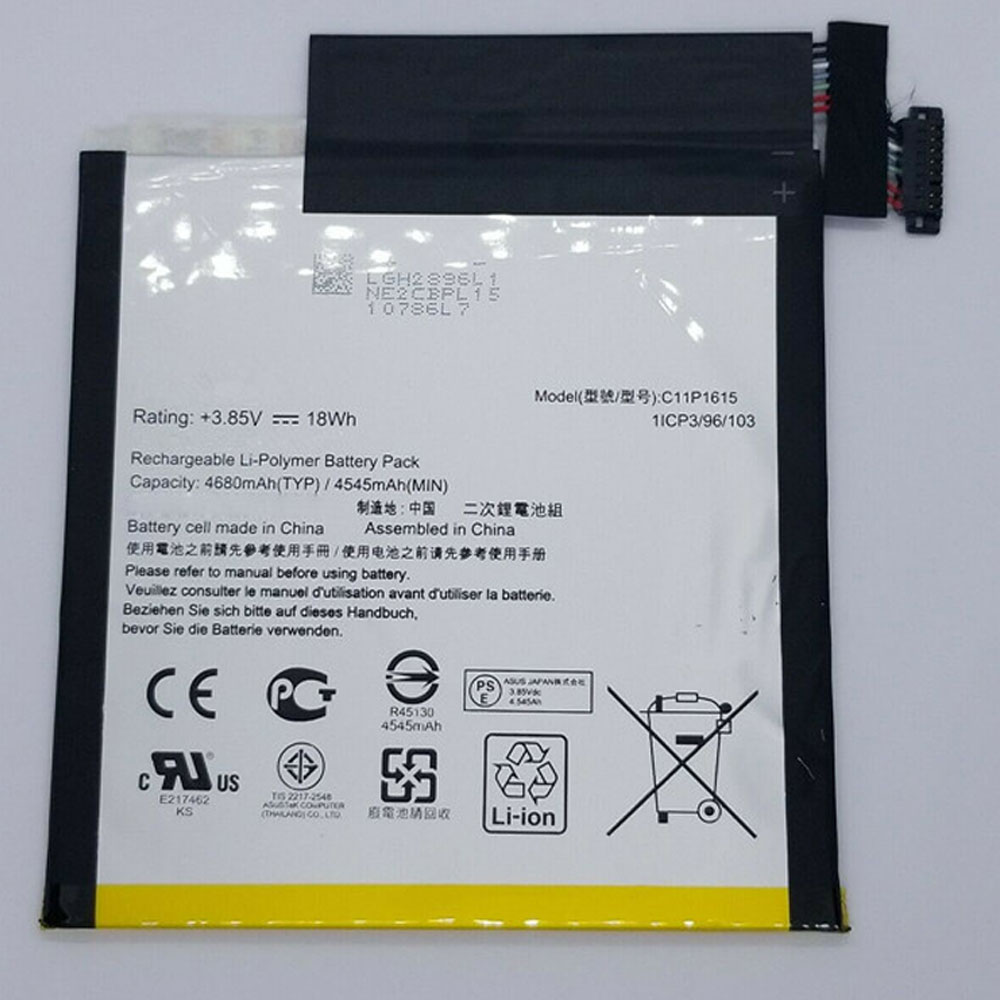
Cheap Asus C11P1615 Li-ion Tablets battery, Brand New C11P1615 replacement battery for ASUS ZenPad Z8S P00J ZT582KL

4680mAh/18Wh 3.8V/4.35V Asus C11P1615 Batteries for ASUS ZenPad Z8S P00J ZT582KL, Asus C11P1615 Tablets battery is a brand new,100% Compatible original and replacement Laptop battery,Purchase wholesale and retail C11P1615 with high quality and low price!

C11P1615 Battery asus Li-ion 3.8V/4.35V 4680mAh/18Wh

C11P1615

Specifications

  • Brand:ASUS
  • Capacity :4680mAh/18Wh
  • Voltage :3.8V/4.35V
  • Type :Li-ion
  • Battery Cell Quality: Grade A
  • Descriptive: Replacement Battery – 1 Year Warranty
  • Description: Brand New, 1 Year Warranty! 30-Days Money Back! Fast Shipping!

How we test this Asus C11P1615 Battery Li-ion 3.8V/4.35V 4680mAh/18Wh

Step 1: Make sure customer bought the correct battery.
Step 2: Check battery’s appearance and interface.
Step 3: Test battery charger and recharger function.
Step 4: Charger the battery to 100% and recharger to 0% to get real battery capacity
Step 5: Use Ev2300 to check the voltage difference of each goroup cells.
Step 6: Charger battery power more than 30%.
Step 7: Package battery carefully and send out

Compatible Part Numbers:

C11P1615

Compatible Model Numbers:

ASUS ZenPad Z8S P00J ZT582KL

How much do you know about how to run laptop well as any place? The follow Tips cut way back on protecting battery life.


1). Please recharge or change your Tablets battery when battery power low.
2). Using Li-Ion Replacement Asus C11P1615 Tablets Battery for your notebook which can work longer time than Non Li-ion one.
3). It is better to defragmentation regularly for your Tablets battery life.
4). In order to reduce the laptop power consumpition, you can use some optical drive spin-down and hard drive in your Tablets .
5). Please keep your laptop in sleep or standby model without long time using, which both save the Replacement Asus C11P1615 Tablets Battery power and extend battery using life.
6). Leave your battery in a dry and cool condition when without using.
7). When you rarely or generally plugged in fixed power using, Please take down your battery to avoid hurting battery life.

Hot Products

11.1V/12.4v 2300mah BOSE 404600 for Bose SOUNDLINK I II III16.8V/20V 400mA/2200mAH/32Wh BOSE 300769-003 for Bose Sounddock Portable Digita3.8V 6300mAh/23.94Wh AMAZON 2955C7 for Amazon Kindle Fire HD 10.1 7th3.8 V 1300 mAh AMAZON MC-305070 for AMAZON Kindle Voyage7.7V 37Wh/4810mAh ACER AP16M5J for ACER A315-51-51SL N17Q1 SERIES3.8V/4.35V 2000MAH/7.6Wh ALCATEL TLI020F7 for Alcatel Onetouch Pixi 4 (5) 503.8V 4000mAh/15.2Wh LENOVO L15D1P31 for Lenovo Yoga Tab3 Pro YT3-X90L3.8V 2930mAh/11.1Wh NETGEAR W-7 for Netgear AirCard 790S 790SP 8103.7V/4.2V 1750MAH/6.5WH AMAZON GP-S10-346392-0100 for AMAZON KINDLE 3 3G WIFI Kindle3.85V/4.4V 3080MAH/11.86WH ALCATEL TLp030JC for Alcatel A3 XL 9008j

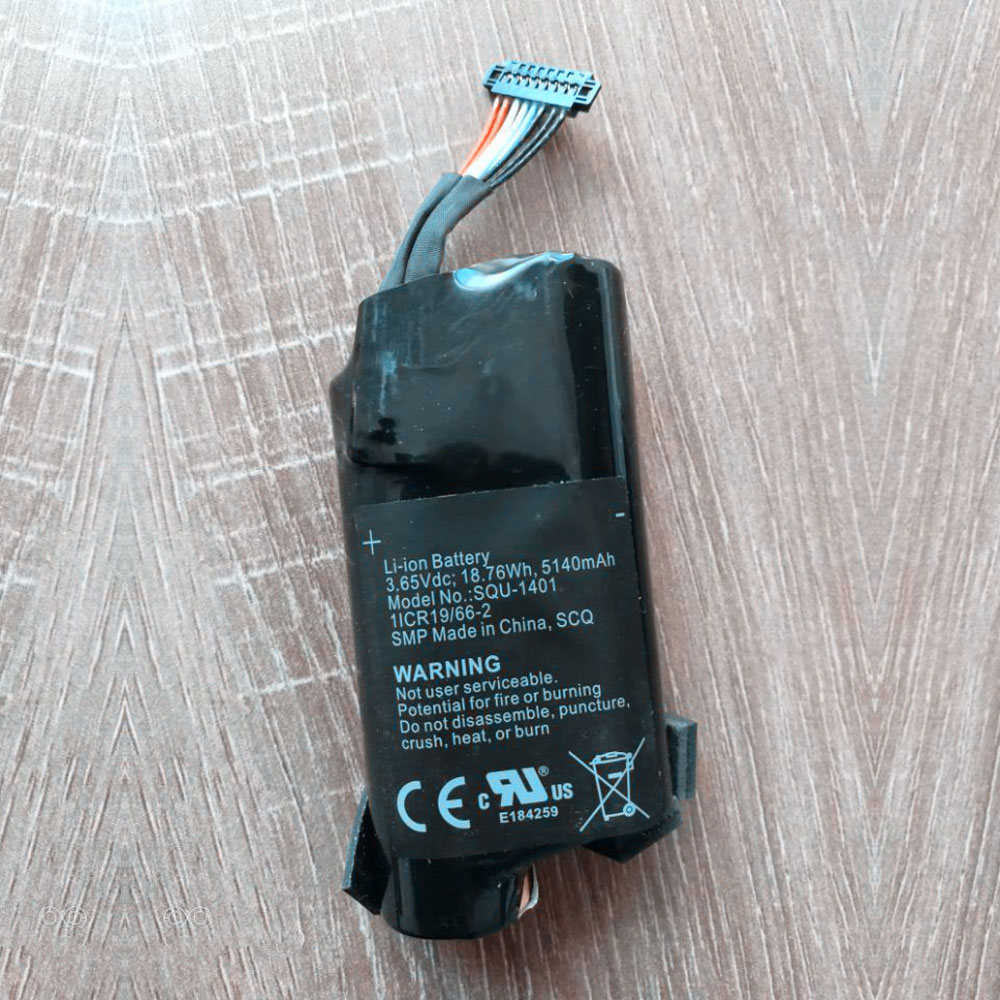
Cheap Smp SQU-1401 Li-ion Laptop battery, Brand New SQU-1401 replacement battery for SMP SIMPLO 1ICR19/66-2 Series

5140mAh /18.76Wh 18.76V/4.35V Smp SQU-1401 Batteries for SMP SIMPLO 1ICR19/66-2 Series, Smp SQU-1401 Laptop battery is a brand new,100% Compatible original and replacement Laptop battery,Purchase wholesale and retail SQU-1401 with high quality and low price!

SQU-1401 Battery smp Li-ion 18.76V/4.35V 5140mAh /18.76Wh

SQU-1401

Specifications

  • Brand:SMP
  • Capacity :5140mAh /18.76Wh
  • Voltage :18.76V/4.35V
  • Type :Li-ion
  • Battery Cell Quality: Grade A
  • Descriptive: Replacement Battery – 1 Year Warranty
  • Description: Brand New, 1 Year Warranty! 30-Days Money Back! Fast Shipping!

How we test this Smp SQU-1401 Battery Li-ion 18.76V/4.35V 5140mAh /18.76Wh

Step 1: Make sure customer bought the correct battery.
Step 2: Check battery’s appearance and interface.
Step 3: Test battery charger and recharger function.
Step 4: Charger the battery to 100% and recharger to 0% to get real battery capacity
Step 5: Use Ev2300 to check the voltage difference of each goroup cells.
Step 6: Charger battery power more than 30%.
Step 7: Package battery carefully and send out

Compatible Part Numbers:

SQU-1401

Compatible Model Numbers:

SMP SIMPLO 1ICR19/66-2 Series

How much do you know about how to run laptop well as any place? The follow Tips cut way back on protecting battery life.


1). Please recharge or change your Laptop battery when battery power low.
2). Using Li-Ion Replacement Smp SQU-1401 Laptop Battery for your notebook which can work longer time than Non Li-ion one.
3). It is better to defragmentation regularly for your Laptop battery life.
4). In order to reduce the laptop power consumpition, you can use some optical drive spin-down and hard drive in your Laptop .
5). Please keep your laptop in sleep or standby model without long time using, which both save the Replacement Smp SQU-1401 Laptop Battery power and extend battery using life.
6). Leave your battery in a dry and cool condition when without using.
7). When you rarely or generally plugged in fixed power using, Please take down your battery to avoid hurting battery life.

Hot Products

11.1V/12.4v 2300mah BOSE 404600 for Bose SOUNDLINK I II III16.8V/20V 400mA/2200mAH/32Wh BOSE 300769-003 for Bose Sounddock Portable Digita3.8V 6300mAh/23.94Wh AMAZON 2955C7 for Amazon Kindle Fire HD 10.1 7th3.8 V 1300 mAh AMAZON MC-305070 for AMAZON Kindle Voyage7.7V 37Wh/4810mAh ACER AP16M5J for ACER A315-51-51SL N17Q1 SERIES3.8V/4.35V 2000MAH/7.6Wh ALCATEL TLI020F7 for Alcatel Onetouch Pixi 4 (5) 503.8V 4000mAh/15.2Wh LENOVO L15D1P31 for Lenovo Yoga Tab3 Pro YT3-X90L3.8V 2930mAh/11.1Wh NETGEAR W-7 for Netgear AirCard 790S 790SP 8103.7V/4.2V 1750MAH/6.5WH AMAZON GP-S10-346392-0100 for AMAZON KINDLE 3 3G WIFI Kindle3.85V/4.4V 3080MAH/11.86WH ALCATEL TLp030JC for Alcatel A3 XL 9008j

Working from home? Get the most out of your old laptop by turning it into a Chromebook

As many of us are now working and schooling from home, you may have be thinking about dusting off that old laptop in the closet. You know, that one that runs Windows… 7? 8? XP? Who can be bothered, honestly? But it’s old, it’s slow, and you know it’s really not going to be very pleasant to use. On top of that, it’ll probably be an absolute Swiss cheese of security holes, and you really don’t want to be putting a laptop without proper Windows or Mac OS security updates online. You do have a real option to make that machine feel a lot fresher and safer, though, so long as working inside a browser fits most of your day to day needs. Specifically, Chrome OS.

While Google officially supports only devices that are custom-built to fit Chrome OS, thanks to Neverware’s CloudReady fork of Chromium OS, almost any x86 Windows or Mac OS laptop can become a Chromebook, plus: it’s totally free. We’ll show you how to get set up.

CloudReady officially certifies only a few models that you can find on Neverware’s website. Still, the company says that it should work on most laptops, though “uncertified models may have unstable behavior, and our support team cannot assist you with troubleshooting.” It’s still worth a try since you can give the OS a test run from a USB drive before installing.

I chose a 2008 HP EliteBook 2530p to test this myself. It’s a 12-inch Core 2 Duo laptop with 2GB of RAM and a 250GB HDD, so you can imagine that Windows is unusable on it these days. It’s one of the certified Neverware models, so the company tells us exactly what works and what doesn’t on the hardware. It warns me that I need to enable UEFI in my BIOS settings before attempting the installation and that the laptop’s dedicated Wi-Fi and mute buttons won’t work, so it encourages me to use the on-screen alternatives for that. Considering this computer is more than 12 years old and was never meant to run Chrome OS, that’s a pretty small list of problems.

CloudReady vs. Chrome OS

Compared to the regular Chrome OS, this Chromium OS build has a few missing features. It doesn’t support Google Assistant at all and you don’t have access to the Play Store or any Android apps. The same is true for Linux applications. You also can’t connect your Android phone to the OS. Geolocation and timezone info can’t be accessed by CloudReady, so you can’t use location-based applications and need to change time zones while traveling manually. More advanced features like Power Wash and Device Data Wipe are also missing to preserve Neverware’s Chromium OS customization. Num Lock switchers aren’t supported on any laptop, either.

Since Neverware hast to adjust its tweaks with each new Chromium OS update, CloudReady is always about a version behind the latest stable release of Chrome OS, and you can’t use any of the beta, dev, or Canary versions of the OS.

When I set up the device in US English, I also encountered the problem that CloudReady thought my German keyboard had an English layout (which is particularly annoying while entering passwords), which I could only fix after I’d fully installed the system. This seems like an edge case, though — most people will probably use their laptops in the language its keyboard shipped with. Guest Mode generally exclusively works with a US English keyboard layout, though, so be warned when you give away your laptop and you have a different keyboard layout.

To see Adobe Flash content or watch protected media like Netflix films, you first need to activate the corresponding plugins in Settings -> Media Plugins — proprietary software like these doesn’t come with the open-source Chromium OS base.

Other Chromium OS solutions

Of course, instead of going for CloudReady, you could also install Chromium OS right away without relying on a for-profit company at all. If you go this route, you won’t have access to Flash and DRM-protected content, but in contrast to CloudReady, you can install Chromium OS on ARM devices. Older laptops rarely run on ARM chips, though, so this might be of little tangible advantage here.

There’s also FydeOS (based on Flint OS, which has been bought by Neverware). It recreates more Chrome OS functions like Linux and Android app support and even works on Raspberry Pi units. However, this fork isn’t as well documented for laymen as CloudReady, and it doesn’t offer a selection of certified models that are guaranteed to work with limited issues only. While you might be happier with FydeOS in the long run thanks to its more advanced features, CloudReady is great if you want to dip your toes into the world of Chromium/Chrome OS. (Also, Neverware is a US company while FydeOS is Chinese, if that’s important to you.)

Installing CloudReady

If your model isn’t on the list of supported devices, make yourself familiar with the critical requirements stated on Neverware’s website. It says you’ll need a PC or Mac from 2007 or later and at least 2GB of RAM. For installation, you should also have a USB drive with 8 or more GB of storage at hand.

Create the USB stick installer

If you’re a Windows person, you can use CloudReady’s automated USB installer tool, which is a little involved process well described by the on-screen instructions.

On Mac and Chrome OS, the path to Cloudready is a little more complicated. First, download the CloudReady Home Edition image. While that’s in progress, you can add the Chromebook Recovery Utility to your Chrome browser, which you will need to create the stick. Launch the utility and click the gear icon in the top right corner and choose Use local image. Once you’ve finished downloading the image file, select it in the installer, and the program will start creating the recovery media.

Installation and setup

Now that you’ve got your USB tool, you can plug it into the machine you want to turn into a Chromebook while it’s turned off. To install the OS, you need to boot your laptop from that USB stick, which means you’ll have to enter the BIOS and change the boot sequence. Depending on your brand, you might be able to rely on the list below. For others, you’ll need to search Google for instructions on how to change the boot order.

Once you’ve entered the screen with boot options, you’ll have to choose the one that represents your USB tool. It should be named “USB device,” “USB storage,” or something else that makes sense (it won’t be your hard drive or your CD/DVD reader). If you select the correct one, you should see a bright, white screen with the CloudReady logo on it.

You can set up your Google account and start testing the Chrome OS environment then and there. Your experience while testing it will likely be much slower than what you can expect once you’ve installed the OS, but make sure everything works before you do that. Check if all your connections like Wi-Fi, Ethernet, USB, and Bluetooth are functional, and make yourself familiar with Chrome OS’ keyboard shortcuts. Ensure your touchpad works as expected, and see if your webcam and speakers function properly. If you have a touchscreen, see if you can use it with the OS.

Once you’re 100 percent sure you want to turn your machine into a Chromebook and know about potential issues, click the notification/clock pill in the bottom right corner and select Install OS. You’ll have to go through an end-user agreement with Neverware, but once that’s done, the USB drive will begin formatting your hard drive and install Chromium OS. Note that you will lose your previously installed OS and any files on it in the process.

On your fresh install, you’ll have to sign in to your Google account again. Since Chrome OS is mostly cloud-based, you won’t have to fully set up everything one more time, though — most of your settings should be downloaded automatically from Google’s servers. If you’ve already activated Flash and proprietary media on your USB drive install, you’ll have to toggle those on once more, though. After that, you’re all set to start playing with your brand-new Chrome OS machine. The lightweight system should breathe new life into whatever aging device you call your own.

If you run into any issues during any part of the install process, check out Neverware’s excellent detailed guide — it stretches across multiple pages and also accommodates more outlandish scenarios.

Using CloudReady

Considering my HP EliteBook only has 2GB of RAM and a Core 2 Duo processor, I’m astounded how well it runs. As long as I limit myself to a maximum of about five tabs or windows at a time and try not to leave Gmail open all day, I’m almost inclined to believe I’m using some modern entry-level Chromebook. I haven’t missed the Assistant one bit, and while the lack of Android apps is a minor annoyance, I don’t think my EliteBook could realistically keep up with the necessary virtualization anyway.

In fact, I’ve entirely written and researched this guide on the trusty old HP laptop, though I wouldn’t use it for my job in the long run — simply leaving Gmail, Slack, and WordPress open at the same time leads to noticeable slowdowns. Depending on your laptop, you might get much more performance out of it, though, and as a secondary device for casual document editing, Amazon shopping, video streaming, Gmail checking, or Reddit browsing, any old laptop on Chrome OS should do fine.

If you consider upgrading your old machine’s hardware after turning it into a Chromebook, I can only recommend to check out used, proper Chromebooks before. Depending on how much you’re willing to invest in your current hardware, a second-hand alternative might be the better and more stable deal as you may get access to the regular Chrome OS experience complete with Google Assistant, Android apps, and Linux virtualization (check their update expiration date beforehand, though!).