Razer Book 13 vs. Dell XPS 13 9310: Same CPU, Same Display, Big Differences

The Razer Book 13 and Dell XPS 13 are some of the sexiest 13-inch laptops in the market at the moment, but we’re not here to talk about looks. Instead, we’re going to try and compare them as objectively as we can to see which system comes out on top. After all, hard numbers are hard to argue against at the end of the day.

See our individual reviews on the Dell XPS 13 9310 and Razer Book 13 for more detailed information on each. Note that this comparison deals only between the two FHD configurations listed below as other SKUs have different CPU and display options.

Case

The Dell is slightly lighter, but both are otherwise almost the same in overall dimensions. Nonetheless, the tapered chassis design of the XPS makes the system feel smaller when compared to the boxier design of the Razer.

Ports

Razer has the clear advantage in this category. The Book 13 integrates all the ports on the XPS 13 plus full-size USB-A and even HDMI.

Display

Both utilize the same Sharp LQ134N1 IPS panel and backlight for essentially the same visual experience between them. However, it’s worth noting that our Book 13 display was better calibrated out of the box than our XPS display. Additionally, Razer offers a matte option whereas all XPS 13 9310 SKUs are glossy.

CPU Performance

The Book 13 handily defeats the XPS 13 in terms of raw processor performance. Clock rates are both higher and more consistent to leapfrog over the Dell in all CPU performance benchmarks by quite the margin.

Graphics Performance

The Book 13 comes out ahead again in almost all scenarios. Frame rates are also steadier on the Razer machine since clock rates do not fluctuate.

Keyboard and ClickPad

Razer has the slightly larger clickpad (11.1 x 7 cm vs. 11.2 x 6.5 cm), but clicking on its surface is softer and spongier than on the Dell. Furthermore, the keyboard on the Dell feels firmer and more satisfying to use. Keys along the edges are also larger than on the Razer since there are no speaker grilles to worry about.

A unique advantage on the Razer keyboard is its per-key RGB lighting. Nonetheless, this is wholly aesthetic.

Battery Life

The Dell system is just slightly more power efficient when under medium to heavy loads. Overall battery life, however, still favors the Razer system by almost 4 hours longer when both systems are under the same WLAN conditions.

Additionally, the AC adapter for the XPS 13 is rated for only 45 W compared to 65 W on the Razer which partly explains why the Razer system can outperform the Dell on most benchmarks.

System Noise

Both models utilize twin fans with vapor chamber cooling, but the Razer system will be the louder machine when running high loads for extended periods. 

Temperature

Surface temperatures are warmer on the Dell than on the Razer. Hot spots on the top and bottom can reach 47 C and 46 C, respectively, compared to 38 C and 43 C on the Razer. The overall warmer CPU temperature of the Dell may be responsible for the higher surface temperatures.

Verdict

The Razer Book 13 comes out ahead with faster performance, cooler temperatures, and even longer battery life than the Dell XPS 13 9310. It’s a tad bit heavier and larger, but the aforementioned advantages and additional port options might outweigh the minor size disadvantage for many users. It also just happens to be much more expensive than the Dell XPS 13 9310 when configured with the same CPU, display, RAM, and SSD options.

A key drawback to the Razer is its spongier keyboard keys and clickpad. If you’re already used to typing on Ultrabooks with shallow or light keys, however, then this should shouldn’t be a huge issue.

ASUS Announces the TUF Gaming VG289Q1A Gaming Monitor

ASUS has announced the TUF Gaming VG289Q1A Gaming monitor, which features a 28-inch screen size, a 4K resolution, and a maximum refresh rate of up to 60 Hz. These features make this monitor perfect for any gaming setup. ASUS has not announced any pricing for this gaming monitor or any availability information for the TUF Gaming VG289Q1A Gaming monitor.

The TUG Gaming VG289Q1A Gaming monitor offers a 4K resolution and a refresh rate of up to 60 Hz

The TUF Gaming VG289Q1A Gaming monitor features a resolution of 4K, or 3,840 x 2,160, which offers a large amount of screen space while still creating stunning crisp and detailed visuals. This higher resolution gives users four times the pixels of similar-sized displays, allowing for more desktop space. This display offers support for AMD’s FreeSync technology, which reduces screen-tearing and keeps the gameplay incredibly smooth.

This display offers a refresh rate of up to 60 Hz, which is lower than other gaming monitors, but thanks to the 4K resolution and unique design allows this gaming monitor to stand out. This display supports HDR technology, which offers a wider color range and a much better contrast than standard gaming monitors. This monitor’s HDR support covers 90% of the DCI-P3 color gamut. This monitor features two different HDR modes, an ASUS CINEMA HDR and an ASUS Gaming HDR, which are optimized for different HDR applications.

This monitor features five different in-game enhancements, including Shadow Boost, GamePlus, GameVisuals, Flicker-Free technology, and an Ultra-Low Blue light mode. These different in-game enhancements offer flicker-free technology to reduce eye strain during longer gaming sessions. The Shadow Boost technology can enhance image details in the darker area while brightening scenes without over-exposing the bright areas of an image.

Another in-game enhancement is called Ultra-Low Blue Light technology, and this technology reduces the amount of potentially harmful blue light emitted by the display. This technology has four different filters, which allows the user to customize how this screen looks.

For Connectivity, the TUF Gaming VG289Q1A gaming monitor includes a single DisplayPort and two HDMI 2.0 ports, and an earphone jack. ASUS has yet to announce any pricing for the TUF Gaming VG289Q1A gaming monitor or any information regarding when this gaming monitor will be released.

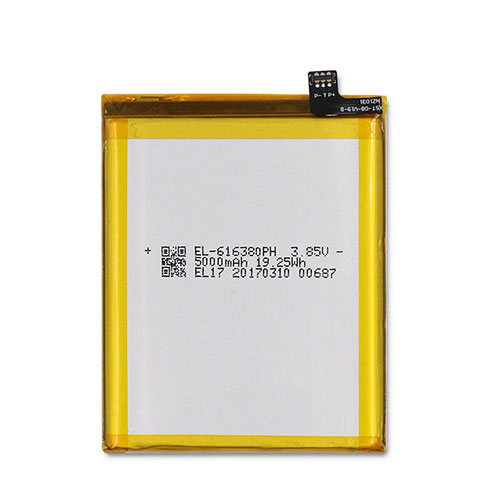
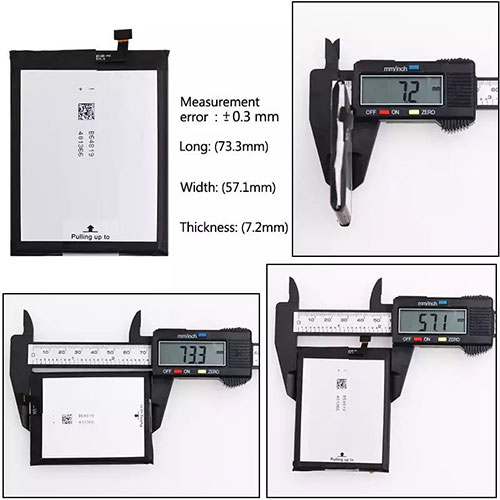
Cheap Nomu EL-616380PH Li-ion Cell Phone battery, Brand New EL-616380PH replacement battery for Nomu LMCV1 S30

5000mAh/19.25WH 3.85V Nomu EL-616380PH Batteries for Nomu LMCV1 S30, Nomu EL-616380PH Cell Phone battery is a brand new,100% Compatible original and replacement Laptop battery,Purchase wholesale and retail EL-616380PH with high quality and low price!

EL-616380PH Battery nomu Li-ion 3.85V 5000mAh/19.25WH

EL-616380PH

Specifications

  • Brand:Nomu
  • Capacity :5000mAh/19.25WH
  • Voltage :3.85V
  • Color:white
  • Type :Li-ion
  • Battery Cell Quality: Grade A
  • Descriptive: Replacement Battery – 1 Year Warranty
  • Description: Brand New, 1 Year Warranty! 30-Days Money Back! Fast Shipping!

How we test this Nomu EL-616380PH Battery Li-ion 3.85V 5000mAh/19.25WH

Step 1: Make sure customer bought the correct battery.
Step 2: Check battery’s appearance and interface.
Step 3: Test battery charger and recharger function.
Step 4: Charger the battery to 100% and recharger to 0% to get real battery capacity
Step 5: Use Ev2300 to check the voltage difference of each goroup cells.
Step 6: Charger battery power more than 30%.
Step 7: Package battery carefully and send out

Compatible Part Numbers:

EL-616380PH

Compatible Model Numbers:

Nomu LMCV1 S30

How much do you know about how to run laptop well as any place? The follow Tips cut way back on protecting battery life.


1). Please recharge or change your Cell Phone battery when battery power low.
2). Using Li-Ion Replacement Nomu EL-616380PH Cell Phone Battery for your notebook which can work longer time than Non Li-ion one.
3). It is better to defragmentation regularly for your Cell Phone battery life.
4). In order to reduce the laptop power consumpition, you can use some optical drive spin-down and hard drive in your Cell Phone .
5). Please keep your laptop in sleep or standby model without long time using, which both save the Replacement Nomu EL-616380PH Cell Phone Battery power and extend battery using life.
6). Leave your battery in a dry and cool condition when without using.
7). When you rarely or generally plugged in fixed power using, Please take down your battery to avoid hurting battery life.

Hot Products

16.8V/20V 400mA/2200mAH/32Wh BOSE 300769-003 for Bose Sounddock Portable Digita11.1V/12.4v 2300mah BOSE 404600 for Bose SOUNDLINK I II III15.4V 5209mAh RAZER RC30-0248 for RAZER Blade 15 2018 RZ09-023867.4V 2230mAh/17Wh BOSE 063404 for 0634043.8V 6300mAh/23.94Wh AMAZON 2955C7 for Amazon Kindle Fire HD 10.1 7th3.7V/4.2V 1750MAH/6.5WH AMAZON GP-S10-346392-0100 for AMAZON KINDLE 3 3G WIFI Kindle3.8 V 1300 mAh AMAZON MC-305070 for AMAZON Kindle Voyage7.7V 37Wh/4810mAh ACER AP16M5J for ACER A315-51-51SL N17Q1 SERIES3.8V 2930mAh/11.1Wh NETGEAR W-7 for Netgear AirCard 790S 790SP 8103.85V/4.4V 3080MAH/11.86WH ALCATEL TLp030JC for Alcatel A3 XL 9008j

Cheap Doogee V715874P Li-ion Cell Phone battery, Brand New V715874P replacement battery for DOOGEE S55 S55 LITE

5500mAh 3.8V Doogee V715874P Batteries for DOOGEE S55 S55 LITE, Doogee V715874P Cell Phone battery is a brand new,100% Compatible original and replacement Laptop battery,Purchase wholesale and retail V715874P with high quality and low price!

V715874P Battery doogee Li-ion 3.8V 5500mAh

V715874P

Specifications

  • Brand:DOOGEE
  • Capacity :5500mAh
  • Voltage :3.8V
  • Color:white
  • Type :Li-ion
  • Battery Cell Quality: Grade A
  • Descriptive: Replacement Battery – 1 Year Warranty
  • Description: Brand New, 1 Year Warranty! 30-Days Money Back! Fast Shipping!

How we test this Doogee V715874P Battery Li-ion 3.8V 5500mAh

Step 1: Make sure customer bought the correct battery.
Step 2: Check battery’s appearance and interface.
Step 3: Test battery charger and recharger function.
Step 4: Charger the battery to 100% and recharger to 0% to get real battery capacity
Step 5: Use Ev2300 to check the voltage difference of each goroup cells.
Step 6: Charger battery power more than 30%.
Step 7: Package battery carefully and send out

Compatible Part Numbers:

V715874P

Compatible Model Numbers:

DOOGEE S55 S55 LITE

How much do you know about how to run laptop well as any place? The follow Tips cut way back on protecting battery life.


1). Please recharge or change your Cell Phone battery when battery power low.
2). Using Li-Ion Replacement Doogee V715874P Cell Phone Battery for your notebook which can work longer time than Non Li-ion one.
3). It is better to defragmentation regularly for your Cell Phone battery life.
4). In order to reduce the laptop power consumpition, you can use some optical drive spin-down and hard drive in your Cell Phone .
5). Please keep your laptop in sleep or standby model without long time using, which both save the Replacement Doogee V715874P Cell Phone Battery power and extend battery using life.
6). Leave your battery in a dry and cool condition when without using.
7). When you rarely or generally plugged in fixed power using, Please take down your battery to avoid hurting battery life.

Hot Products

16.8V/20V 400mA/2200mAH/32Wh BOSE 300769-003 for Bose Sounddock Portable Digita11.1V/12.4v 2300mah BOSE 404600 for Bose SOUNDLINK I II III15.4V 5209mAh RAZER RC30-0248 for RAZER Blade 15 2018 RZ09-023867.4V 2230mAh/17Wh BOSE 063404 for 0634043.8V 6300mAh/23.94Wh AMAZON 2955C7 for Amazon Kindle Fire HD 10.1 7th3.7V/4.2V 1750MAH/6.5WH AMAZON GP-S10-346392-0100 for AMAZON KINDLE 3 3G WIFI Kindle3.8 V 1300 mAh AMAZON MC-305070 for AMAZON Kindle Voyage7.7V 37Wh/4810mAh ACER AP16M5J for ACER A315-51-51SL N17Q1 SERIES3.8V 2930mAh/11.1Wh NETGEAR W-7 for Netgear AirCard 790S 790SP 8103.85V/4.4V 3080MAH/11.86WH ALCATEL TLp030JC for Alcatel A3 XL 9008j

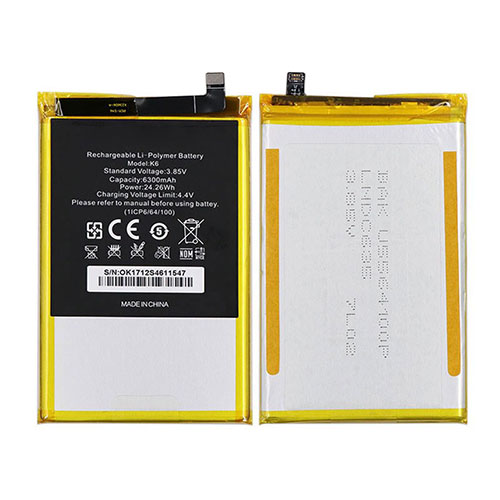
Cheap Oukitel K6 Li-ion Cell Phone battery, Brand New K6 replacement battery for OUKITEL K6

6300mAh/24.26WH 3.85V/4.4V Oukitel K6 Batteries for OUKITEL K6, Oukitel K6 Cell Phone battery is a brand new,100% Compatible original and replacement Laptop battery,Purchase wholesale and retail K6 with high quality and low price!

K6 Battery oukitel Li-ion 3.85V/4.4V 6300mAh/24.26WH

K6

Specifications

  • Brand:OUKITEL
  • Capacity :6300mAh/24.26WH
  • Voltage :3.85V/4.4V
  • Type :Li-ion
  • Battery Cell Quality: Grade A
  • Descriptive: Replacement Battery – 1 Year Warranty
  • Description: Brand New, 1 Year Warranty! 30-Days Money Back! Fast Shipping!

How we test this Oukitel K6 Battery Li-ion 3.85V/4.4V 6300mAh/24.26WH

Step 1: Make sure customer bought the correct battery.
Step 2: Check battery’s appearance and interface.
Step 3: Test battery charger and recharger function.
Step 4: Charger the battery to 100% and recharger to 0% to get real battery capacity
Step 5: Use Ev2300 to check the voltage difference of each goroup cells.
Step 6: Charger battery power more than 30%.
Step 7: Package battery carefully and send out

Compatible Part Numbers:

K6

Compatible Model Numbers:

OUKITEL K6

How much do you know about how to run laptop well as any place? The follow Tips cut way back on protecting battery life.


1). Please recharge or change your Cell Phone battery when battery power low.
2). Using Li-Ion Replacement Oukitel K6 Cell Phone Battery for your notebook which can work longer time than Non Li-ion one.
3). It is better to defragmentation regularly for your Cell Phone battery life.
4). In order to reduce the laptop power consumpition, you can use some optical drive spin-down and hard drive in your Cell Phone .
5). Please keep your laptop in sleep or standby model without long time using, which both save the Replacement Oukitel K6 Cell Phone Battery power and extend battery using life.
6). Leave your battery in a dry and cool condition when without using.
7). When you rarely or generally plugged in fixed power using, Please take down your battery to avoid hurting battery life.

Hot Products

16.8V/20V 400mA/2200mAH/32Wh BOSE 300769-003 for Bose Sounddock Portable Digita11.1V/12.4v 2300mah BOSE 404600 for Bose SOUNDLINK I II III15.4V 5209mAh RAZER RC30-0248 for RAZER Blade 15 2018 RZ09-023867.4V 2230mAh/17Wh BOSE 063404 for 0634043.8V 6300mAh/23.94Wh AMAZON 2955C7 for Amazon Kindle Fire HD 10.1 7th3.7V/4.2V 1750MAH/6.5WH AMAZON GP-S10-346392-0100 for AMAZON KINDLE 3 3G WIFI Kindle3.8 V 1300 mAh AMAZON MC-305070 for AMAZON Kindle Voyage7.7V 37Wh/4810mAh ACER AP16M5J for ACER A315-51-51SL N17Q1 SERIES3.8V 2930mAh/11.1Wh NETGEAR W-7 for Netgear AirCard 790S 790SP 8103.85V/4.4V 3080MAH/11.86WH ALCATEL TLp030JC for Alcatel A3 XL 9008j

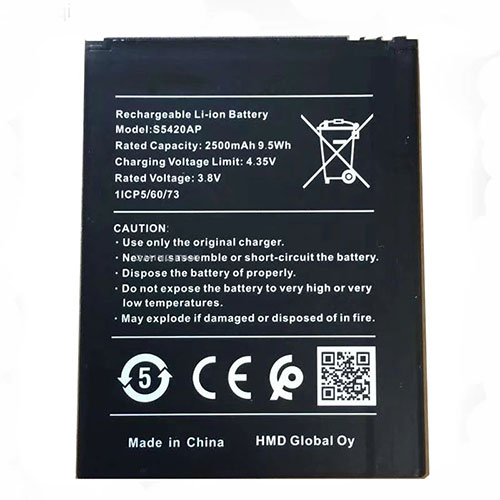
Cheap Nokia S5420AP Li-ion Cell Phone battery, Brand New S5420AP replacement battery for Nokia S5420AP

2500mAh/9.5WH 3.8V/4.35V Nokia S5420AP Batteries for Nokia S5420AP, Nokia S5420AP Cell Phone battery is a brand new,100% Compatible original and replacement Laptop battery,Purchase wholesale and retail S5420AP with high quality and low price!

S5420AP Battery nokia Li-ion 3.8V/4.35V 2500mAh/9.5WH

S5420AP

Specifications

  • Brand:Nokia
  • Capacity :2500mAh/9.5WH
  • Voltage :3.8V/4.35V
  • Type :Li-ion
  • Battery Cell Quality: Grade A
  • Descriptive: Replacement Battery – 1 Year Warranty
  • Description: Brand New, 1 Year Warranty! 30-Days Money Back! Fast Shipping!

How we test this Nokia S5420AP Battery Li-ion 3.8V/4.35V 2500mAh/9.5WH

Step 1: Make sure customer bought the correct battery.
Step 2: Check battery’s appearance and interface.
Step 3: Test battery charger and recharger function.
Step 4: Charger the battery to 100% and recharger to 0% to get real battery capacity
Step 5: Use Ev2300 to check the voltage difference of each goroup cells.
Step 6: Charger battery power more than 30%.
Step 7: Package battery carefully and send out

Compatible Part Numbers:

S5420AP

Compatible Model Numbers:

Nokia S5420AP

How much do you know about how to run laptop well as any place? The follow Tips cut way back on protecting battery life.


1). Please recharge or change your Cell Phone battery when battery power low.
2). Using Li-Ion Replacement Nokia S5420AP Cell Phone Battery for your notebook which can work longer time than Non Li-ion one.
3). It is better to defragmentation regularly for your Cell Phone battery life.
4). In order to reduce the laptop power consumpition, you can use some optical drive spin-down and hard drive in your Cell Phone .
5). Please keep your laptop in sleep or standby model without long time using, which both save the Replacement Nokia S5420AP Cell Phone Battery power and extend battery using life.
6). Leave your battery in a dry and cool condition when without using.
7). When you rarely or generally plugged in fixed power using, Please take down your battery to avoid hurting battery life.

Hot Products

16.8V/20V 400mA/2200mAH/32Wh BOSE 300769-003 for Bose Sounddock Portable Digita11.1V/12.4v 2300mah BOSE 404600 for Bose SOUNDLINK I II III15.4V 5209mAh RAZER RC30-0248 for RAZER Blade 15 2018 RZ09-023867.4V 2230mAh/17Wh BOSE 063404 for 0634043.8V 6300mAh/23.94Wh AMAZON 2955C7 for Amazon Kindle Fire HD 10.1 7th3.7V/4.2V 1750MAH/6.5WH AMAZON GP-S10-346392-0100 for AMAZON KINDLE 3 3G WIFI Kindle3.8 V 1300 mAh AMAZON MC-305070 for AMAZON Kindle Voyage7.7V 37Wh/4810mAh ACER AP16M5J for ACER A315-51-51SL N17Q1 SERIES3.8V 2930mAh/11.1Wh NETGEAR W-7 for Netgear AirCard 790S 790SP 8103.85V/4.4V 3080MAH/11.86WH ALCATEL TLp030JC for Alcatel A3 XL 9008j

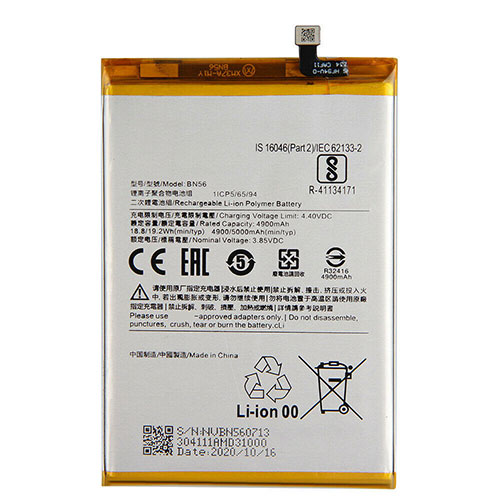
Cheap Xiaomi BN56 Li-ion Cell Phone battery, Brand New BN56 replacement battery for Xiaomi Redmi 9A 9C POCO M2 Pro

4900mAh/18.8WH 3.85V/4.4V Xiaomi BN56 Batteries for Xiaomi Redmi 9A 9C POCO M2 Pro, Xiaomi BN56 Cell Phone battery is a brand new,100% Compatible original and replacement Laptop battery,Purchase wholesale and retail BN56 with high quality and low price!

BN56 Battery xiaomi Li-ion 3.85V/4.4V 4900mAh/18.8WH

BN56

Specifications

  • Brand:Xiaomi
  • Capacity :4900mAh/18.8WH
  • Voltage :3.85V/4.4V
  • Color:white
  • Type :Li-ion
  • Battery Cell Quality: Grade A
  • Descriptive: Replacement Battery – 1 Year Warranty
  • Description: Brand New, 1 Year Warranty! 30-Days Money Back! Fast Shipping!

How we test this Xiaomi BN56 Battery Li-ion 3.85V/4.4V 4900mAh/18.8WH

Step 1: Make sure customer bought the correct battery.
Step 2: Check battery’s appearance and interface.
Step 3: Test battery charger and recharger function.
Step 4: Charger the battery to 100% and recharger to 0% to get real battery capacity
Step 5: Use Ev2300 to check the voltage difference of each goroup cells.
Step 6: Charger battery power more than 30%.
Step 7: Package battery carefully and send out

Compatible Part Numbers:

BN56

Compatible Model Numbers:

Xiaomi Redmi 9A 9C POCO M2 Pro

How much do you know about how to run laptop well as any place? The follow Tips cut way back on protecting battery life.


1). Please recharge or change your Cell Phone battery when battery power low.
2). Using Li-Ion Replacement Xiaomi BN56 Cell Phone Battery for your notebook which can work longer time than Non Li-ion one.
3). It is better to defragmentation regularly for your Cell Phone battery life.
4). In order to reduce the laptop power consumpition, you can use some optical drive spin-down and hard drive in your Cell Phone .
5). Please keep your laptop in sleep or standby model without long time using, which both save the Replacement Xiaomi BN56 Cell Phone Battery power and extend battery using life.
6). Leave your battery in a dry and cool condition when without using.
7). When you rarely or generally plugged in fixed power using, Please take down your battery to avoid hurting battery life.

Hot Products

16.8V/20V 400mA/2200mAH/32Wh BOSE 300769-003 for Bose Sounddock Portable Digita11.1V/12.4v 2300mah BOSE 404600 for Bose SOUNDLINK I II III15.4V 5209mAh RAZER RC30-0248 for RAZER Blade 15 2018 RZ09-023867.4V 2230mAh/17Wh BOSE 063404 for 0634043.8V 6300mAh/23.94Wh AMAZON 2955C7 for Amazon Kindle Fire HD 10.1 7th3.7V/4.2V 1750MAH/6.5WH AMAZON GP-S10-346392-0100 for AMAZON KINDLE 3 3G WIFI Kindle3.8 V 1300 mAh AMAZON MC-305070 for AMAZON Kindle Voyage7.7V 37Wh/4810mAh ACER AP16M5J for ACER A315-51-51SL N17Q1 SERIES3.8V 2930mAh/11.1Wh NETGEAR W-7 for Netgear AirCard 790S 790SP 8103.85V/4.4V 3080MAH/11.86WH ALCATEL TLp030JC for Alcatel A3 XL 9008j

Lenovo Yoga 7i Review: Premium Intel Evo Laptop On A Budget

As time goes on, Intel’s 10-nanometer Tiger Lake processors will pounce on more laptop designs, given that it has only been a handful of weeks since the chip maker launched its latest mobile CPUs (which replace Ice Lake). Lenovo was quick out of the gate, however, and the company sent us an interesting sub-$1,000 Tiger Lake configuration from its rather plentiful 2-in-1 lineup. Specifically, the Lenovo Yoga 7i that arrived on our doorstep, and it’s a flexible 14-inch convertible which is also the first to land in our lab armed with an 11th Gen Core i5-1135G7 processor in tow.

Our dalliances with Intel’s Tiger Lake platform up to this point have been encounters with higher end SKUs, including a Core i7-1185G7 we benchmarked as part of a reference laptop Intel provided shortly after its Architecture Day 2020 event, as well as the Core i7-1165G7 we cozied up to in our Dell XPS 13 review. Those are the two fastest Tiger Lake processors within the UP3-series (what Intel previously called its U-series) for thin and light laptops.

The Core i5-1135G7, meanwhile, sits a peg down and presents an opportunity to offer a less expensive laptop built around the same core CPU architecture. That is what makes the Yoga 7i so intriguing. It is still a Tiger Lake chip, and even harnesses the same number of cores (four) and threads (eight), just with less cache (8MB versus 12MB) and a tamer implementation of Intel’s powerful new Xe graphics core (we’ll get to that later).

Intel bills Tiger Lake as being the “world’s best processor for thin and light laptops,” and the Yoga 7i wraps it into a relatively affordable package starting at $749.99. The config we received runs $899.99 and appears to be a SKU specific to Best Buy, though it’s also now on sale at that original $749 price point and makes for a great deal. Here’s all that the machine includes…

Lenovo Yoga 7i Internal Specifications And Features

This machine’s 4-core/8-thread Intel Core i5-1135G7 has a 2.4GHz base clock and 4.2GHz max turbo clock (3.8GHz for the all-core turbo clock ceiling). At the upper end of the single-core turbo frequency spectrum, there is a 500MHz difference between the Core i5-1135G7 and Core i7-1165G7, and a 600MHz difference between it and the Core i7-1185G7. That means there is an inevitable performance hit in certain applications, though as our benchmarks show on the next page, the divide is not always significant.

This particular SKU also has 12GB of DDR4-3200 memory soldered to the motherboard. It is a bit of an oddball capacity, versus more commonly found 8GB and 16GB arrangements. But we suppose splitting the difference allows Lenovo to elevate this setup above the baseline amount while still keeping the price attractive for budget-conscious buyers looking to spend well under $1K. And for storage, this Yoga comes with a 512GB NVMe SSD, which is also a jump over the baseline amount (256GB) on the Yoga 7i series. For all intents and purposes, this is a decidedly upper mid-range config at a very reasonable price point.

All of these components, and especially the Tiger Lake CPU, play into this laptop’s Intel Evo certification. To be Evo certified, a laptop has to meet certain criteria specified by Intel, including…

Consistent responsiveness on battery

Wake from sleep in less than 1 second

9 or more hours of real-world battery life (on laptops with a 1080p display)

4 or more hours of battery life in a 30-minute charge (on laptops with a 1080p display)

Intel anticipates certifying nearly two dozen designs by the end of the year, of which the Yoga 7i is one of them. Second-edition target specifications laid out by Intel also added Thunderbolt 4 and Wi-Fi 6 connectivity to the Evo recipe, both of which are featured on the Yoga 7i as well. So again, for about $750 – $840 at retail currently, you’re getting a lot of leading-edge technology here. 

Lenovo Yoga 7i Design And Display

One of the common drawbacks to more affordable laptop designs, are that they often lack the premium build quality and feel of more expensive models, a lot of times with plastic construction. They also tend to be a little thicker. Lenovo’s Yoga 7i is a welcome exception to this not-so-hard and fast rule. It looks and feels more expensive than it is, with its sandblasted aluminum housing and mostly rigid build quality. For example, you can flex its display panel if you really try, but it takes considerably more force than many laptops in this price range.

It is rather attractive as well, in its simplicity. There are no artificially carved lines or extraneous pieces of flair (like RGB or single-color lighting), just a flat rectangle design with beveled corners, a single color finish, and a relatively thin waistline (0.69 inches at its thickest point) with slightly tapered geometry. There is some light branding, though it is subtle as well, consisting of the Lenovo name in one of the corners (atop a small brushed metal section), and “Yoga” carved a bit bigger in the opposite corner. Both blend in nicely with the finish here.

We received the “Dark Moss” color option, which appears dark gray with tones of green, depending on the lighting. Dark Moss does not sound all that appealing, quite frankly, but to this editor’s eyeballs, it is a nice and subtle deviation from the standard silver, black, white, and gray color options that dominate the laptop landscape. Speaking of which, the Yoga 7i is also offered in “Slate Gray” for those who prefer that traditional, somewhat comparatively boring color.

The display is a 14-inch screen with a 1920×1080 resolution, with touch support. If offers 72 percent coverage of the NTSC color space, and is easily viewed from wider, off-access angles, which carries added importance for 2-in-1 devices capable of flexible form factors. Photos and videos look good on the Yoga 7i, though if you have been spoiled by an OLED panel, you are not going to get the same image quality here. In its own right, though, the display on the Yoga 7i is suitable for a variety of tasks.

This display is not ultra-bright, though. Specifically, we measured around 315 lux at the maximum brightness setting. That is enough for a vibrant presentation, though far away from an daylight defying luminosity. On a related note, HDR reproduction is absent on this laptop’s display.

Lenovo Yoga 7i External Features, Ports And Keyboard

One of the main reasons to buy a Yoga 7i is for its flexibility, and that comes by way of Lenovo’s sturdy 360-degree hinges. This means you can use it in four different ways: as a traditional laptop, in tent mode to play a presentation or perhaps watch content in the kitchen, in stand mode (where the keyboard is the base), or fold it all the way back to use it as a tablet. Windows 10 of course adapts and orients the screen appropriately automatically.

One feature that could easily go overlooked if you do not know it is there, is the privacy shutter for the built-in webcam. The Yoga 7i is equipped with a 720p HD webcam positioned at the top of the display, and there is an inconspicuous slider scrunched in the hairline gap between the bezel and edge of the panel. It is fairly easy to slide with even short fingernails, and offers peace of mind that the camera cannot expose anything you do not want it to (so long as you remember to close the shutter). And it is certainly more elegant than draping a piece of tape over the camera sensor.

The port selection is a little limited on this 14-inch laptop, however. With this Yoga model, Lenovo has taken the opportunity to nudge users into the land of USB-C/Thunderbolt 4 connectivity—you will find two of those ports on the left side, either of which can charge the laptop with the include power adapter, along with a 3.5mm headphone/microphone combo jack.

On the other side of the Yoga 7i is a single USB 3.2 Gen 1 Type-A port. This is basically a USB 3.0 port with the updated jargon, meaning the maximum theoretical bandwidth is 5Gbps (whereas Gen 2 goes to 10Gbps, and Gen 2×2 goes to 20Gbps). It is a bit of a bummer that Lenovo opted for the slower version, though in lieu of added speed, it is a power share port, so connected devices can still draw power even when the laptop is shut down.

The Yoga 7i’s six-row keyboard is distinctly Lenovo, to an extent. Its key caps have a curved bottom instead of a more rectangular shape, but this really amounts to an aesthetic choice, not so much an ergonomic one. They are not slightly concave or quite as comfortable as the keys found on Lenovo’s ThinkPad laptops, which we feel are best in class for ultralight machines.

In contrast, the keys on the Yoga 7i are flatter (lower profile) and a bit softer. They are serviceable, though, with consistent key action and good spacing, without feeling cramped on a 14-inch form factor. There is also an LED backlight with two levels of brightness.

Underneath the keyboard is a fingerprint reader on the right side, and a precision 10-point multi-touch trackpad slightly off center to the left. It is smooth and responsive, and gave us no issues during testing.

A pair of 2W speakers flank the keyboard, and pump out some decent volume. We fired up AC/DC’s new Power Up album, and the Yoga 7i did a good job filling the room with the raspy vocals and electric guitar riffs. Disabling Dolby Atmos actually results in even more volume, albeit at the expense of some of the audio tuning and EQ controls.

As is usually the case, lower end bass response is mostly absent, and the overall sound quality is not going to make you chuck your reference speakers or fancy earbuds. But it is another area where the Yoga 7i punches a little above its price point.

Lenovo Yoga 7i Software Utilities And Experience

The pre-installed Lenovo Vantage utility is your hub to a variety of resources and maintenance, like looking up driver updates, viewing your warranty details, and other housekeeping. It is broken up into four sections—Dashboard, Device, Security, and Support—each with their own sub-sections, and you will want to spend some time getting familiar with the layout.

One area in particular is the Device > Power section. While not exactly intuitive (it took us a bit to figure this out), this is where you can adjust the “Power Smart” settings to balance noise and cooling with performance. Your options are Extreme Performance (configured by default), Intelligent cooling, and Battery saving.

Here is how these settings are explained…

Extreme Performance: This mode enables the maximum system performance. In this mode, the fast fan speed might cause big noise.

Intelligent Cooling: This mode enable the best experience with fan speed and system performance balanced. For example, when in gaming, it optimizes the performance. While in the office, it reduces the noise.

Battery Saving: This mode enables the maximum battery life by automatically adjusting the brightness, changing the power settings, disabling features on advanced image processing, etc.

This utility is also where you can enable/disable things like Rapid Charge, Always-on USB, and more.

Lenovo Yoga 7i 2-In-1: Evaluating Performance

Before running our selection of benchmarks, we apply the latest Windows and driver updates to the system we are testing (in this case, the Yoga 7i). Other than that, we do not change any settings. Our goal is to test the system as it ships, but after auto-updating, to accurately reflect what buyers can expect from an out-of-box experience.

ATTO Disk Benchmark

Peak Sequential Storage Throughput

The ATTO disk benchmark is a fairly quick and simple test which measures read/write bandwidth and IOPS across a range of different data sizes. We get a pair of results at each data point: bandwidth measured on MB per second (or GB per second if the result is that high), and input/output operations per second (IOPS). 

Our system arrived with a 512GB Samsung PM991 NVMe SSD, which is rated to deliver sequential reads of up to 2,200MB/s and sequential writes of up to 1,200MB/s. And it hit and even exceeded those rated metrics in ATTO. In our benchmark run, sequential reads peaked at 2,200MB/s, just as advertised, while sequential writes climbed to 1,330MB/s, which is higher than advertised. Good stuff.

Looking at the measured IOPS, reads peaked at 91.79K IOPS, while writes hit 85.29K IOPS. Neither is quite as advertised, but decent overall. The bottom line is, for the vast majority of workloads, the storage in this the Yoga 7i is not going to drag down performance.

Speedometer Web Application Benchmark

Browser Performance

We recently moved on to BrowserBench.org’sSpeedometer test, which takes a holistic look at web application performance. This test automatically loads and runs several sample webapps from ToDoMVC.com using the most popular web development frameworks around, including React, Angular, Ember.js, and even vanilla JavaScript. This test is a better example of how systems cope with real web applications, as opposed to a pure JavaScript compute test like JetStream. All tests were performed using the latest version of Chrome. 

Our early experiences with Tiger Lake have shown it performing very well in this benchmark, and the Yoga 7i with its Core i5-1135G7 continues the trend, taking a No. 4 position behind three other benchmark runs with the faster Core i7-1165G7. This is what we alluded to earlier—there will inevitably be a performance hit when comparing the Core i5-1135G7 to faster Tiger Lake SKUs, but it is not a giant one. And compared to every non-Tiger Lake part, the Yoga 7i stands strong.

Cinebench R20

3D Rendering Performance

The current version of Maxon’s rendering benchmark, Cinebench R20 us a sustained multi-threaded workload, which makes it a good indicator of how well the cooling system performs. This version is a pure CPU benchmark, and we tested both single-threaded and multi-threaded performance here. 

Here we see another strong showing from the Yoga 7i and the Core i5-1135G7. If sorting by multi-core performance, as we have done in our graph above, it performs nearly on par with Dell’s XPS 13 2-in-1 with a faster Tiger Lake chip inside. There is some spunk to this 4-core/8-thread chip.

Sorting by single-core performance would not change the Yoga 7i’s position—it would still reside in fifth place among the laptops compared here, with a score of 520. Interestingly enough, all five scores breaching the 500 mark belong to Tiger Lake, including the lower end Core i5-1135G7.

Geekbench 5

Single and Multi-Core Performance

Geekbench is a cross-platform benchmark that simulates real world processing workloads in image processing and particle physics scenarios. We tested the notebooks featured here in Geekbench’s single and multi-core workloads.

In our comparison of Geekbench 5 scores, the Yoga 7i falls several pegs. However, the multi-core scores of the entire middle of the pack are all very close to one another. And if we shift our focus to the single-threaded performance, the Yoga 7i’s score of 1,410 catapults it towards the top of the pack into the No. 5 spot, which further underscores the performance capabilities of Intel’s Tiger Lake architecture, even in a mid-range part.

PCMark 10

Productivity and System-level Benchmarking

PCMark 10 uses a mix of real-world applications and simulated workloads to establish how well a given system performs productivity tasks, including image and video editing, web browsing, and OpenOffice document editing. While these scores appear to be all over the place, the systems are sorted by their overall PCMark score, which is the third (gray) bar in each cluster. 

This particular benchmark gives us perhaps the best snapshot of the Yoga 7i’s intended performance, as the focus is squarely on productivity. Sorting by the overall score, the 14-inch laptop slots into the No. 6 spot, coming in just behind Lenovo’s ThinkPad X13 Gen 1 with a Ryzen 5 4650U CPU inside. All of the individual scores here are fairly strong, too, not just the overall one. This is where we want to see a laptop like this flex.

3DMark Benchmarks

3D Performance

3DMark has several different graphics tests which focus on different types of systems. UL seems to have discontinued support for Cloud Gate, but fortunately there are a couple of tests remaining that run well on integrated graphics. First up is Sky Diver, which uses the DirectX 11 graphics API. 

We have seen that the Yoga 7i can handle itself well in productivity chores, but what about gaming and graphics? Intel is mighty high on its Xe architecture, and in 3DMark’s Sky Diver test, it came out ahead of laptops with various other GPU solutions, like the GeForce MX150, Radeon Vega 8, and previous gen UHD 620 solutions. So far, so good, but will it hold up?

Here is a look at 3DMark’s Night Raid test…

We have seen Intel’s Iris Xe graphics perform rather well in this benchmark, and certainly the Core i5-1135G7 lifted the Yoga 7i above some previous generation laptops, but there is a sizable gap between it and the Core i7-1165G7. Why is this?

Well, it partially comes down to the number of execution units. Both the Core i7-1165G7 and Core i5-1135G7 are running Iris Xe graphics, but whereas the Core i7 part has the benefit of 96 EUs, the Core i5 SKU is working with 80 EUs. The max graphics clock is the same (1.3GHz), but with fewer EUs, the Core i5-1135G7 is just not going to put up the same level of graphics performance as the Core i7-1165G7.

However, that alone does not explain why the performance dips below last generation’s Iris Plus graphics. We suspect the comparatively low memory speed is also to blame. This laptop is using DDR4-2666 memory, whereas the Dell XPS 13 with a higher end Tiger Lake CPU is using DDR4-4267 memory. Some Tiger Lake laptops go all the way up to DDR4-4733, and as we are seeing some graphics tests, memory speed matters here.

Next up is 3DMark’s Fire Strike Extreme test…

We see this play out more prominently in the more demanding Fire Strike Extreme test. At its best, the Core i7-1165G7 scored north of 2,000 in this benchmark, while the Core i5-1135G7 is not able to propel the Yoga 7i to quadruple digits, settling in at 930.

It is a lower end graphics solution, plain and simple. However, it is still faster than Intel’s UHD graphics, with a core that is nearly double that of Lenovo’s ThinkPad X1 Yoga Gen 5.

GRID Autosport

Gaming Performance

GRID Autosport is a cross-platform racing simulation developed by Codemasters. The developer wanted to make up for GRID 2, which released to mediocre reviews from critics and gamerse alike. Codemasters set out to improve GRID Autosport’s handling and environment rendering to make it a true racing simulator. The third GRID game is built on Codemasters’ EGO engine that boasts more realistic physics and damage systems to add a bit of danger and some extra realism to the racing. Codemasters also tuned its graphics engine to perform well over a wide variety of mainstream systems, which makes it a great test for systems with integrated graphics. Codemasters also promotes that GRID Autosport is “optimized for integrated Intel HD Graphics”, which is certainly something. We tested at 1080p with the High image quality preset. 

The Yoga 7i is not built for gaming, though even with a lower tier Tiger Lake chip on board, it is enough to obtain playable framerates in Grid Autosport at 1080p, with the high image quality preset, no less. You will not muster 60 frames per second, but 47 fps is not too shabby for a system like this.

That said, there are stronger integrated solutions for gaming, as we see with the Dell’s XPS 13 coming out ahead, and the ASUS Zenbook Flip S coming way out ahead.

Gears Tactics

UE4 Gaming Performance

Gears Tactics is a much more recent title that runs on the Unreal 4 Engine. It’s a pretty fun tactical real-time strategy game, and has a wide array of graphics options that can look pretty great if the system is up to the challenge. We turned off all the automatic frame rate adjustments, turned the resolution up to 1080p, and then tested at Low, Medium and High details settings. 

At a glance, it looks like the Yoga 7i fell off a cliff in this benchmark, and to an extent it did—Gears Tactics is only barely playable at 1080p at low settings, and not really playable at medium or high. That is in stark contrast to the systems with faster Tiger Lake chips, which show that a beefier implementation of Xe can top 60 fps in this game.

The flip side is that nearly all of the included comparison laptops are running faster Tiger Lake solutions, as we only recently started including this benchmark in our gamut of tests. Intel’s previous generation UHD graphics would undoubtedly be even worse here. Still, the point remains that in games like this, the Yoga 7i is going to struggle.

Lenovo Yoga 7i 2-In-1: Acoustics, Battery Life And Our Verdict

The Lenovo Yoga 7i 2-in-1 is not an especially noisy laptop. There are vents on the back and bottom to exhaust hot air, which gets actively pushed out with a decently sized single 50mm fan. In our usage, it took quite a bit to get this machine’s fans to ramp up.

Even after a few minutes of running Prime95 and Furmark simultaneously to fully stress the CPU and GPU, the laptop did not get loud by any stretch. You can definitely hear the fan spinning and working to remove hot air, but it is more of a polite whir. At full blast, we recorded around 46-48 decibels with our noise meter. We’ll take it.

HotHardware Custom Video Loop

Battery Life Performance

We run a custom 1080p HD video loop test developed in-house, to prove out battery life with our test group of machines. In all tests, Windows 10 Quiet Hours has been enabled and the displays are calibrated with lux meters on pure white screens to as close to 115 lux as possible. For the average laptop this is somewhere between a 40-60 percent brightness setting. In the case of the Yoga 7i, this required lowering the brightness to 78 percent on the slider in the Windows 10 sidebar.

While gaming may not be a strong suit of the Yoga 7i, battery life is, as it is supposed to be for an Evo certified laptop. This machine ran for 7 hours and 39 minutes in our home-brewed battery life test, which is 12 minutes longer than Dell’s XPS 13 2-in-1. That is solid uptime, and it means that you could conceivably get a full work day of use out of the Yoga 7i before needing to charge it up again. Though of course that will depend on how you are using it. Note, this test keeps the display lit 100% of the time and there is minimal idle time, so typical everyday computing could actually result in more or less uptime, depending on workload.

Lenovo Yoga 7i Review Wrap-Up

The 14-inch form factor is an opportunity to prove that big things can come in small sizes, and Lenovo achieves that in some areas with the Yoga 7i 2-in-1. Not all of it qualifies as new, of course. We are familiar with the flexibility afforded by Lenovo’s Yoga lineup (like the Yoga C940), and if you are a fan of its flexible design, the Yoga 7i carries on the tradition, in a premium package that looks and feels like it cost more than what you paid for it.

The setup we tested is on sale right now for $749.99 at Best Buy, an attractive price for sure, especially considering it is running a Tiger Lake processor (and we’ve seen it on sale for as low as $649.99, an absolute steal). More often than not, laptops in this general price range feel cheaper or make too many compromises. The Yoga 7i, however, does not feel like an inexpensive machine, nor does it look like one. This system would fit right in with a professional setting, be it a board room (back before the pandemic, when we actually went somewhere for work) or anywhere else.

And let’s talk Tiger Lake. The Core i5-1135G7 brings Intel’s latest mobile architecture and Xe graphics to the fold, for a fair price. As we saw in benchmarks like PCMark 10 and throughout our hands-on use, it is a solid CPU capable of delivering respectable performance and a productive experience. The Yoga 7i never feels slow when using it to get work done, or just knocking around the web and Windows 10. So, even though it is clocked slower than the other Tiger Lake CPUs we have tested to date, this laptop is still a workhorse.

Graphics performance is a bit of a different story. The Core i5-1135G7 has a scaled-down version of Intel’s Xe graphics, with 80 execution instead of 96 EUs as found in the Core i7-1165G7. This was the difference between playable and non-playable framerates in some instances, like Gears Tactics. Then again, the Yoga 7i is not really targeted at gamers.

Perhaps a bigger deciding point for the intended audience will boil down to the port selection. Lenovo is pushing USB-C / Thunderbolt 4 with this laptop, and it serves up two of those ports on the right side. But if you are mainly using USB-A peripherals, you will have to make do with a single USB 3.2 Gen 1 Type-A port on the left side, and that’s it. There’s no microSD card slot here either. These limitations may matter to some, and not to others.

Overall, though, we feel the Lenovo Yoga 7i 2-in-1 is an excellent value for the money. From its premium build quality and multi-purpose design in a 2-in-1 form factor, to the strength of Tiger Lake and thoughtful touches like a privacy shutter, this laptop delivers more than what you might expect for the money. The Lenovo Yoga 7i is not perfect, but it’s a great value and worth considering if you are looking to spend less than a grand on a new laptop powered by Intel’s latest Tiger Lake and Evo platform technologies.

Blue Screen of Death returns! Windows 10 users’ worst nightmare is back

Windows 10 fans are once again having to endure another problematic update release, in a Groundhog Day-style scenario that keeps on plaguing PC fans. This year has seen plenty of patches released by Microsoft that, while fixing some issues or adding new features, has also caused plenty of unintended knock-on effects. Only recently Windows 10 users saw the release of the October 2020 patch (one of the major landmark upgrades of the year) cause a slew of glitches such as driver compatibility issues.

While other patches released by Microsoft have caused a litany of problems, such as issues with Google Chrome, internet connectivity troubles, printers not working, and – of course – the dreaded Blue Screen of Death (BSoD) error.

This month Microsoft released their latest cumulative updates for Windows 10, with the KB4592438 patch fixing (among other things) one Blue Screen of Death issue that has been plaguing PCs since May.

This particular BSoD error impacted PCs with Intel NVMe SSDs drives.

However, in an ironic turn of events since the release of the latest Microsoft patches more Windows 10 users have been hit with BSoD errors.

As reported by Windows Latest, the latest BSoD problem has impacted some Windows 10 users that have CorsairVBusDriver.sys installed.

CorsairVBusDriver.sys is a component of drivers shipped out by Corsair – a leading name when it comes to PC gaming, who make a wide range of gaming tech – from eye-catching RGB cooling fans, to mechanical keyboards, mouses, RAM and much, much more.

If you’ve seen a Twitch streamer or gaming influencer running a stunning looking gaming set-up then it would be a surprise if their machine is fitted with Corsair components.

And this latest issue that impacts machines with the Corsair driver is a particularly troubling one, as some users have reported it has caused their machines to be stuck in a loop where they get an BSoD error and can’t access the desktop.

On Reddit one user posted: “I really need some help. I tried all the fixes I could find on youtube/google but they didn’t work.

“At first there was no file mentioned on the blue screen, only ‘system_thread_exception_not_handled’ and ‘we are sending a report’.

“But after over one hour of trying fixes ‘file error winhv.sys’ appeared at the bottom.

“And sadly I have no backups. I can’t restore back to anything”.

While another wrote: “I’ve had the same experience as everyone else today – for some people, it seems to have been caused by the Corsair driver interfering with the system boot up (even within Safe Mode).”

And one posted: “I have been using my PC for 4 years without any problems and got the “systemthread_exception_not_handled.

“I have K95 corsair keyboard, I can’t see what’s causing my BSOD.”

If you’ve got Corsair drivers installed on your machine then you might want to hold fire downloading the latest Windows 10 cumulative updates until this issue is fully resolved.

HP Omen 30L Review: A sleek 4K gaming tower with a modern design

When it comes to tower PCs, you have two camps: those who insist on the superiority of building your own and those who want something out of the box that works.

The new HP Omen 30L falls into the latter category, but HP, like other PC makers, borrows from the DIY crowd with success. Yes, it’s a pre-made system, but its new one-button toolless entry, pre-wiring for expansion, and multiple RGB lighting zones make it feel a bit more custom.

I use the Omen Obelisk myself, so stepping up to the Omen 30L with new RTX 3080 graphics and 10th Gen Core i9 has me a bit jealous. And if you don’t like Intel, don’t worry, as you can get a system with AMD instead.

HP Omen 30L specs and features

When buying the Omen 30L, you have multiple options. You can buy pre-made machines at Best Buy with AMD Ryzen 5 or 7 processors and up to an RTX 2060 graphics card for around $1,250.

At HP.com, you can go a bit crazier by building your own system, including up to a Core i9-10850K, up to 64GB of HyperX RAM, RAID, Intel Optane, and more. But like every other manufacturer, sourcing an RTX 3000 series card is hard to find due to tight supply right now.

The unit reviewed here is a top-tier model with that Core i9-10850K, RTX 3080, 1TB SSD + 2TB HDD, and 32GB of RAM. The total price is $3,100. HP sources components from Kingston (HyperX RAM), Western Digital Black SN750 (SSD), and Cooler Master (fans).

The 30L gets its name due to its size (17.7 by 6.5 by 16.6 inches), and it is a more modern look over last year’s Obelisk. It’s hard to miss the gorgeous tempered glass front panel that features the Omen logo in RGB with a similarly lit RGB 120mm Cooler Master fan. Standing back in a dark room and the look is modest but cool. HP has veered more towards a contemporary design than a pure gamer look. That was the right choice, especially for adults who may want this PC.

For additional cooling, a 92mm rear fan does a decent job of removing heat and the top fan for the CPU’s liquid cooling radiator. These fans sound similar to last year’s Obelisk, which is pretty quiet but not the best.

Like the Obelisk, HP continues to use its angled and recessed front port area. On top, you get two USB 3.2 Gen 1 Type-A ports, an audio combo (headphone/microphone) jack, and a separate microphone jack. The design is excellent, letting you easily guide peripherals into the port with little fuss, making it perfect for thumb drives or a security key.

To the rear and you get the usual assortment of ports, including one USB 3.2 Gen 2 Type-C, six USB Type-A ports (two version 3.2 Gen 1, two 3.2 Gen 2, and two legacy 2.0). There is also a microphone, line-in, and line-out jacks.

The GeForce RTX 3080 in this review unit includes three DisplayPort video outputs and one HDMI. That monstrous GPU, thankfully, is bolted to the front to prevent card “sag.”

There’s not much room for expansion, mostly due to the size of the RTX 3080. But there is an M.2 Type-2280 slot is just under the graphics card. HP also has pre-run power and SATA cables for the additional for the 3.5-inch bays.

However, the real story is HP’s new single-button mechanism to pop off that tempered glass left panel. No more thumb screws, no more aligning the door panel to slide into place awkwardly. You press, and the panel releases. It’s great.

The reason HP is doing a toolless design is apparent: the company encourages you to buy this PC at a lower price, and you can upgrade the Intel Z490-based ATX motherboard when your budget is right. Sure, you can buy the model I have for $3,109, but you can also start at $1,200 and work your way up by swapping out GPUs, processor, storage options, and RAM yourself. That’s a significant shift from years ago where these towers were one and done.

That RAM is also Kingston HyperX DDR4-3200 RGB. While this review unit is 32GB (8GB x 4), you can buy 64GB through HP. The RGB doesn’t quite sync with the rest of the 30L’s RGB lighting, but it still looks cool.

Cabling is OK. Yes, it’s tied together, and some tape holds it to the case. But the Omen 30L won’t win awards for cleanest (or nicest looking) cabling, and perhaps that glass panel shows too much. On the other hand, if you’re new to tower gaming PCs and don’t know any better, it’s just fine. Like me, you’ll be wowed by the pulsing RGB.

Last year, HP used some red cables for the liquid cooling radiator. This year, they went with just black. I think red looked better, but the Omen 30L seems to be consciously moving away from “Omen red,” which has been the brand’s color for ages. Instead, the whole system is more color-neutral, with users configuring RGB colors to their liking.

Let’s not forget the tower’s four feet. Gone are the flat nubs of Obelisk, and instead, we have four, much taller feet that give more clearance to the bottom of the case. Those feet also work well on a rug.

Powering it all is a prominent, powerful, and not great looking Cooler Master 750-watt power supply. It works and should be enough for the most demanding gamer, but it could use either a smaller design or a bit more flair.

It’s worth noting that HP has a whole assortment of matching accessories and peripherals. Those include the OMEN 27i gaming monitor, Photon Wireless Mouse, and my favorite, HP Omen Mindframe headphones, which actively cool your ears (it’s wild).

HP Omen 30L performance

The Intel Core i9-10900K is a powerful ten-core chip that can peak at 5.3GHz. You can also get an AMD Ryzen 7 3700X, which is cheaper and still a good performer.

Being a “K” processor, it is overclockable. Overclocking is not for the faint of heart, but HP makes it easy via its Omen Gaming Hub software. With a mouse click, the system reboots and does its own stress tests for around 20 minutes. It then finds the range of acceptable overclocking while keeping system stability. It’s impressive stuff that any novice will feel confident in using. The performance boost isn’t massive – maybe around five percent overall – but hey, it’s a free few extra frames in that video game.

That Omen Gaming Hub app does a lot of heavy lifting on the Omen 30L. You can also control the three zones of RGB lighting (logo, front fan, internal light) and the HyperX RAM. Lighting ranges from reactive, multi-colors, and the usual fare. It pales next to Razer’s Chroma, but it’s not bad either. You can enable “Dual Force,” which combines your Wi-Fi 6 and Ethernet connections, giving Ethernet priority for specified apps and games. HP also combines all your games on your system into one place regardless of the stores you bought them from. It’s an excellent app and fun to use.

Turning to raw benchmarks 3DMark, regardless of the test (Fire Strike, Fire Strike Extreme, Time Spy), the Omen 30L gets rated as “great.” That means it’s speedy and holds its own against more expensive systems. It also means it never really leads in any single category, coming in just shy of the average.

Real-world usage (not overclocked), playing something like Red Dead Redemption 2 at 1440P at ultra yields over 65 frames-per-second (FPS). Grand Theft Auto V gets 85 FPS and Fortnite, also at 1440P on ultra, brings in a respectable 165+ FPS. None of that should be too surprising as the 3080 is an impressive GPU, which is why we called the RTX 3080 the best for 4K gaming.

PCMark 10, which combines CPU and GPU usage, gives some better results with a score of 7,898, making it “better than 99 percent of all results” and blowing pass the average for a premium gaming PC in 2020 (7,163).

The Western Digital SSD is also a solid performer. On sequential read, it brought in 3,315 MB/s while write was just over 3,000 MB/s.

Fans can whirl up under load, and they are not the worst, but things could also be a bit quieter. Of course, if you wear over-the-ear gaming headphones, the point is mostly moot. During regular productivity usage, there is more a slight hum than any constant whirring.

HP Omen 30L: Should you buy?

Back in the day, I would build my own gaming towers. It was way before RGB everything, but it was still fun and rewarding. But when you hit a certain age, you just want to 2K game at 160FPS (or 4K game at 60) and not have to bother spending hours researching every top-tier component in the world.

The Omen 30L is a nice improvement over the Obelisk. The look is more mature and certainly less gamer-red. The glossy glass front panel looks sophisticated and minimal (though watch the fingerprints). Upgrading is straightforward with that single-button design. The RGB lighting also looks sharp without being overwhelming.

For performance, the Omen 30L does not smash records, but I’m not sure it needs to either – not for this demographic. We all know that if you want extreme performance, you DIY (and spend a fortune). But if you just want to game and let HP do all the work, I can’t say I’m disappointed. It’s great.

Pricing is also in the range of similar systems from Dell (e.g., Alienware Aurora R11), which has a whole different vibe if this is too tame.

For more ideas, check our Best Gaming Desktop PC for additional recommendations.

Overall, the Omen 30L is an excellent pick for mainstream audiences who either want a tower to build up or get top-tier gaming right now. The range of options for configurations, design, and pricing all make it a competitive choice backed by HP’s name.